Notion Task Manager: What to Keep and What to Skip
notion task manager: Learn which task fields and views earn their place, what you can skip, and when a ready-made Notion setup makes sense.
By Notion Task Manager by Cosmo Suite · Editorial policy
Published · 8 min read
A useful Notion task manager makes the next task easy to find. Begin with one task list, a few fields, and views for different kinds of work.
A Notion task manager is a task database with fields and views that help you record work and find what needs attention. A simple system can be enough: a name, a status, and a date when the task has a real deadline. If you want to compare that baseline with a prepared setup, see the Notion Task Manager overview.
You can build this structure yourself or adapt a prepared template. Building gives you control over each field and view. A template saves setup time, then you can remove the parts you do not use.
What Should a Notion Task Manager Include?
Start with a task name, status, and due date. Add priority and project only when they change what you do next. These fields form a useful baseline without making every task record a form to complete.
| Field | Keep it when | Skip it when |
|---|---|---|
| Task name | You need to identify the action | Never; each row needs a clear name |
| Status | You want to see whether work is open, active, or done | Your list is so small that a status adds no clarity |
| Due date | Timing affects when you act | The task has no meaningful deadline |
| Priority | You use it to choose between tasks | You mark everything urgent or never sort by it |
| Project | You group tasks under larger outcomes | A project label would repeat information already in the task name |
Notion databases support Status, Date, and Relation properties. A Date property can hold a deadline. A Relation can connect a task to another database, such as projects. Choose each property because it supports a real decision in your workflow. A complete-looking database is not a useful goal by itself. Notion's database property guide explains the available types. A relation lets you connect tasks to project records and move between them; Notion's relations guide explains how those links work.
For example, if you only have six personal errands, a project relation may add more maintenance than value. If you manage tasks across several active projects and often need to see all work for one project, that relation can help. Use the smallest field set that answers your common questions, then compare it with the included areas in the Notion Task Manager if you prefer to start from a ready structure.
Keep task records quick to scan. Put the action first in the task name, such as “Send revised estimate” or “Review launch notes.” Use a due date only when the timing matters. If every task receives a date just to keep the view populated, the date stops distinguishing the work that needs attention.
For status, choose words that describe the next state clearly. A short list such as Not started, In progress, and Done is often enough for an individual workflow. A team may need a waiting state if tasks regularly depend on someone else. Add that state because the handoff happens, not because another option is available.
Which Three Task Views Should You Start With?
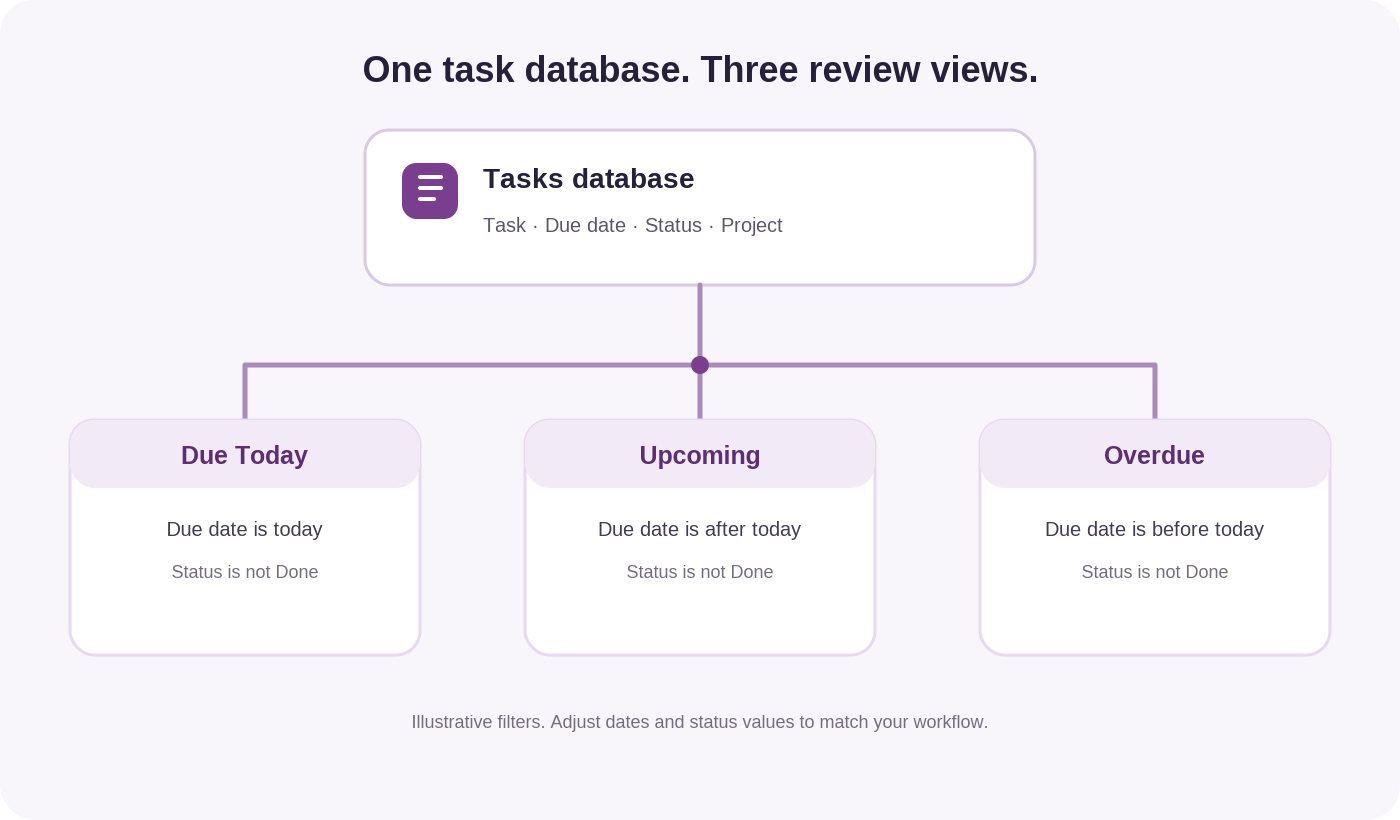
Create three views that answer three different questions: what is due today, what is coming later, and what is already late? Keep them connected to the same task database so that changing a task once updates the places where it appears.
| View | Question | Starting filter |
|---|---|---|
| Due Today | What needs attention today? | Due date is today; status is not Done |
| Upcoming | What should I prepare for next? | Due date is after today; status is not Done |
| Overdue | What has passed its due date? | Due date is before today; status is not Done |
Treat these as starting filters. If your workday treats a task due today as overdue after a particular hour, adjust the date and time behavior. If some tasks have no due date, add a view for them so they stay visible during review.
Notion database views can have their own filters and sorts. That lets the same records appear in separate views without copying the tasks into three lists. A view can also be a table, board, calendar, or another supported layout. Notion's guide to views, filters, and sorts covers these controls.
Choose a sort order that matches how you review work. Due Today can sort by priority and then due date. Upcoming can sort by the nearest date. In Overdue, put the oldest deadline or the highest-priority task first, depending on what you handle first.
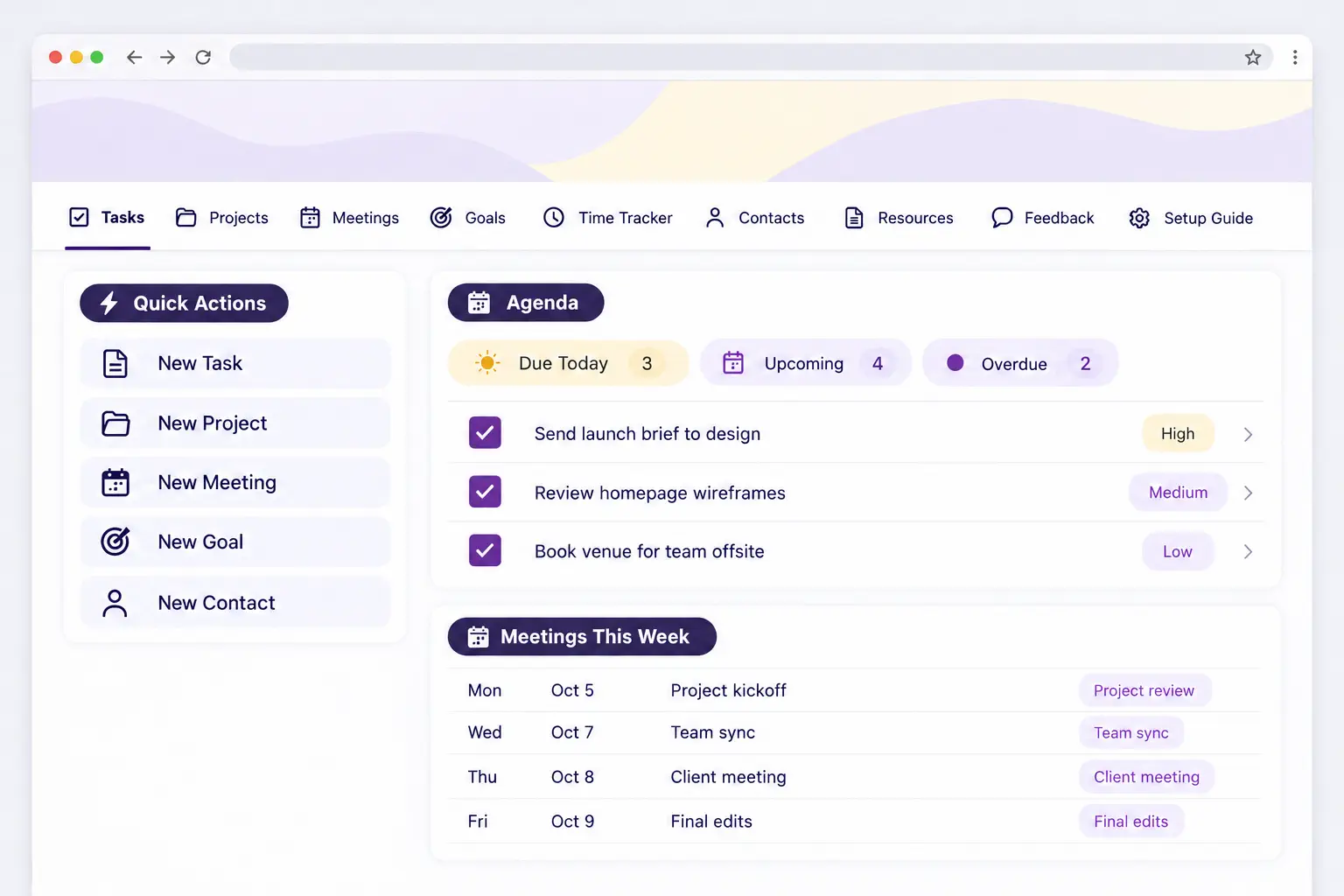
Use the views for a few work sessions before adding more. If two show nearly the same tasks in the same order, remove one or give it a clearer purpose. Add a project view if you keep searching for tasks by project.
You can check whether the three views are working with a short weekly review:
- Open Due Today and confirm that unfinished tasks with today's date appear.
- Open Upcoming and check that tasks with later dates are sorted in the order you expect.
- Open Overdue and confirm that completed tasks are excluded.
- Change a sample task's status or date, then make sure it moves to the expected view.
If an item is missing, inspect that view's filters before creating another database. A filter group can combine conditions, and a status rule can exclude an item even when its date matches. If all three views agree with your intended process, keep the setup stable for a while before adding more. A ready-made task dashboard is another way to start from this kind of date-based review structure.
What Can You Leave Out?
Leave out properties and views that do not change an action. Every extra field asks you to make another choice when you create or update a task. Every extra view adds another place to check. Keep the system small enough to maintain during a busy week.
Skip duplicate task lists. A second database for “work tasks” and “personal tasks” can make sense when the work needs different access or fields. If the tasks follow the same process, one database with a category or area field may be easier to keep current. Avoid splitting lists just to create a different page layout.
Skip unused metadata. A context, energy, estimate, labels, and assigned-to field may all be useful in some systems. These fields only earn a place when they change what you do. Ask what action you will take when a value is filled in. If you cannot name one, leave that field out.
Skip views that repeat the same review. A board, calendar, and table can all be legitimate ways to look at tasks, but each should make a different activity easier. A calendar helps when date placement matters. A board helps when work moves through stages. A table is often easier for scanning and editing several fields. Pick the layout for the question in front of you.
Skip status detail you cannot keep current. If a task can be described accurately with three states, adding several more may create busywork. A status should help someone understand progress or take a handoff. It should not be a ritual update with no effect on the work.
One simple test is to hide a field or view for a week. If you miss information that affects a decision, restore it. If nothing changes, keep it out. This is a practical way to reduce clutter without debating every possible feature in advance.
Should You Build a Task Manager or Start With a Template?
Build a task manager yourself when the structure is part of the work you want to do. Start with a template when setting up databases and views is the part most likely to stop you from using the system.
| Your situation | A reasonable starting point |
|---|---|
| You know exactly which fields your process needs | Build the smallest version around those fields |
| You want to learn how Notion databases work | Make one database and experiment with a few views |
| You want a prepared dashboard to adapt | Start with a template, then remove unneeded parts |
| Your current list works and only one question is missing | Add one field or view instead of replacing the setup |
Both options need maintenance. A custom build needs clear names, dates, and status updates. Review a template too: some areas may not fit your workflow, and unused sections can make the dashboard harder to scan. Choose the work you are willing to do, then keep a setup that brings you back to the task list.
If you build, test the database with real tasks before adding extra pages. Create a few records, set their dates and status, then check that each view includes and excludes the right items. If a template is your starting point, do the same check after adapting it. Do not assume a filter is correct because its label sounds right.
When a Ready-Made Notion Task Manager Fits
A ready-made Notion Task Manager can suit someone who wants a prepared starting point for tasks and related work areas. The Cosmo Suite template includes a Home dashboard with Today, This Week, and This Month views, plus five linked pages: Master Task List, Kanban Board, Eisenhower Matrix, Deadlines, and Time Tracker. It works on Notion's free plan and provides instant access after purchase.
Review the Notion Task Manager product details to decide whether that set of areas matches what you want to maintain.
Those contents describe the template, not a promise about how much work it will organize or how often you will use it. You still decide which areas belong in your setup and keep task details current. If you only want a short list with a few dates, a smaller database you make yourself may be enough. If you want a broader prepared workspace, review the included areas and decide what you will actually open.
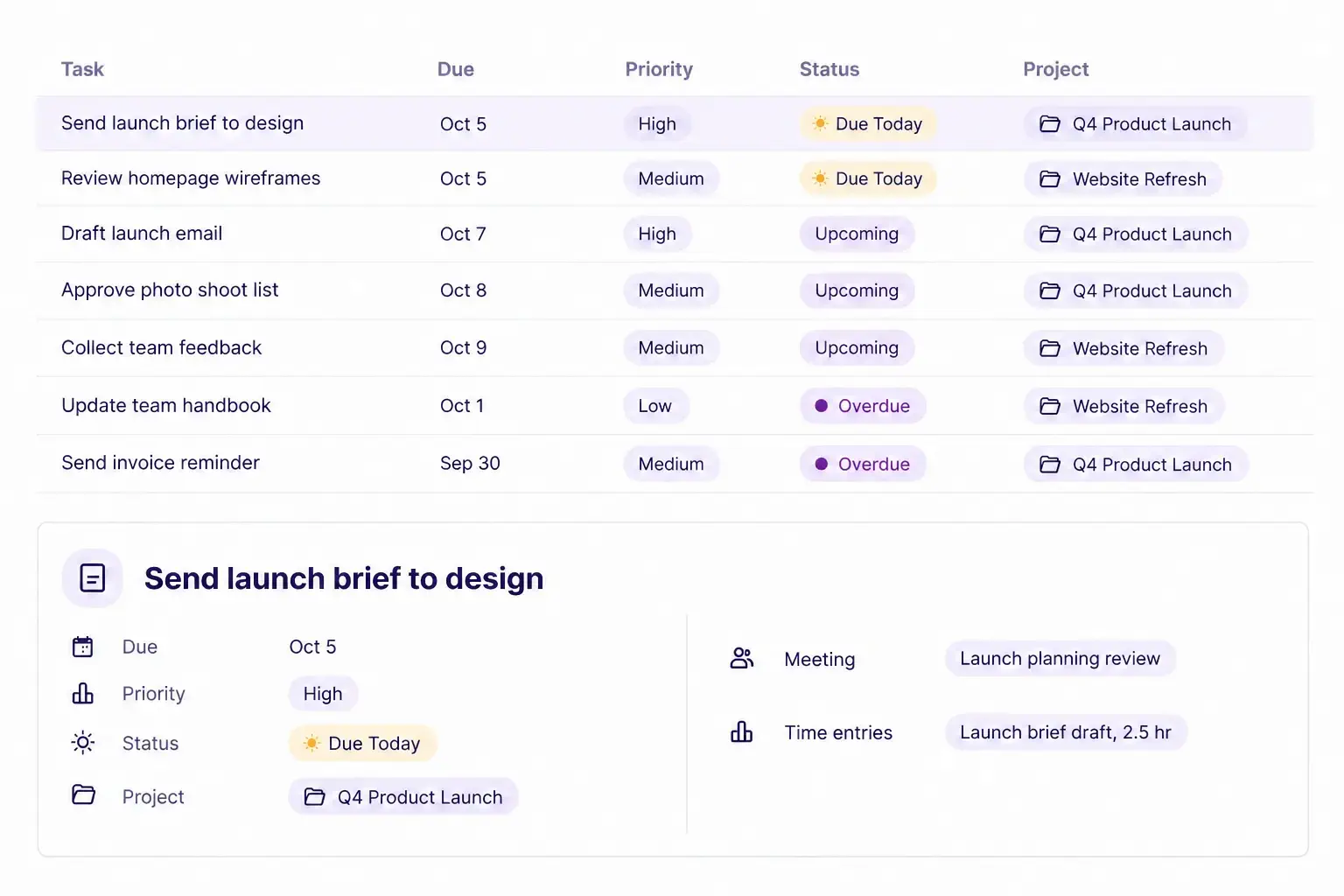
Before choosing any template, check whether the core task fields and views match the way you plan work. Look for a clear due-date workflow, a way to mark completed work, and a view that helps you find the next task. Then consider the supporting areas. A template is a starting structure; it should be easy to understand which parts are central and which you can ignore.
Why Trust This Guide?
We checked Notion's help pages for database-property and view behavior, and checked the product description against its published contents. The field and view recommendations are practical starting points, not requirements from Notion. Interface details can change, so check the current help pages if a setting looks different in your workspace.
The product includes a Home dashboard with Today, This Week, and This Month views, five linked pages (Master Task List, Kanban Board, Eisenhower Matrix, Deadlines, and Time Tracker), free-plan compatibility, and instant access. Check the product page for current availability and terms before buying. For context about the publisher, read About us. To ask a question, use the site's Contact page. The editorial policy explains how we review content. Product images in this article are generated visualizations based on public product materials, not live captures of a Notion workspace.
Frequently asked questions
What should a Notion task manager include?
Start with a task title, status, and due date. Add priority or a project relation only if you use it to decide what to do next or where the task belongs.
How many views do I need for Notion tasks?
Begin with a focused list for tasks due today, an upcoming list, and an overdue list. You can make each a view of the same task database with its own filters.
Can I use a Notion task manager on the free plan?
The Notion Task Manager template described here works on Notion's free plan. Check Notion's current plan details if you are evaluating a different workspace feature.
Should I build a task manager in Notion or use a template?
Build one if designing and maintaining the structure is part of what you want to do. Choose a template if you want a prepared starting point and would rather spend your setup time adapting it.
Do I need a project field on every task?
Use a project relation when you group tasks by project and need to move between project and task records. Skip it for a short personal list where the project name adds no useful context.
What should I do if due tasks are hidden?
Check the view's date and status filters, then confirm that the task has a due date and is not excluded by another condition. Notion lets each database view have its own filters and sorts.
Can I add more views later?
Yes. Start with the views that answer an immediate question. Add a board, calendar, or project view only when it helps you make a decision the existing views do not support.
Sources
Keep reading

Task Management
Notion Team Task Manager: One Shared Task List for a Small Team
Notion team task manager setup for a small team: one shared database, an Assignee property, personal views and the Free plan limits to check first.
· 9 min read
Task Management
Free Notion Task Template: What You Actually Get
Notion task template free: what a free template includes, which Free plan limits break one, and a ten-minute test to run before you duplicate.
· 11 min read
Task Management
A Low Maintenance Notion Task Manager: The Weekly Cost Test
Notion low maintenance task manager: count the touches your setup demands each week, cut the fields you never read, and pass a bad-week drill.
· 11 min read
