A Low Maintenance Notion Task Manager: The Weekly Cost Test
Notion low maintenance task manager: count the touches your setup demands each week, cut the fields you never read, and pass a bad-week drill.
By Notion Task Manager by Cosmo Suite · Editorial policy
Published · 11 min read
Most Notion task systems are cheap to build and expensive to keep. The database takes an afternoon. Then the upkeep takes a slice of every week after it: re-dating tasks, tidying views, moving pages that landed in the wrong place.
The usual answer is another template with more structure, which adds a second thing to maintain. A Notion low maintenance task manager has to answer a better question: how much does your setup ask of you in a normal week, and does it still work after a bad one?
Maintenance is the recurring work a task system demands after it is built: filing, re-dating, sorting and reviewing. A low maintenance task manager is one whose maintenance cost stays small relative to the work it tracks. It is a countable property of the design, not a character trait. This guide shows how to measure it, which parts to cut, and how to test the result against a week where you ignore the system entirely.
Key Takeaways
- Low maintenance means few touches per finished task, not few features.
- A property you fill but never read is upkeep with no return.
- Three touches must stay: capture, decide, reset.
- The real test is reopening the page after a skipped week.
If you would rather start from a workspace that already has the views and links set, you can see what the Notion Task Manager template includes before you read the audit below.
What Makes a Notion Task Manager Low Maintenance?
A low maintenance Notion task manager asks for few actions per task and still shows the right next step after you ignore it. Those are two separate measurements, and a setup can pass one while failing the other.
A touch is any action that exists only to keep the system working: filing a task into a project, setting a second date, dragging a card, updating a rollup, clearing a review queue. Capturing a task and finishing it are not touches. Everything in between is.
The first measurement is how many touches your setup demands. The second is recovery. Close the page for seven days, then open it cold. If the first screen shows what is due today and what is late, the system recovered on its own. If you have to sort, filter or re-file before you can start, the recovery cost is built into the design.
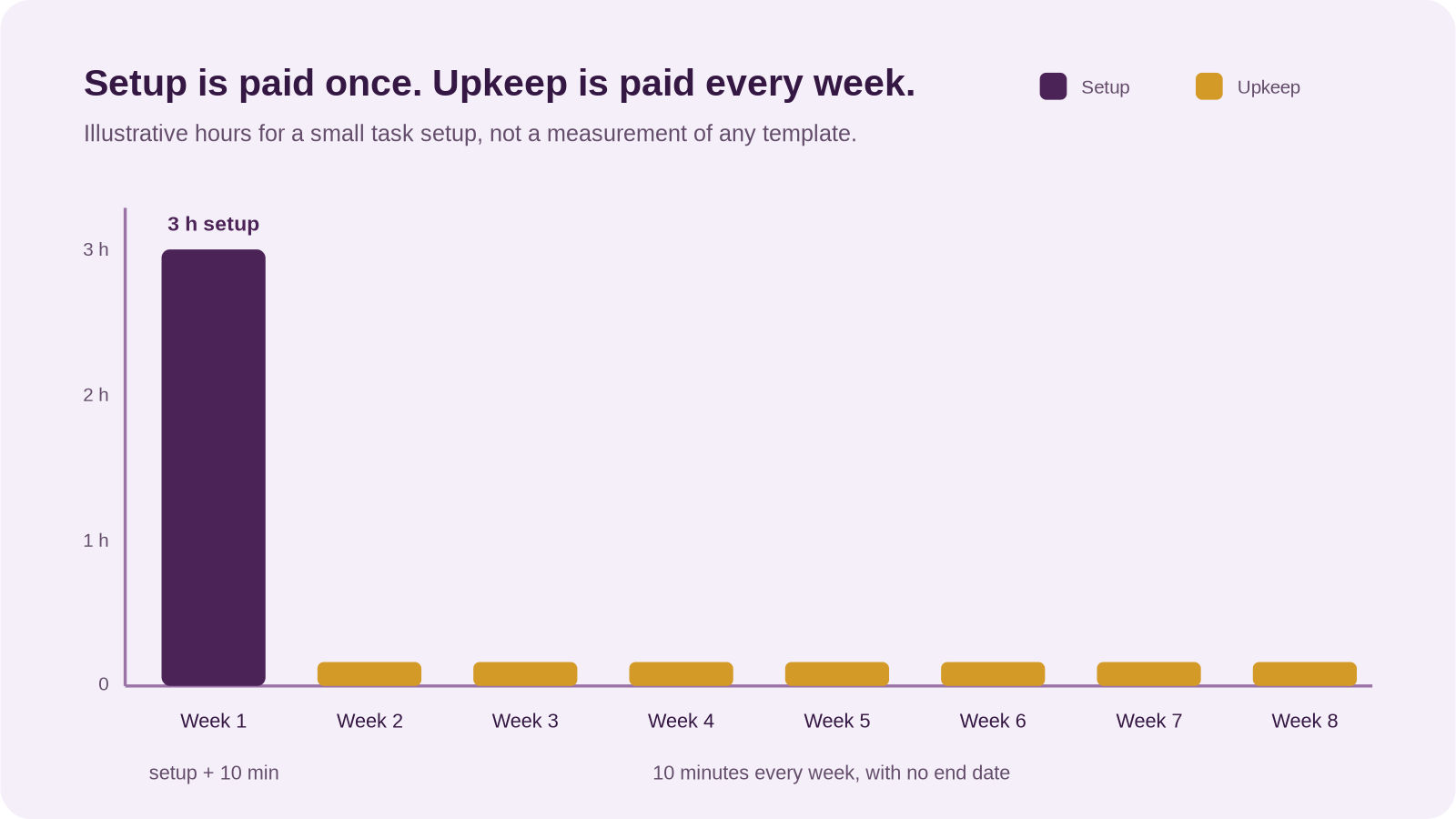
The illustration is a diagram of the two costs, not a screenshot.
Setup Cost Is Paid Once, Upkeep Cost Is Paid Weekly
Setup feels like the expensive part because it happens in one block, in front of you. It is a one-time cost. Upkeep is smaller per instance and repeats forever, which is why it wins over a year.
Take an illustrative setup that needs about three hours to build. Add ten minutes of filing and review each week. Over a year that is about eight and a half hours of upkeep against three hours of setup, and the upkeep never stops. The numbers here are a demonstration of the arithmetic, not a measurement of any particular template.
This is the same failure that makes Notion templates get abandoned, seen from the cost side. The weekly tax wears people down more than the build does.
The Maintenance Decision Table
Use this table to find the maintenance items in your own setup. Each row names a common upkeep task, roughly how often it lands, and the condition under which you can cut it.
| Upkeep task | How often | What it costs | Cut it when |
|---|---|---|---|
| Filing a new task into a project | Every capture | Two extra clicks and a decision | The project is obvious from the task name |
| Setting a second date property | Every task with a deadline | One more field to fill and to read | You never filter or sort by the second date |
| Dragging cards between statuses | Several times a day | A board that must be watched | You can set the status when you finish instead |
| Weekly review of every open task | Once a week | Ten to forty minutes | You review only what has no date or no owner |
| Rebuilding views after a change | Whenever the work shifts | The most expensive item on the list | The views are fixed and filters do the adapting |
| Clearing an inbox or staging page | Daily or it grows | A second list beside your real one | Capture lands directly in the task database |
The takeaway is narrow. Three things have to stay: a place to capture a task, a way to see what to do today, and a short reset. Every other row is a candidate for removal if it fails its test.
How Many Properties Should a Task Really Have?
Four is usually enough: a name, a status, a date, and one field that tells you where the task belongs. Everything past that has to justify itself against a decision you actually make.
Notion documents the property types available, including Status, Date, Select, Relation, Formula and Rollup, on its database properties page. The page describes Status as progress tracking grouped into to-do, in progress and complete, and Select as one tag chosen from a list. Both exist, and most task setups only need one of them.
The Property That Earns Its Place
A property earns its place if it changes a decision or helps you find work. It fails if you fill it at capture and never look at it again. Maintenance debt is a field or view you keep current but never use to decide anything. It costs a decision every time you add a task and returns nothing at review.
Run the removal test on your own database. Take the last twenty tasks you added. For each property, count how many times you actually read it to decide something: what to work on, what is late, what belongs to which project. A property read on two or three of the twenty is decoration.
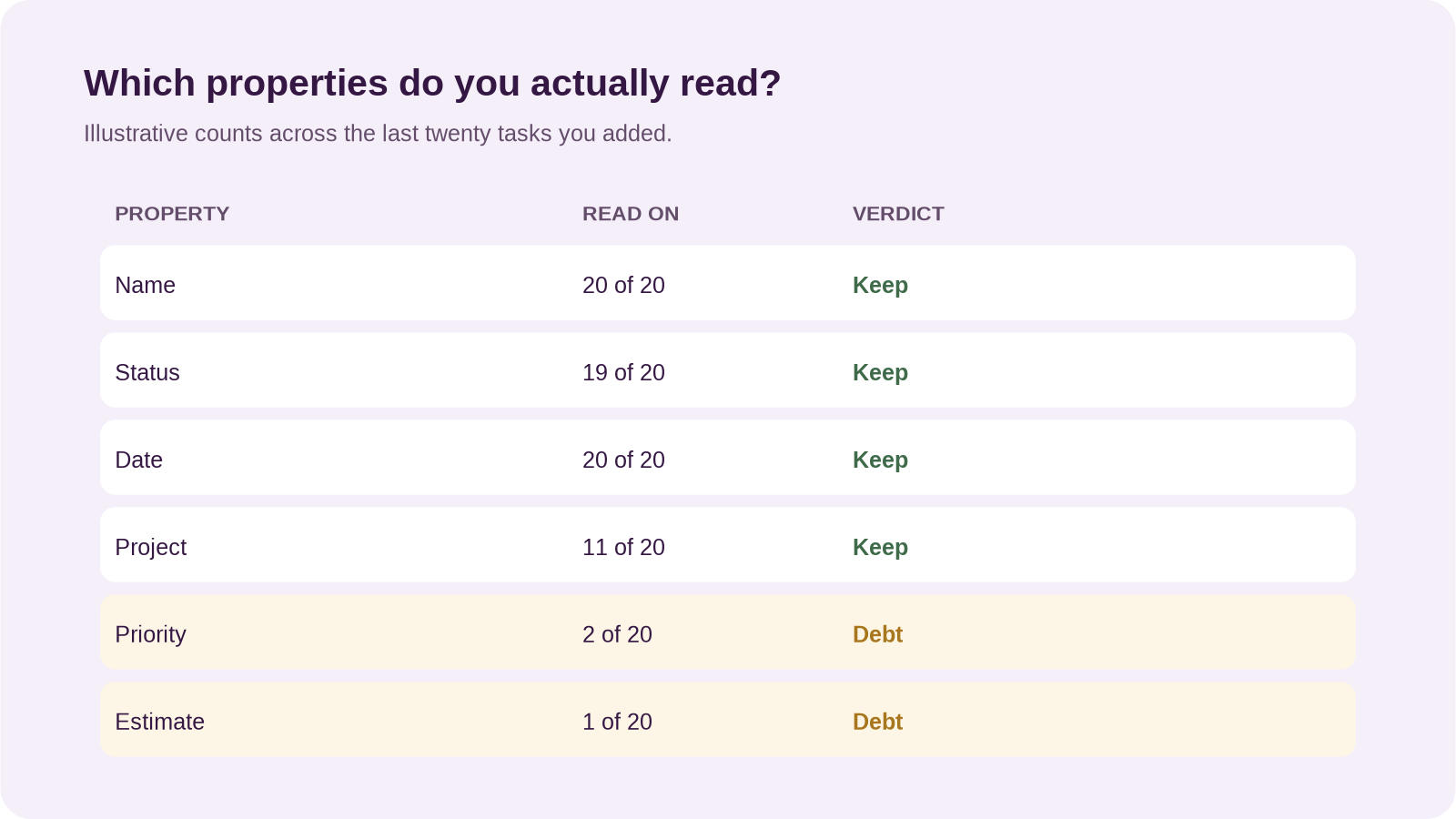
The audit illustration uses invented task names for demonstration.
| Property | Why it survives | When it becomes upkeep |
|---|---|---|
| Name | Every view needs it | Never |
| Status | Tells you what is finished | When there are more than five options |
| Date | Drives today, upcoming and overdue views | When you keep two date fields and read one |
| Project or area | Tells you where the work belongs | When the relation has to be set by hand for every task |
| Priority | Sorts the list when dates are equal | When every task is marked high |
| Estimate | Shows whether a day is already full | When you never compare it with your available hours |
If the table is short after the audit, that is the result you want. The minimum setup for a Notion task database covers what the first four look like in practice.
How Do You Cut the Weekly Upkeep Without Losing the System?
Most setups can drop half their touches and keep every capability that matters. Cut actions first, then look at what is left over.
One capture point. A new task goes into the task database, not into a note, a chat message and a staging page. If a task can arrive in three places, you will check three places and file from two of them.
One status line. Notion's Status property groups options into to-do, in progress and complete. Three or four options cover most personal work. Every extra option is a decision at capture and a column on a board.
One date that means one thing. Use the date for when the work is due, and nothing else. When a task needs both a work window and a deadline, that is a project-level concern, not a reason for every task to carry two dates.
One review, once a week. Ten minutes, filtered to tasks with no date and tasks marked in progress for more than a week. You are looking for the ones the views cannot place, not reviewing every task.
One reset. A short weekly action that returns the system to a known state: clear the staging page, fix the tasks with no date, check that the project list still matches reality. Without it, small gaps accumulate until the page is unusable.
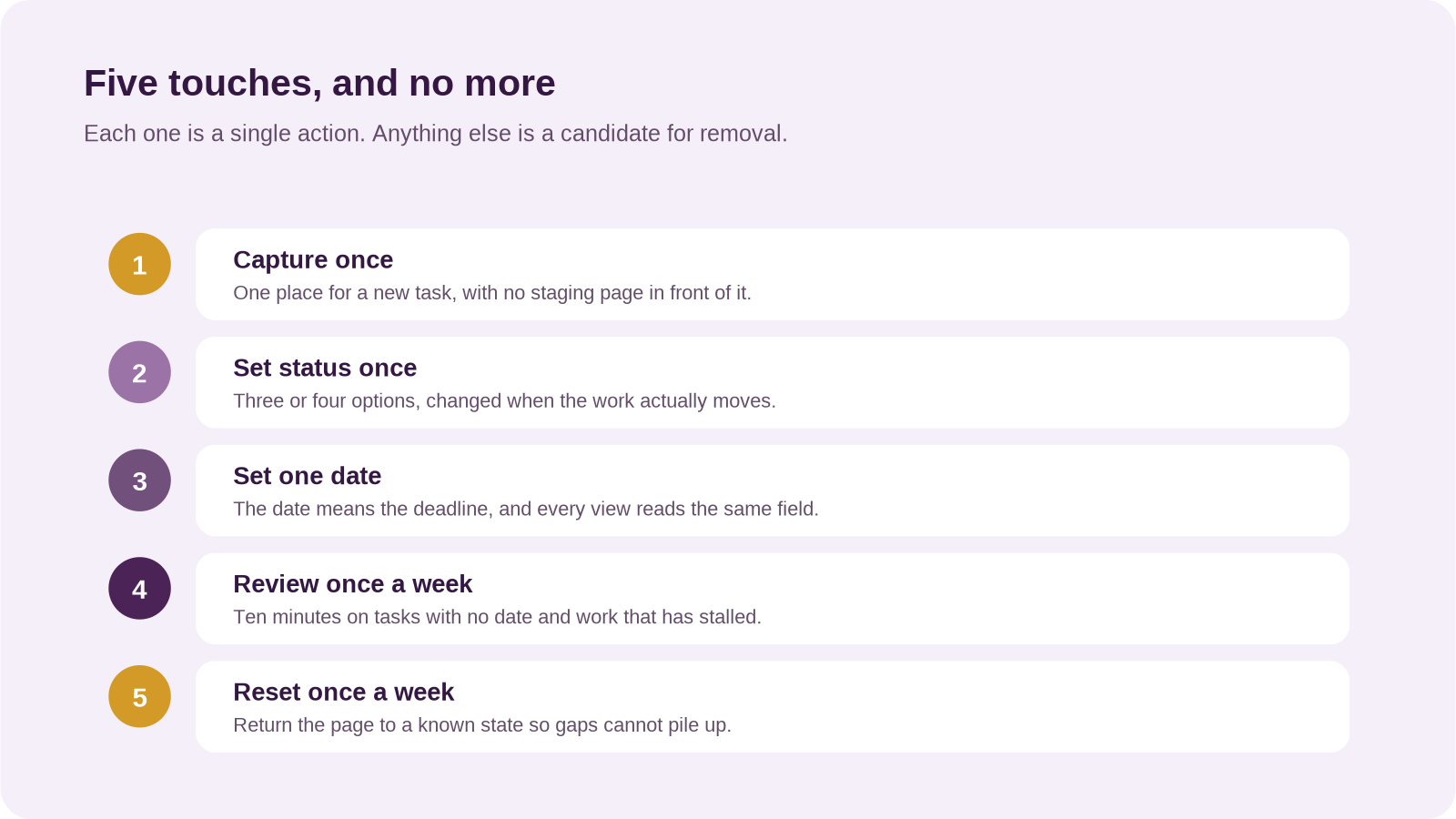
The five touches diagram is an illustration of the routine, not a screenshot.
Views are where most of the hidden cost sits. Notion's views, filters and sorts guide notes that each view has its own settings and that settings on one view do not carry to the others. That is useful, and it is also the trap: five views mean five sets of filters to keep in step. Fewer views, with filters that do the adapting, cost less to own.
What Happens to a Notion Task Manager After a Bad Week?
Nothing, if reopening it still shows what to do today. That is the whole pass condition, and it is worth testing on purpose rather than discovering it during a real crisis.
The Bad-Week Drill
The bad-week drill is a one-week test of whether the system recovers without you. It takes eight days and no setup. Skip your weekly review once. Do not re-file, re-date or tidy anything for the rest of the week. On day eight, open the page as if it were a normal Monday and start work.
- Pass: the first screen shows today's tasks and the late ones, and you can start on the first item without editing anything.
- Partial: the right tasks are there but the order is wrong, and a sort or filter fixes it in under a minute.
- Fail: the page shows a list you have to clean before you can use it, or it shows nothing useful at all.
A fail tells you something about the design, not about you. It usually points at one of four causes, and each has a small fix.
| Symptom after a skipped week | What it means | Smallest fix |
|---|---|---|
| Everything looks overdue | The date field is doing too much work | Add a separate view for late items, keep today clean |
| No idea what to start | The first screen is a full database, not a decision | Pin one view that shows today first |
| Tasks in the wrong project | Filing was manual and stopped | Capture with the project preset, or drop the field |
| The page will not load quickly | Too many views and linked databases on one page | Split the page, or reduce what loads at once |
The drill costs one skipped review and tells you more about your setup than a month of normal use.
What Actually Moves Maintenance Cost Down?
Four changes do most of the work, and three of them are subtractions.
Fewer views, not more. A view is cheap to create and expensive to keep consistent. Two or three views that answer different questions beat eight that overlap. Notion's filter groups can nest up to three layers, which covers most task questions without a new view.
No automations you cannot see. Notion's database automations run actions after a trigger, such as a new page or a property edit. They are available on paid plans, and the help page notes that free-plan users can create only Slack notification automations. An automation you did not build is a behaviour you will not remember, and an error can pause it until you reactivate it by hand. If you use one, keep it to a single visible rule.
One dashboard, opened first. The most reliable maintenance reduction is having exactly one page you open every day. Every additional entry point is another place where tasks can hide and another page that has to stay correct.
A reset that fits in one sitting. A reset you can complete in ten minutes gets done. A reset that requires a project review, a goal review and a backlog sort does not. Cut the reset until it fits, then protect it.
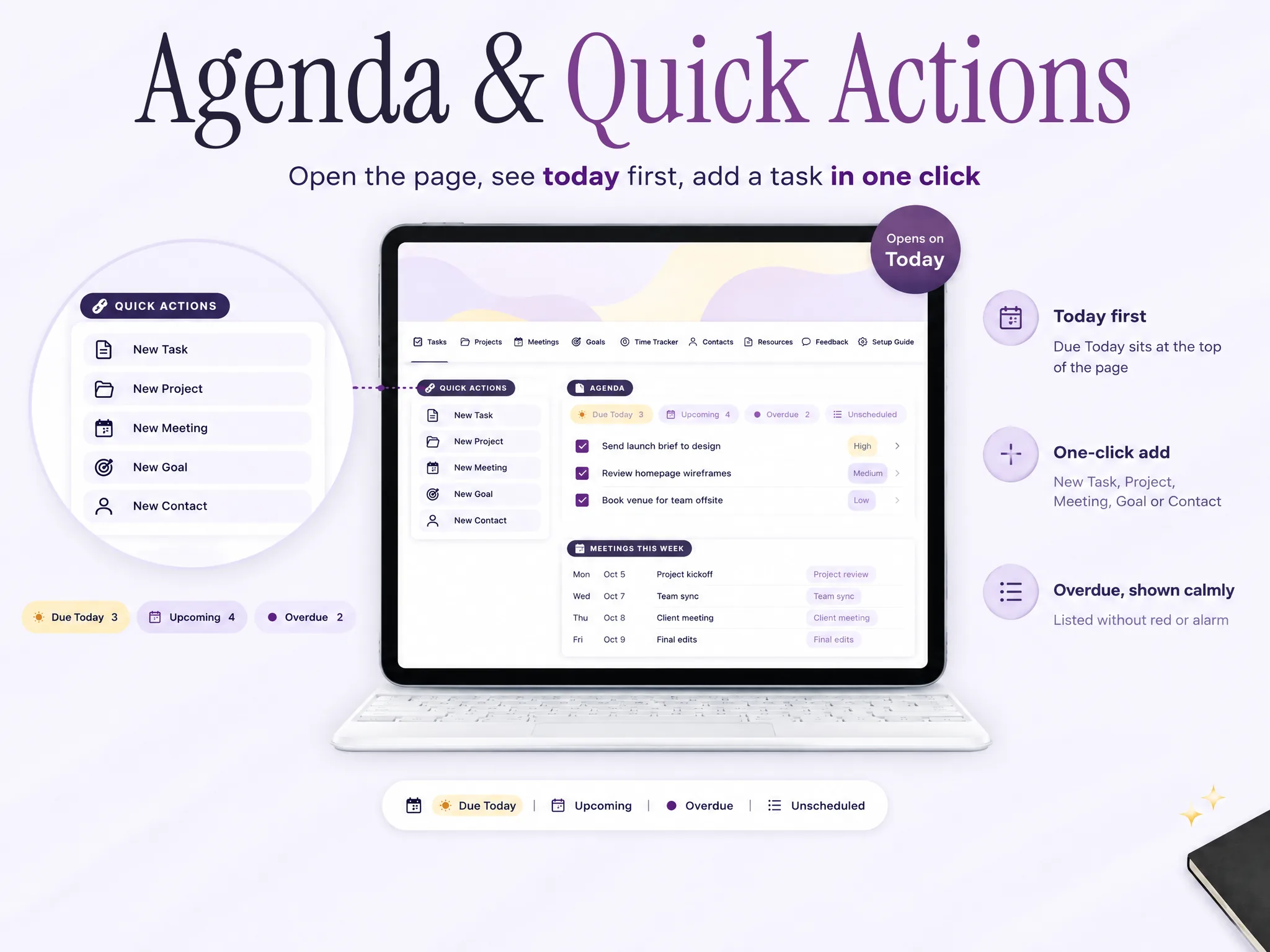
A prepared workspace can remove the design decisions entirely. Notion Task Manager ships a Home dashboard whose Agenda opens on Due Today, with Upcoming and Overdue beside it, so the daily entry point is already the one page the levers above ask for. If you want the daily view explained on its own, the guide to a Notion today view walks through the filter logic behind it.
Why Trust This Article
This guide was written by the Cosmo Suite team, which builds Notion templates, including the Notion Task Manager referenced here. The Notion behaviour described comes from Notion's own help pages for database properties, views and filters, database automations and starting with a template, all checked on 2026-11-20 and listed in the sources above.
All worked examples and task names are illustrative, and the images are diagrams rather than screenshots. This article does not cover team permissions, database performance at scale, or mobile behaviour, and Notion can change its interface, so verify a label in your own workspace before you rely on it. Read About us for the publisher, use the contact page to report a correction, and see the editorial policy for how articles are prepared and checked.
Where Notion Task Manager Fits
The maintenance problem in this guide is design, not discipline. A setup with too many properties, too many views and no fixed entry point will cost you every week no matter how good your intentions are.
Notion Task Manager is one Notion template with a Home dashboard and 9 linked areas: Tasks, Projects, Meetings, Goals, Time tracker, Contacts, Resources, Feedback and a setup guide page. Home opens on the Agenda, where Due Today comes first, Upcoming shows what is next, Overdue has its own list apart from today, and tasks with no date wait in Unscheduled. Quick Actions add a New Task, Project, Meeting, Goal or Contact in one click, already in the right place. Sample tasks, a sample project and a sample meeting are filled in as an example.
What it does not do matters for the cost test above. There are no automations, reminders or notifications beyond what Notion itself provides, and there is no built-in calendar sync. Meetings and due dates live in the template's own calendar views. It is built for one person's work, so there are no team or client features.
The outcome it aims at is the pass condition from the drill: open one page, see today first, add a task in one click, and find the late items in their own list. You can review the full contents of the Notion Task Manager template and compare it with the property count in your own setup before you decide.
Frequently asked questions
What makes a Notion task manager low maintenance?
Two things: few touches per finished task, and a page that still tells you what to do after a skipped week. Count the actions your setup demands in a normal week, then check whether reopening it cold shows today's work. If the count is high or the page is unclear, the upkeep is the problem.
How many properties should a task in Notion have?
Four is usually enough: a name, a status, a date, and one field that tells you where the task belongs. Add a fifth only if you have read it in the last twenty tasks. A property you fill but never read costs time at capture and again at review, and returns nothing.
How often should I review a Notion task system?
Once a week for about ten minutes, plus a short look at the start of each day. A weekly review catches tasks that lost their date and projects that stalled. A daily look is enough to pick the next task. Anything more frequent usually means the views are not doing their job.
What breaks in a Notion task manager if I skip a week?
Dates go stale and overdue tasks pile into one list. That is normal. The real test is whether reopening the page shows what to do next without cleanup first. If it does, the system survived. If you have to sort and re-file before you can start, the upkeep is too high.
Is a Notion template lower maintenance than building my own?
A template is cheaper at setup, not automatically cheaper to run. It stays low maintenance if it ships few properties, a fixed set of views and one page you open. A large template with many linked databases can cost more upkeep than a small build of your own.
What is the fastest way to start a low maintenance Notion task manager?
Duplicate one prepared workspace, open its Home page, and add a task with one click. Then use it for a normal week before you change anything. Notion's help page says you can tweak an added template to fit your needs, so the first week is for finding friction, not for customizing.
Sources
Keep reading
Task Management
Notion Task Manager: What to Keep and What to Skip
notion task manager: Learn which task fields and views earn their place, what you can skip, and when a ready-made Notion setup makes sense.
· 8 min read
Task Management
Why Notion Templates Get Abandoned (and How to Fix Yours)
why notion templates get abandoned: find friction in setup, task capture, and upkeep, then reset your Notion task page without rebuilding it.
· 7 min read
Task Management
Notion Task Database Setup: The Minimum Fields to Start
notion task database setup: pick fields that guide your next action, start with a usable task list, and add views when you need another way to review it.
· 10 min read
