Notion Task Database Setup: The Minimum Fields to Start
notion task database setup: pick fields that guide your next action, start with a usable task list, and add views when you need another way to review it.
By Notion Task Manager by Cosmo Suite · Editorial policy
Published · 10 min read
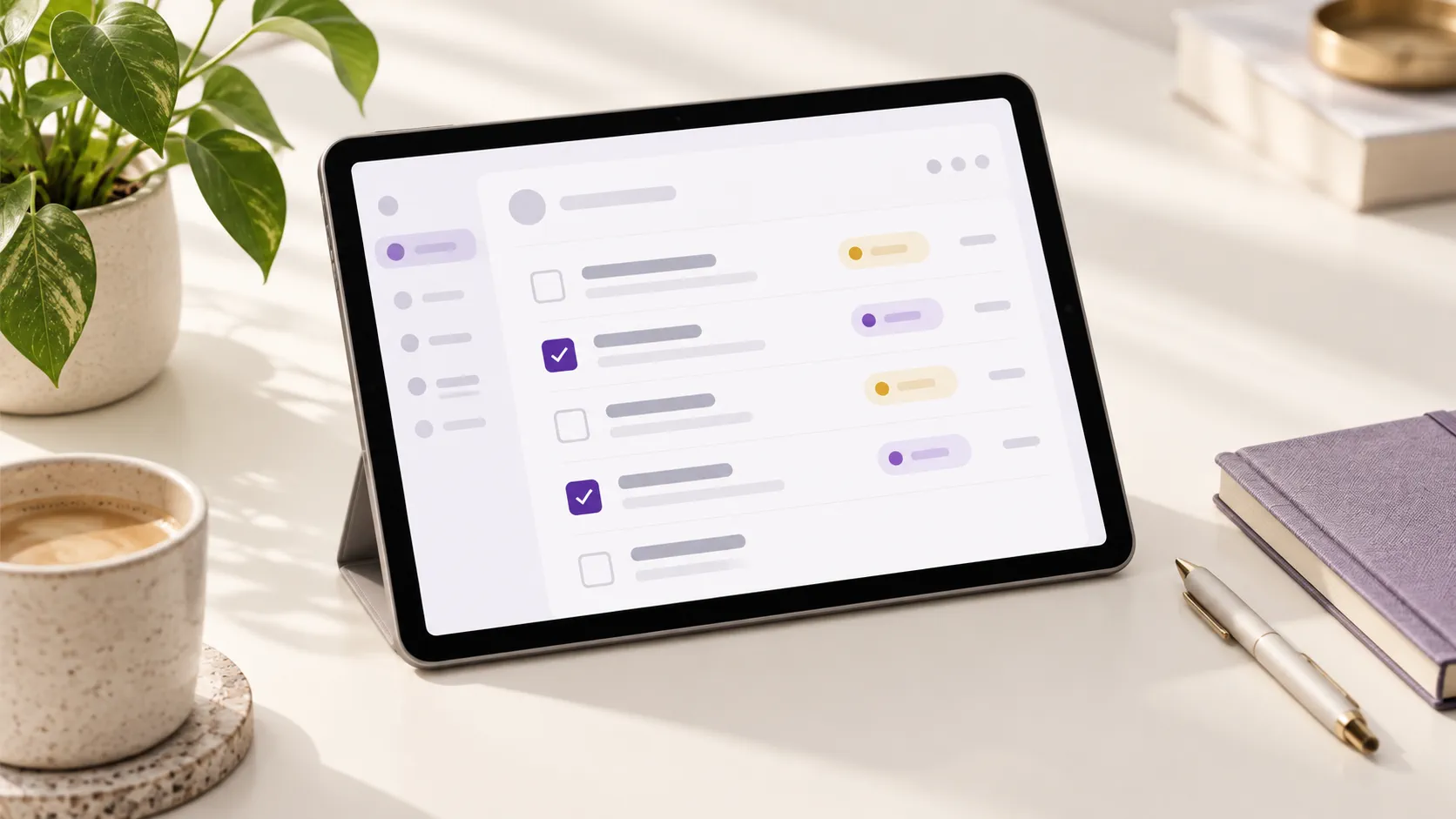
You can start a Notion task database with one required field: a name that tells you what the task is. Add a status or date when it changes what you do next. A list that is quick to update is easier to keep useful than a database full of fields you rarely touch.
Personal lists and shared task systems need different fields. A Notion task database is a list where each task is a page with properties such as status or date. Notion's dedicated Task Database type has additional requirements, including an assignee field. For the broader question of what belongs in a task system, see the Notion task manager field guide.
If you would rather adapt a prepared workspace, review the Notion Task Manager dashboard and its included areas.
Key Takeaways
- Begin with a clear task name, then add status or a date when they guide your next action.
- Notion's dedicated Task Database type requires Status, Assignee, and Due date properties.
- Use a regular database for simpler personal lists, and add views only for distinct review questions.
What Is the Minimum Setup for a Notion Task Database?
Start with a task name. Add Status if work moves through clear stages, and Due date when timing affects what you do. Those fields answer three practical questions: what is the action, where does it stand, and when does it matter?
| Property | Starting choice | Add it when |
|---|---|---|
| Name | A clear action, such as “Send revised estimate” | Always; this identifies the task page |
| Status | Not started, In progress, Done | You need to distinguish open work from completed work |
| Due date | A Date property | A real deadline or planned date affects your next step |
| Assignee | A Person property | Someone else needs to own or receive the task |
| Priority | A Select property | You use it to choose between tasks with competing demands |
| Project | A Relation property | You review tasks through larger project records |
For a personal list, Name may be enough at first. Add Status when you want to separate unfinished from finished tasks. Add Due date when a task has a meaningful date. A date entered only to fill a column makes it harder to see which work is actually time-sensitive.
A database property is a value attached to a task page, such as its status or date. A task name is the title property; other properties add information you can filter, sort, or display.
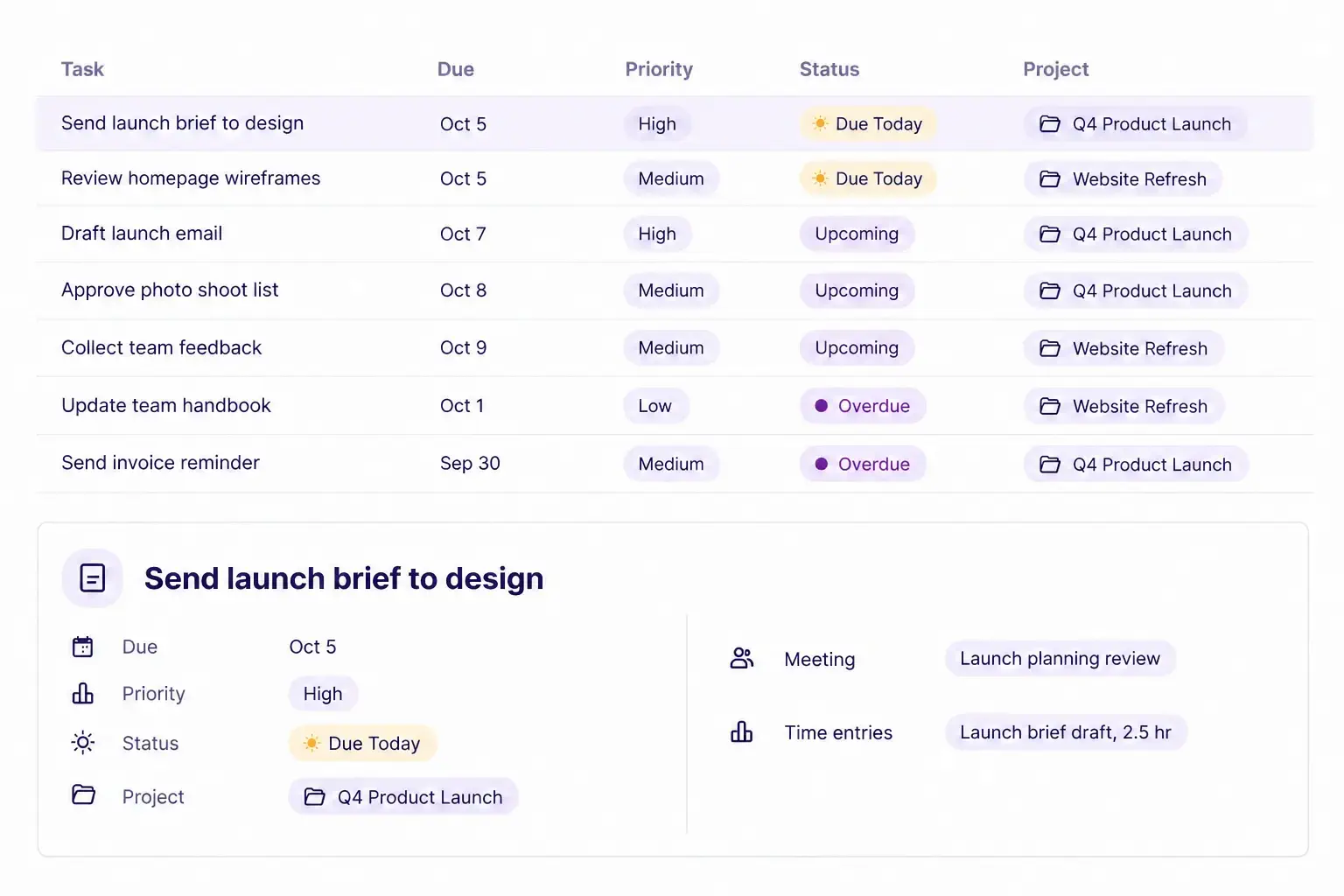
Notion's dedicated Task Database type has a different requirement. Its task database uses Status, Assignee, and Due date properties. That structure can help teams connect work to owners and projects, but it is more than every personal list needs. Notion documents those required properties in its Task databases and sprints guide. You can also keep a regular database and choose the properties that fit your own process.
Use a regular database for errands or another personal list. Choose Notion's dedicated type when you want its task-specific setup and are ready to include the required status, assignee, and due-date fields.
How Do You Create a Task Database in Notion?
Create a page, choose a table database, enter a few real tasks, and then add the properties you need. Starting with real examples makes it easier to see which fields help and which ones create extra work.
- Create a page for the list. In a new page, choose Table under “Get started with.” You can also insert a database in an existing page using Notion's database command. Notion's database setup guide shows both routes and the initial table.
- Name the first column clearly. This is the title property for each task page. Use an action and its object, such as “Confirm venue access” or “Review draft budget.” “Follow up” may make sense today, but a few days later you may not remember what to follow up on.
- Add Status if work changes state. Open a property menu, change its type to Status, and choose labels that match how work moves. A personal workflow may need Not started, In progress, and Done. Add a waiting state when tasks often pause for a response.
- Add a Date property for meaningful timing. Use it for a due date, scheduled day, or another date you plan to review. If the timing changes the order of your work, the date may belong in the database. If it is only a guess, leave it blank until you know more.
- Enter a few current tasks. Try to include one open item, one completed item, and one dated item if those states occur in your work. Check whether the fields are easy to fill and whether their values help you decide what happens next.
- Add a view only when the table is hard to scan. Create a filtered view for due dates or a board for work that moves through statuses. Keep one source database so an update to a task carries through each view.
The names and examples here are illustrative. They are a way to test the setup, not a claim about a customer's workflow. If your task database will be shared, try a new task from the perspective of the person who must update it. A field that seems obvious to its creator may need a clearer label or a short note.
Which Properties Should You Add After the Basics?
Add a property when you can name the decision it supports. Status shows progress. Due date sets timing. An assignee routes responsibility. Priority orders work. A project relation links a task to a larger outcome.
Assignee. Add a Person property when another person needs to pick up or report on a task. A personal list often has one owner by default, so an assignee field can be redundant. For shared work, a visible owner can prevent a task from sitting between people. Notion's database property reference describes the Person property and its current controls.
Priority. A short priority scale can help when you regularly choose between several open tasks. Decide what each level means before adding it. If “high” means urgent to one person and important to another, the field can create a second conversation instead of helping the first one.
Project. Use a Relation when tasks belong to project records and you need to move between them. A text label is quicker for a small list, but it will not connect a task page to a matching project page. For a two-database setup, follow the project and task relation walkthrough. If your list has no project reviews, leave the relation out.
Task type or area. A category can separate work areas, such as Operations and Personal. Add it when you regularly filter or group by that category. If you use it only to color rows, a Select property may not earn the extra maintenance.
Effort or estimate. A number or duration estimate can help with planning when you use it to fit work into available time. Keep it out if estimates are routinely blank or you never compare them with the time you have.
To make the decision concrete, imagine that a person has a short task list for a home move. They might use Name, Status, and a Date for booked appointments or actual deadlines. A Project relation could help if the move is one of several active projects. Priority may be useful during a busy week. An owner field adds little to a list managed by one person. These are setup examples, not product data or a recommended property count.
How Should You Choose Task Statuses?
Use the fewest status options that describe a real next step. Each label should help you see whether to begin, continue, finish, or wait for something.
For an individual task list, “Not started,” “In progress,” and “Done” can cover the common states. If a task frequently waits on another person, add “Waiting.” If no one checks a status called “Review,” there is little value in keeping it. Notion's Status property is designed for tracking progress, and its available options can be adjusted to your workflow.
Write status names so another person can apply them in the same way. “Active” may mean started work, or it may mean every task that is not complete. If that difference matters to how you review the list, define the label in a short instruction above the database.
Avoid using status to encode two things at once. “High priority” describes importance, while “Waiting” describes progress. If the team needs both pieces of information, keep them in separate properties. That makes filtering and sorting easier to understand.
Test the options by moving a sample task through them. If two labels lead to the same action, combine them. If a task gets stuck because none of the options fits, add a state only when that situation repeats and someone needs to see it.
Which Views Make a Task Database Easier to Use?
Begin with the table view and add another view when it answers a different work question. A database view is a way to show the same task records with its own layout, filters, and sorts.
| View | Useful question | Possible setup |
|---|---|---|
| All tasks | What is in the database? | Table sorted by due date or status |
| Due soon | What needs attention next? | Date is within the period you review; status is not Done |
| Board | Which tasks are at each stage? | Board grouped by Status |
| Calendar | What is scheduled on each day? | Calendar using the Date property |
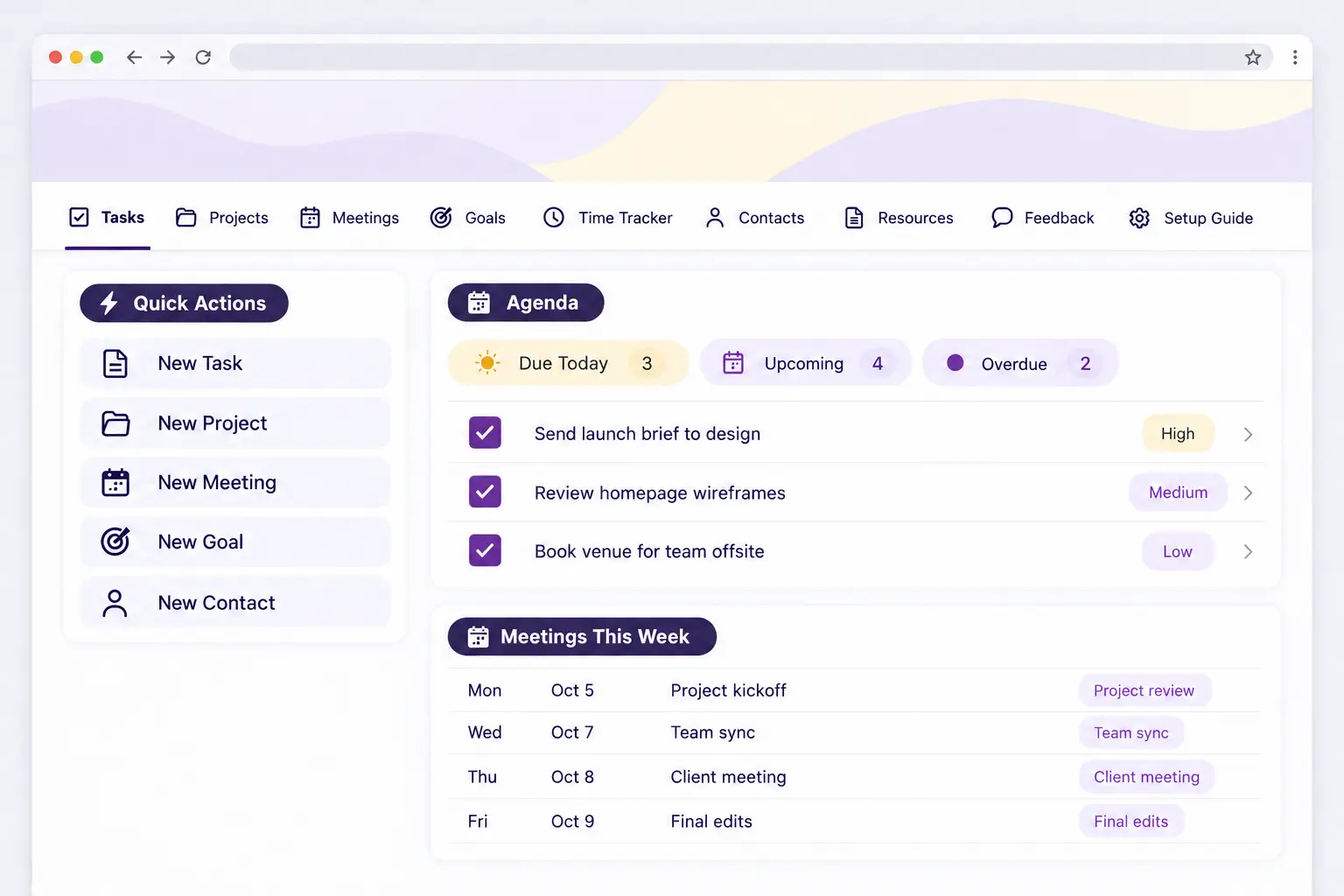
Use a Due Today or Upcoming view only if you check tasks by date. Use a board when moving cards between states is easier than editing a table. A calendar helps when dates have to be seen in relation to one another. Notion supports table, board, calendar, list, gallery, and timeline layouts, with the right choice depending on the task. Its views, filters, and sorts guide explains how a view can use separate display and filter settings.
If you build a due-date view, test what it does with a completed task and a task without a date. A filter for “Due date is today” may include completed items unless you add a Status rule. An item with no due date cannot appear in a date-based view. Decide where those tasks should live so they do not disappear from your normal review.
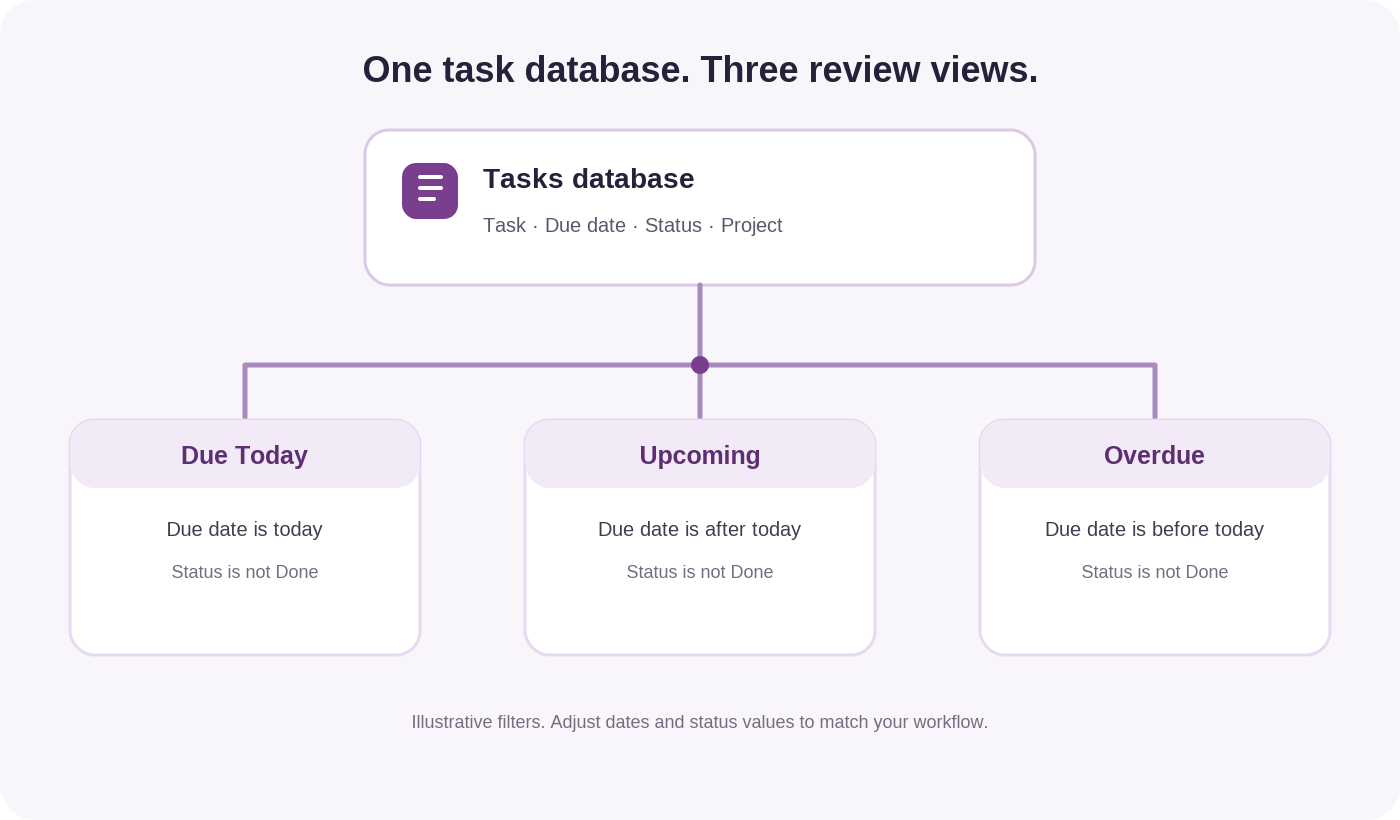
A small list may need only a table and one filtered view. Keep another view when it answers a separate question. Before creating date filters, see the Due Today, Upcoming, and Overdue view pattern.
What Actually Keeps a Task Database Useful?
Keep the task list easy to update and make each field answer a question you ask during work. A database can hold many properties, but its daily value comes from the few you fill in and check.
One useful test is to add a real task and ask what you would do differently if the Status, Due date, or Priority field changed. If the answer is “nothing,” that property does not help you decide what to do. If capture and review are the main obstacles, compare your setup with a prepared Notion task workspace before adding more fields.
You can begin without priority, tags, estimates, dependencies, recurring-task rules, and project relations. Some of these become useful once a workflow needs them. A database does not need to include every feature Notion supports before it can help you track work.
Avoid a separate database for each kind of task when the work follows the same process. If you only need a different way to see records, a filtered view may be enough. Separate databases make sense when the records have different permissions or substantially different properties.
Skip a checkbox called “Done” if you already use a Status property to record completion. Two fields that carry the same meaning can disagree. The same applies to a text project label and a Relation to Projects. Choose one representation based on how you need to search and connect the work.
Review the fields after you have used the database for real tasks. Hide one property for a few days. If you miss the information when deciding what to do, restore it. If nobody notices, remove it. This keeps the structure close to the decisions you actually make.
Why Trust This Guide?
We checked Notion's current database, property, task database, and view documentation on 1 November 2026. The setup recommendations are practical defaults based on those controls, not rules imposed by Notion. Menu names can change, so use Notion's official help pages if an option appears in a different place. Our About page and editorial policy explain who publishes the product and how blog content is reviewed.
The task examples in this guide are illustrative. Product contents are limited to the published Notion Task Manager description. Check its current availability and terms before you buy.
Where Notion Task Manager Fits
A prepared template can help when you want to adapt an existing task structure instead of creating every view and linked area yourself. You still need to check whether its fields and pages match the way you plan work.
Notion Task Manager includes a Home dashboard with Today, This Week, and This Month views. Its linked pages are Master Task List, Kanban Board, Eisenhower Matrix, Deadlines, and Time Tracker. It works on Notion's free plan and provides instant access. Use the areas that fit your routine and leave the rest out of it.
If you want to build from scratch, start with the smallest useful database and add properties as your work calls for them. If you prefer a prepared setup, compare the Notion Task Manager contents with the areas you plan to use.
After importing any template, open a few views and inspect the filters. Create a task with a date, one without a date, and one marked complete. Confirm that each appears where you expect. Remove areas you will not use and rename fields that do not fit your language.
Frequently asked questions
What properties should a Notion task database have?
Start with a task name. Add Status or Due date when you use them to track progress or decide when to act. Add priority, owner, or a project relation only when that information changes how you choose or review work.
Does a Notion task database need an assignee?
For a personal list, no. You already know who owns each item. A Person property is required for Notion's dedicated Task Database type, so add one if you plan to convert a database to that type.
How do I make a task database in Notion?
Create a page, choose Table under Get started with, and add tasks in the first column. Add Status or Date from a property menu, then make a view with filters for a question you check regularly.
What is the difference between a task list and a Task Database in Notion?
A regular database lets you pick the properties. Notion's dedicated Task Database type requires Status, Assignee, and Due date, and can connect tasks to projects. Use a regular one when you need a simpler personal list.
Should I add priority to a Notion task database?
Only if you use it to sort or filter tasks. If you give every task the same rating or leave priority untouched, remove the property.
How many views should a Notion task database have?
Start with one table view. Add a second view when it answers a different question, such as what is due today or which tasks are complete. Each view can use its own filters and sorts while showing the same database records.
Sources
Keep reading
Task Management
Notion Task Manager: What to Keep and What to Skip
notion task manager: Learn which task fields and views earn their place, what you can skip, and when a ready-made Notion setup makes sense.
· 8 min read

Task Management
Notion Subtasks: Choose Sub-Items or a Relation
Notion subtasks: choose sub-items or a self-relation, set parent and child fields, and keep project links clear with a quick setup test.
· 8 min read

Task Management
Notion Team Task Manager: One Shared Task List for a Small Team
Notion team task manager setup for a small team: one shared database, an Assignee property, personal views and the Free plan limits to check first.
· 9 min read
