How to Build a Notion Project Management Template Without Extra Fields
notion project management template: link tasks to projects, keep useful fields, and show project work on one page without building a maze of databases.
By Notion Task Manager by Cosmo Suite · Editorial policy
Published · 8 min read
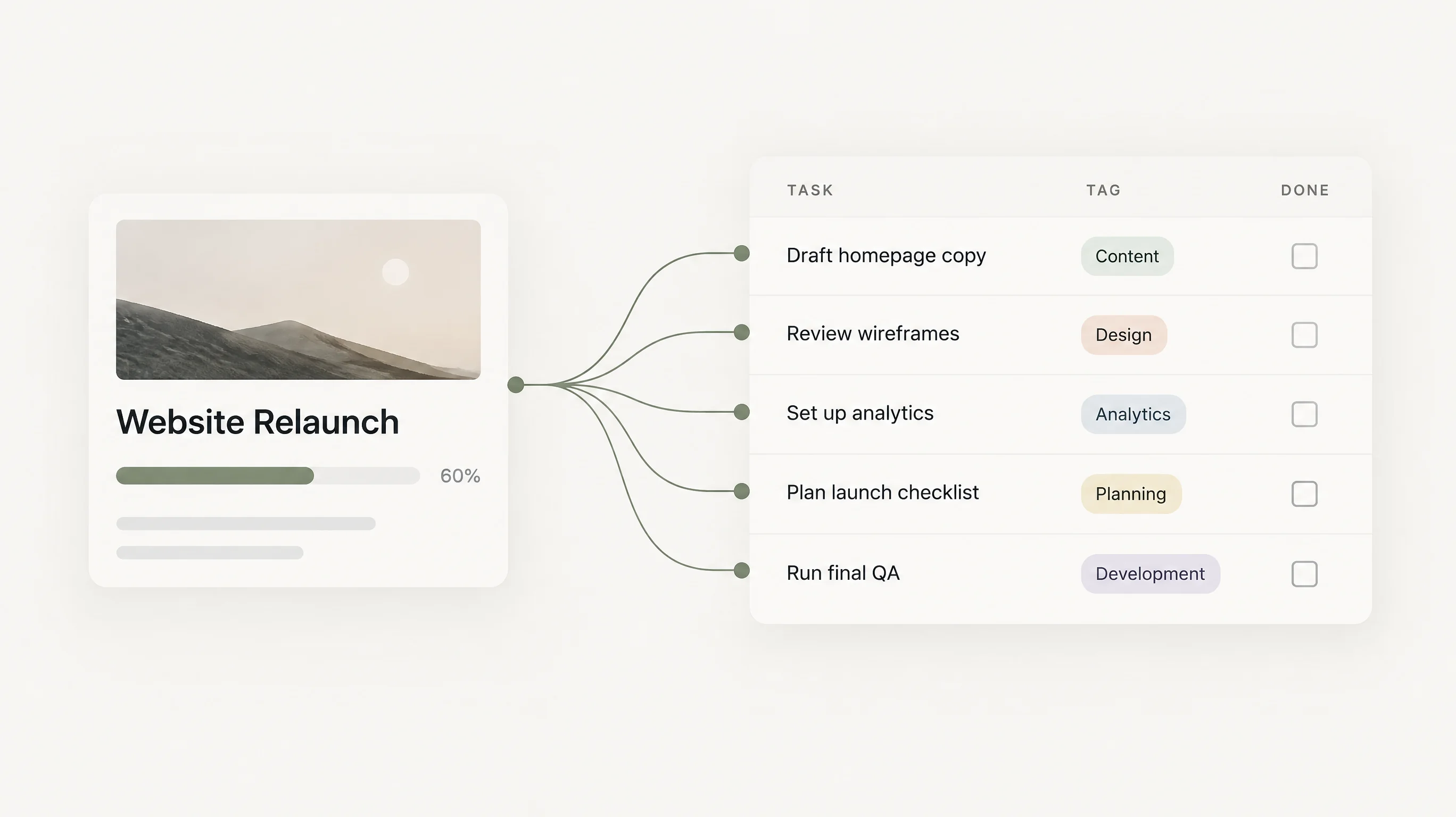
Start with two databases: Projects for the work itself and Tasks for the actions that move it forward. Then relate each task to a project, and add fields or views only when you can name the question they answer.
A Notion project management template is a prepared workspace for connecting project records, task records, and the views used to review them.
This guide shows a small setup for an internal team project. It covers the relation, the fields to keep, and how to show tasks on a project page. It also gives you a way to decide when a template is enough and when another property would only add upkeep.
Key Takeaways
- Use separate Projects and Tasks databases when projects have their own status or target date and contain several actions.
- Connect tasks to projects with a Relation property, then show related tasks on the project page.
- Start with fields and views that answer a regular work question. Add rollups only when a summary is useful.
- Choose a prepared template when you want to adapt an existing structure instead of building each database yourself.
When Should Projects and Tasks Be Separate?
Separate projects from tasks when one project has several actions and needs its own details, such as a status or target date. Keep them together when a short list has no project information beyond a label.
A project describes an outcome or body of work. A task describes an action someone can complete. For an internal release, the project might be “October help center update.” Its tasks could include drafting an article, reviewing the copy, and publishing the update. Each task has its own status and due date, while the project has a wider status and target date.
The distinction earns its place when you want to answer both “What needs attention today?” and “What is left for this project?” If you only need the first answer, one task database may be enough. If you keep searching through a combined list to understand a project, linking records can provide that context.
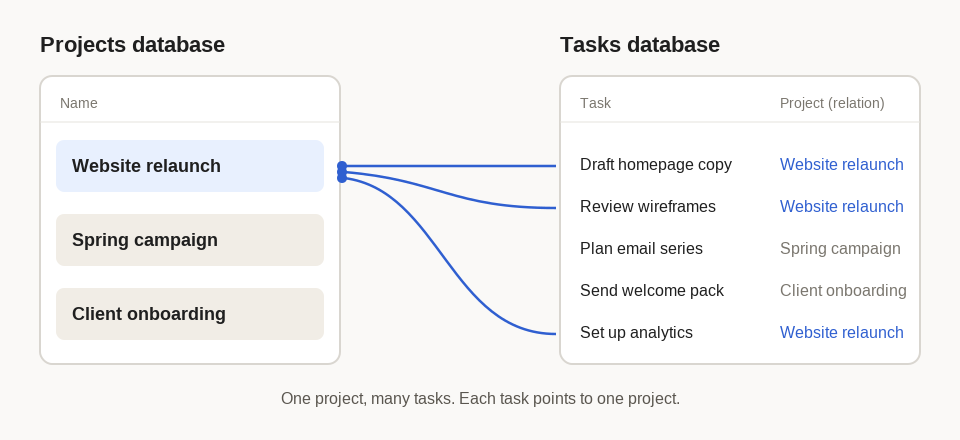
A Simple Notion Project Setup at a Glance
Start with one database for Projects, one for Tasks, and a relation between them. Add other properties after you can name the decision they support.
| Part | Keep at the start | Add later when | Skip when |
|---|---|---|---|
| Projects database | Name, status, target date | A team needs an owner or project type | Every project has no separate status or date |
| Tasks database | Task name, status, due date, project | A priority or owner changes the work order | The field stays blank or never changes a decision |
| Relation | Each task's project | A task genuinely belongs to more than one project | You never group or review work by project |
| Views | All tasks and project-specific tasks | A board or timeline answers a review question | The view repeats another list without a new use |
Treat this as a starting point. Notion supports different property types and database views, so adjust the setup when the work calls for it. Keep an extra field when it changes how you choose, assign, or review work.
How Do You Link Tasks to Projects in Notion?
Add a Relation property in the Tasks database and point it to the Projects database. Then connect each task to the project it supports. Notion's relation property links records across databases, so the project name does not need to be copied into every task as plain text.
Create the Projects database first if you do not already have one. Give each project a clear name. Create or open the Tasks database, add a property, choose Relation, and select Projects. When you add a task, use that property to choose the related project.
Decide whether the connection should appear in both databases. A two-way relation gives you a corresponding property in Projects, where you can open the related tasks. If every task belongs to one project, you can limit the relation to one page. Leave it open when some tasks support more than one project. Notion's relations guide explains how to create one-way or two-way relations and set the page limit.
Which Properties Belong in Each Database?
Keep properties that help someone understand what the project is, what state it is in, and what action comes next. A task record should stay quick to update.
| Database | Property | Why it may help | Add it when |
|---|---|---|---|
| Projects | Name | Identifies the outcome | Always |
| Projects | Status | Shows whether work is planned, active, or complete | Someone reviews project state |
| Projects | Target date | Keeps the expected finish visible | The team has a date to manage |
| Tasks | Name | States the action | Always |
| Tasks | Status | Shows whether the action is open, active, or done | Work moves through those states |
| Tasks | Due date | Shows when the action is needed | Timing affects the next step |
| Tasks | Project relation | Connects the action to its larger outcome | Work is reviewed by project |
| Either | Owner or priority | Helps route or order work | The team uses the value to act |
Here is a worked example using the published contents. Take a sample project called “October help center update.” Add “Draft the article,” “Review the copy,” and “Publish the update” as tasks, then relate each task to the project. In the delivered Task Manager, the sample tasks appear in the Master Task List and can be grouped by progress on the Kanban Board. These project and task names are illustrative; they are not customer data.
If you already have a task list, start with the lean property set in this guide to choosing Notion task fields. Add a project relation only when grouping work by project makes review easier. A text tag may be enough for a quick list, but it will not behave like a relation between project and task records.
If you want to compare this setup with a prepared workspace, review the published contents of Notion Task Manager before you build.
Avoid using a rollup just because projects and tasks are linked. A rollup can summarize values from related records, such as counting tasks or finding a date range. It also creates another property to configure and understand. Add one when that summary answers a question that opening the related task list does not.
How Can Tasks Appear on a Project Page?
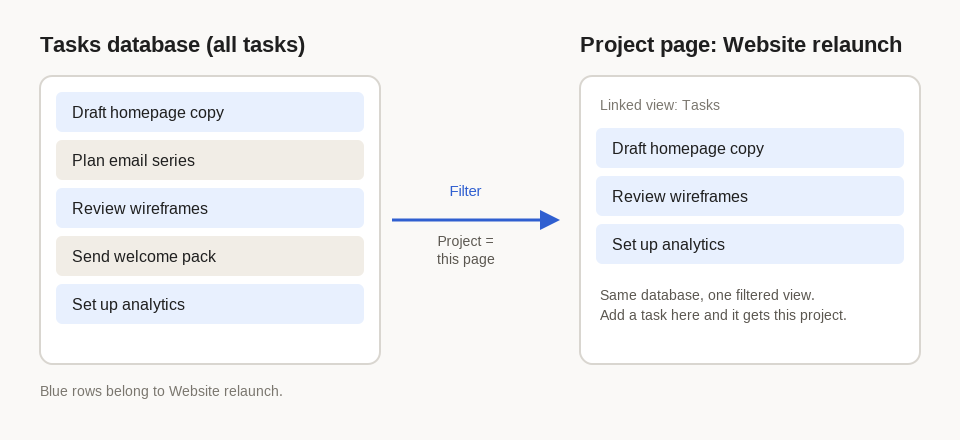
Show a project's tasks with the relation property or a linked view of the Tasks database filtered to that project. Both approaches let a reader see project context without making a second copy of the task records.
The relation is a direct path from the project to its linked tasks. A linked view is useful when you want to choose a layout, filter, sort, or hide properties for that page. Notion's team setup guide describes project and task databases and shows how linked views can surface work on a dashboard.
For a project page, filter the linked Tasks view so it shows only tasks related to the project. Hide any columns that distract from a project check-in. Keep the status and due date visible if those are the details people use to review work. If the page also needs a timeline or another detail, add it after the basic task list works.
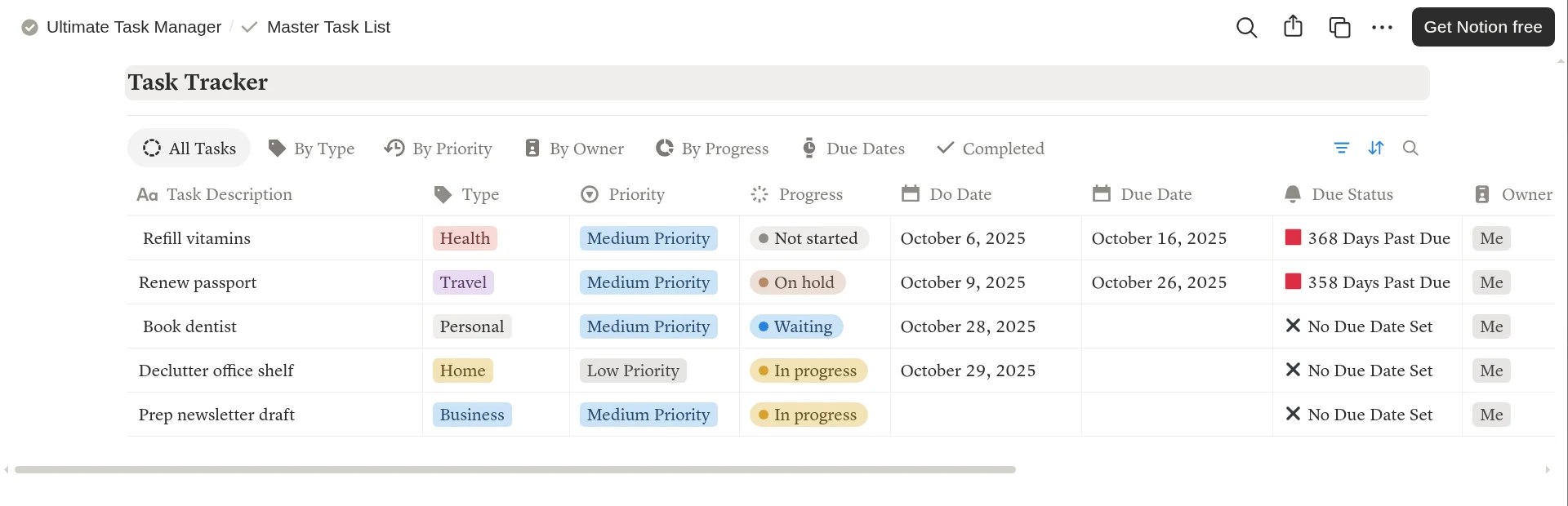
Task Tracker table in Notion Task Manager. The table shows task fields; it does not include a project relation.
Do not make a separate task database for every project unless those projects have different access rules or genuinely different fields. With one shared database, a change to a task appears wherever that record is shown. You can keep an all-project task view for daily work and a filtered view on each project page.
Which Views Should You Add First?
Choose views by the review question they answer. A table helps scan and edit records, a board groups work by a status, and a timeline places dated work across a span of time.
For a small setup, begin with an all-projects list and a project-specific task view. Add a cross-project task view if you need to find work across several projects. Notion database views can use different filters and sorts while showing the same source database; the views guide covers those controls.
Use a board when moving work through statuses is part of a regular review. Use a timeline when dates and duration are central to planning. If your team only checks project names and open tasks, a simple table can be easier to keep current than several specialized views.
What Can You Leave Out?
Leave out a property or view until it helps answer a recurring question. A field that nobody fills in still takes up space, and a view that shows the same records in the same order adds another place to check.
Start without duplicate task databases, multiple versions of the same status, or a dashboard for every role. Add an owner field when someone needs to route work. Add priority when the team uses it to choose between tasks. Add a rollup when the project page needs a summary from related records.
Try hiding a field or view for a week. If someone misses information needed to make a decision, bring it back. If nothing changes, leave it out. This keeps the structure tied to work the team does rather than to options Notion makes available.
Build a Project Template or Start With One?
Build your own when you know which project details and task views your team needs, and you want to shape each database as you work. Start with a template when the basic relationship and project page are already clear and you would rather adapt a prepared setup.
Before choosing, check that tasks can connect to projects, that a project page can show its tasks, and that the views match the way the team reviews work. Inspect the property names and remove anything you do not plan to maintain. A polished dashboard cannot make an unclear process easier to follow.
If you want to compare the basic task fields with a prepared structure, read the Notion Task Manager overview. For a ready-made starting point, Notion Task Manager includes a dashboard, task list and Kanban board. Review the contents and decide whether the included structure fits your team.
Why Trust This Guide?
Notion's relations and rollups guide explains database relations, while its views guide covers filters and sorts. We checked both on 19 October 2026. The project and task names are illustrative, and menus can change, so check the current help page if an option has moved. Our editorial policy explains how we handle sources and product claims.
Where Notion Task Manager Fits
Notion Task Manager is a prepared Notion workspace with a Home dashboard, Kanban Board, Master Task List (Task Tracker), Eisenhower Matrix, Deadlines, Time Tracker, and Notification Board. It does not include a separate Projects database. If you need one, add a Projects database and relation using the steps above. It works on Notion's free plan and provides instant access.
Those contents describe what is included, not a result the template can guarantee. You still decide which areas belong in your team's setup and keep task details current. If the prepared Notion task workspace matches the way you review work, check the product page for current terms before buying.
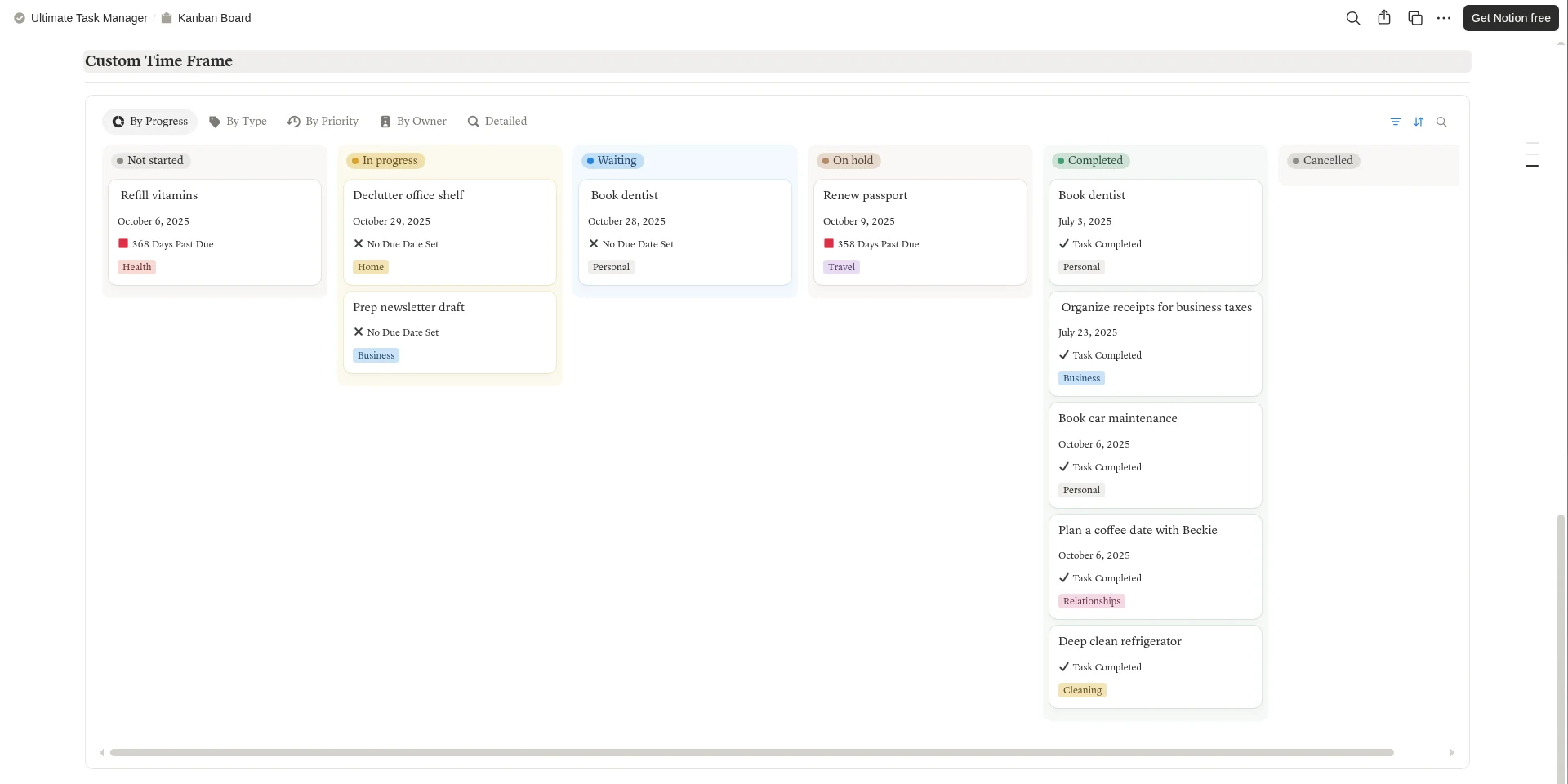
Kanban board by progress in Notion Task Manager.
Frequently asked questions
How do I link tasks to projects in Notion?
Add a Relation property to the task database, choose the Projects database, and link each task to its project. Turn on the matching relation in Projects to open the task list from a project page.
Do I need separate task and project databases?
Use separate databases when each project has its own status or target date and contains several tasks. A short personal list can stay in one database when a project name gives enough context.
Should each task belong to one project?
If a task has one clear home, limit the relation to one project. When a task supports several projects, allow multiple pages and decide how you will review shared work.
Can a project page show its tasks?
Yes. Add a linked task view to the project page and filter it to that project, or open the related tasks from the relation property. Keep the fields that help with the project review.
Do I need a rollup to track project progress?
No. Add a rollup when the project record needs a value from related tasks, such as a count or date range. If the linked task list answers your question, the relation is enough.
Is a Notion project management template free?
Notion's [Marketplace lists free project templates](https://www.notion.com/templates/category/free-projects-templates). Notion Task Manager is paid and works on Notion's free plan. Check both pages for current details.
