Notion Team Task Manager: One Shared Task List for a Small Team
Notion team task manager setup for a small team: one shared database, an Assignee property, personal views and the Free plan limits to check first.
By Notion Task Manager by Cosmo Suite · Editorial policy
Published · 9 min read

A Notion team task manager is one shared task database that every teammate can open, with an owner on each task and a personal view for each person. Most small teams break it the same way: they build a list per person, then spend Monday asking who has what. The setup below uses one list, one owner per task, and views that do the sorting.
A Notion team task manager is a single task database shared by a small team. Each task carries one assignee, one status and one due date. Saved views show each person their own slice of the same list. The point is that nobody maintains a second copy.
Key Takeaways
- One shared database beats one list per person, because there is only one place to check.
- An Assignee property turns a task into a message: Notion notifies the person you add.
- A view filtered to Me shows each teammate their own tasks without a separate list.
- Permissions decide who can change the list, so set them before you invite anyone.
- A Free workspace with more than one member has a block cap, so keep the list lean.
Why Does One Shared Task List Work Better Than One Per Person?
One shared list works better because every question a team asks has the same answer in the same place. Who owns this? When is it due? Is it done? With one database each of those is a property you read. With three personal lists each answer lives in a different page, and someone has to merge them by hand.
Separate lists also hide work. A task in one person's list is invisible to the others, so overlaps and gaps show up only when something is late. A shared database makes the whole team's load visible in one filter.
Notion's own projects and tasks guide describes the same shape. It says tasks have "properties for the assignee, due date and status." That is the whole minimum: an owner, a date and a state. If you want the property-by-property build, our task database setup guide walks through it. This post only adds what changes when more than one person uses the list.
There is one case where separate databases are right. If two groups need different access, for example a client-facing list and an internal one, keep them apart. Otherwise the shared list wins.
What Does Each Task Need Before You Share the List?
Each task needs four properties: a name, an assignee, a status and a due date. Everything else is optional, and every extra field is something a teammate has to fill in or ignore.
| Property | Type | What it does for a team |
|---|---|---|
| Name | Title | Says what the work is in a few words |
| Assignee | Person | Names one owner, and notifies them |
| Status | Status | Shows where the task stands: not started, in progress, done |
| Due | Date | Lets a view sort by what is next |
An Assignee property is a Notion Person property that names who owns a task and notifies them when they are added. Keep to one assignee per task at first. A task with three owners tends to have none. Each person assumes another is on it. If two people really share a job, split it into two tasks.
For a small team, a project relation is the one extra field that often earns its place. Notion's guide notes that "one project can have many tasks, but each task should only relate to a single project." If you group work by project, our project management template guide shows the link.
How Do You Give Every Teammate Their Own View?
You give each teammate their own view by saving one view filtered to Me. A Mine view is a saved view of the task database whose Assignee filter is set to Me, so it shows whoever opens it their own tasks.
Notion's guide describes it for a "Mine" view: "Selecting 'Me' rather than your name means this filter will apply to whoever is logged in and viewing the database." So you build the view once. Alice opens it and sees Alice's tasks. Ben opens the same view and sees Ben's.
Here is the setup:
- Add a view to the task database and name it Mine.
- Add a filter on the Assignee property and choose Me.
- Add a second filter so Status is not Done, so finished work leaves the list.
- Sort by due date, earliest first.
A second view helps the person who plans the week. Notion's guide calls a "People" view "ideal for giving managers a view of each team member's to-do list." Group the whole database by Assignee and the lead sees every person's open work side by side.
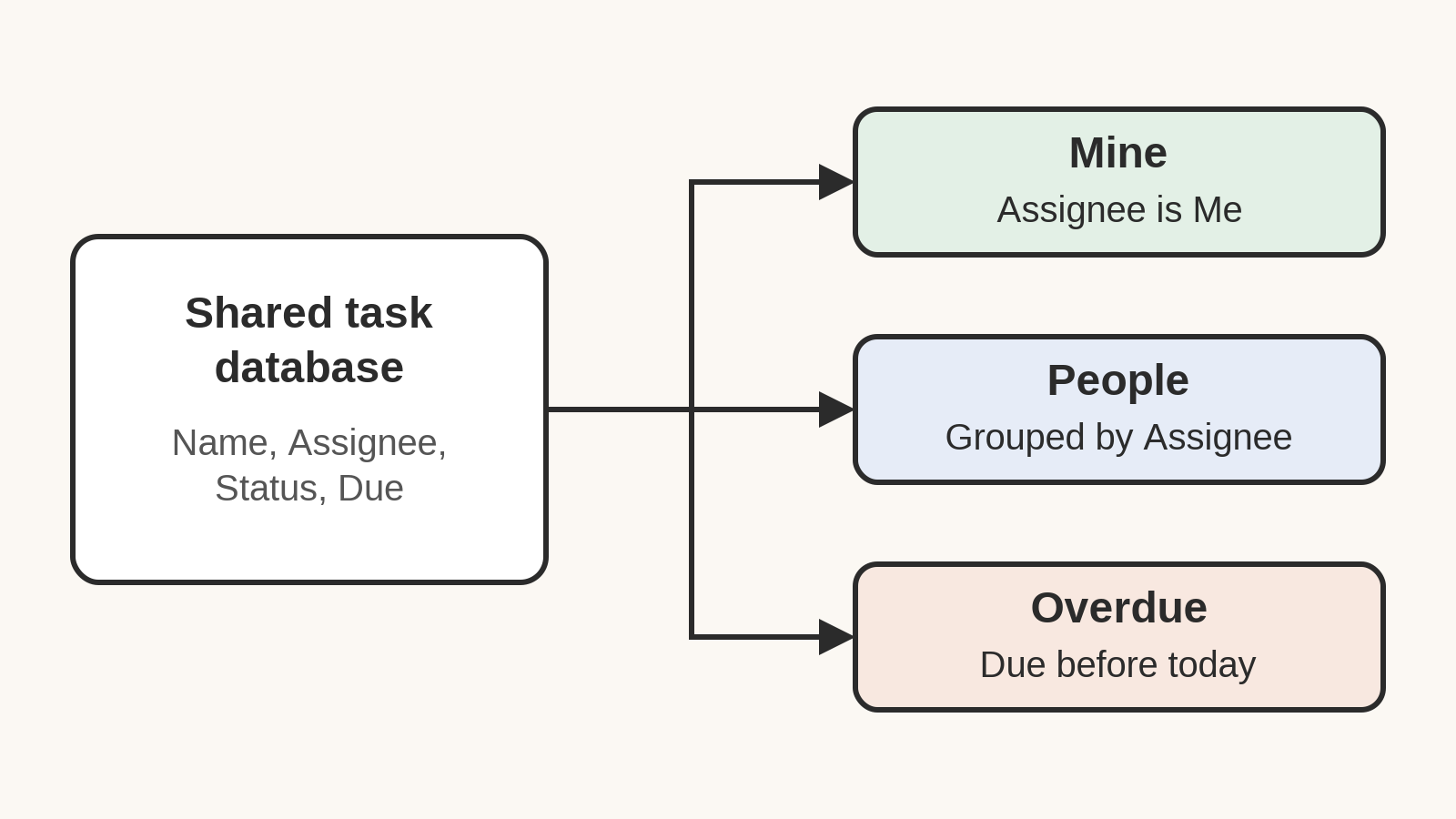
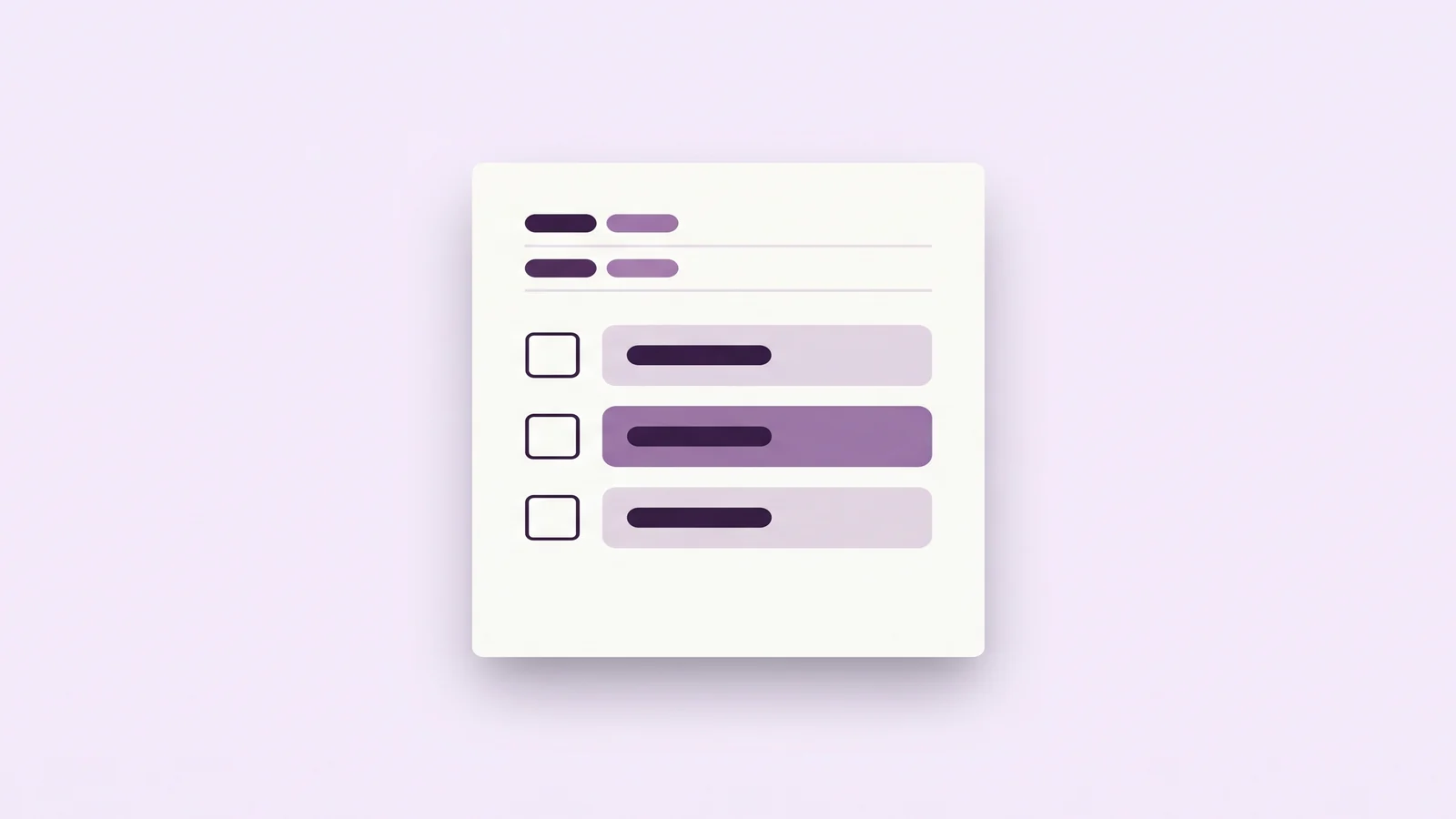
The diagram shows one database feeding several views. It is an illustration, not a screenshot.
Personal Filters Versus Shared Views
Notion lets you change a filter without changing it for everyone. Notion's views and filters page says you can choose "Save for everyone" to apply a filter to everyone in the database view. Leave that option off and the filter applies only to you.
That gives a simple team rule: build shared views once, then let each person tweak their own filter for the day without saving it for everyone. Nobody's experiment changes the view the rest of the team uses.
How Do Notifications Keep a Shared List Honest?
Notifications keep a shared list honest because the assignment itself sends the message. Notion's notification settings say you are notified when "you're added to a Person property in a database," when someone @-mentions you or replies to your comment, and when you set a reminder for yourself.
That means a teammate learns about a new task without a chat message. For instance, add Ben as Assignee and Notion tells Ben. If the task needs a question answered, @-mention the person in a comment and they get a second notification.
Two habits make this work:
- Assign at creation. A task with no assignee notifies nobody and tends to sit.
- Put questions in comments on the task. The answer stays with the work, and a chat thread nobody can find later does not.
For lateness, add a view of tasks past their due date. A filter on Due before today, with Status not Done, does it, and on a team it makes a good agenda for a short weekly check-in.
Who Should Be Able to Edit the List?
The people who update tasks need edit access, and the people who only read the list need less. Notion's sharing and permissions page lists four permission levels on a page:
| Level | What Notion says it allows |
|---|---|
| Full access | Edit any content and share the page with anyone |
| Can edit | Edit the content, but not share the page |
| Can comment | Comment only, no editing or sharing |
| Can view | Read the content, with no comments, edits or sharing |
For a small team, give teammates can edit on the task database and keep full access for the one person who manages the workspace. A client or an adviser who only needs to follow along gets can view or can comment.
Notion also says subpages adopt the permission settings of their parent page unless you override them. So set the permission once on the page that holds the task database, and the tasks inside follow it. Check it with a test: ask a teammate with can edit to change a status and confirm it saves.
What Free Plan Limits Should a Team Check First?
The limit that matters most for a team is the block cap. Notion's block usage page says a Free workspace with more than one member is limited to "1,000 blocks per workspace." After that, "your workspace will need to upgrade to a paid Notion plan in order to continue creating content." It also says deleting blocks or emptying the trash will not reduce the count. There is a three-day grace period when the workspace reaches the cap.
A single-member Free workspace is not capped, so the cap only shows up once you invite a second person. We cover the other Free plan limits, including file size and guests, in our free task template guide, linked below.
What this means for a task list: a task page that carries long notes, nested lists and pasted content uses more blocks than a task that holds a few properties. Keep the body of each task short. For example, put the facts in properties and the discussion in comments, and the list will stay well inside the cap for longer.
A Worked Example: A Four-Person Team on a Monday
Take a small studio with four people and about twenty open tasks. Before the setup, each person kept their own list and the lead kept a fifth, which tried to copy the other four.
After the setup, there is one database. Each task has an Assignee, a Status and a Due date. The lead opens the People view and sees four columns, one per person. On Monday morning the team spends ten minutes on it:
- The lead scans the People view for anyone with too much open work.
- Each person opens Mine to see their own tasks in due-date order.
- The group opens the overdue view and decides, for each late task, whether to move the date, hand it to someone else or close it.
The studio is made up for this guide, not a report about a real team. Nobody reads out a list in that meeting, because the lists already exist.
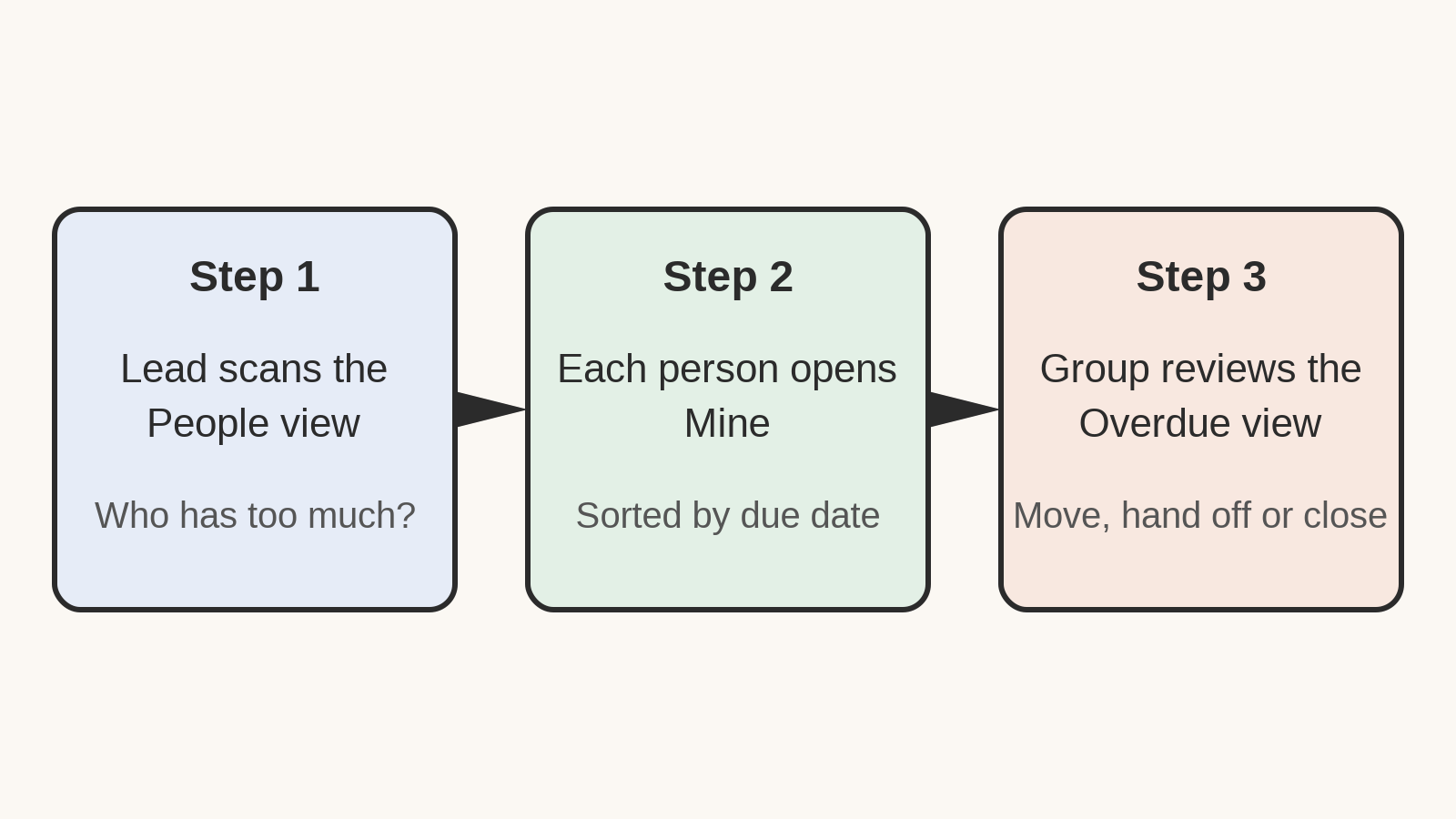
The diagram shows the three steps of the check-in. It is an illustration, not a screenshot.
Build It Yourself or Start From a Template?
Build it yourself when the team is small and the four properties above are all you need. It takes an afternoon, and you keep full control. Start from a template when you would rather open a prepared dashboard than make decisions about views.
Notion Task Manager is a Notion template that works on the free plan and is a one-time purchase. It includes a Master Task List, a Kanban Board and a Time Tracker, with Today, This Week and This Month views on its home dashboard. We recommend it as a starting point you can adapt, for a team as well as one person. It does not replace the choices in this guide, such as who owns each task, who can edit and what the team checks on Monday. You can see what Notion Task Manager includes before you decide.
If you are weighing a starter against a build, the free task template guide has a ten-minute test you can run on any candidate.
A Short Checklist Before You Invite the Team
- One task database, not one per person.
- Four properties: Name, Assignee, Status and Due.
- A Mine view filtered to Me, with Status not Done.
- A People view grouped by Assignee for whoever plans the week.
- Permissions set once on the parent page, tested with one teammate.
- Task pages kept short, to stay inside the Free plan block cap.
If all six are true, add a field or a view only when someone says they need it to decide what to do next.
Why Trust This Article
This guide was written by the Cosmo Suite team, which builds Notion templates, including the Notion Task Manager mentioned here. The Notion behavior described comes from Notion's own help pages on projects and tasks, notifications, sharing and permissions, views and block usage. All were checked on 2026-11-23 and are listed in the sources above.
The studio in the worked example is illustrative, and the images are diagrams rather than screenshots. Notion changes its interface and plan limits, so verify the current details in your own workspace. Read About us for the publisher, and use the contact page to report a correction. Each article goes through an editorial check before it ships.
Frequently asked questions
Can a small team use Notion as a task manager on the Free plan?
Yes. Task databases, views, the Person property and sharing all work on the Free plan. The limit to check is the block cap: Notion says a Free workspace with more than one member is capped at 1,000 blocks, and deleting blocks does not lower the count.
How do I assign a task to a teammate in Notion?
Add a Person property to the task database, usually named Assignee, and pick the teammate on each task. Notion notifies a person when they are added to a Person property, so the assignment doubles as a message.
How do I show each person only their own tasks?
Create a view named Mine and filter the Assignee property to Me. Notion says selecting Me applies the filter to whoever is logged in, so one shared view shows each person their own list.
Should each person have their own task database?
Usually no. One shared database with an Assignee property keeps one source of truth, and views give each person a private slice. Separate databases only make sense when the work needs different access or different fields.
Who can edit the shared task list?
That depends on the permission level you give. Notion lists full access, can edit, can comment and can view. A teammate who updates tasks needs can edit, and subpages inherit the permission of their parent unless you override it.
Will a shared Notion task list slow a team down?
Not by itself. The slowdown comes from too many views and fields nobody owns. Start with one database, one status property, one assignee and a due date, and add a field only when the team will act on it.
Sources
Keep reading
Task Management
Notion Task Manager: What to Keep and What to Skip
notion task manager: Learn which task fields and views earn their place, what you can skip, and when a ready-made Notion setup makes sense.
· 8 min read
Task Management
Notion Task Database Setup: The Minimum Fields to Start
notion task database setup: pick fields that guide your next action, start with a usable task list, and add views when you need another way to review it.
· 10 min read
Task Management
Free Notion Task Template: What You Actually Get
Notion task template free: what a free template includes, which Free plan limits break one, and a ten-minute test to run before you duplicate.
· 11 min read
