Why Notion Templates Get Abandoned (and How to Fix Yours)
why notion templates get abandoned: find friction in setup, task capture, and upkeep, then reset your Notion task page without rebuilding it.
By Notion Task Manager by Cosmo Suite · Editorial policy
Published · 7 min read
A fresh Notion template can make a task system feel sorted before you have used it on a busy day. Then the weekly list grows, setup choices pile up, and opening the page starts to feel like another task. Find where the daily path slows down before you rebuild.
In a Notion discussion about templates, one commenter described a large task setup as “dead by week 2” and later reduced it to a name, next step, and date. The useful clue is not the exact field count. It is the moment the system becomes harder to use than the work it tracks.
Before you rebuild, check four moments: opening the page, adding a task, deciding what to do, and returning after a missed day. You can often repair the part that fails without replacing every database.
Key Takeaways
- A polished setup can still have a slow daily path.
- Check capture, upkeep, visibility, and recovery before adding more features.
- Keep a property only when it changes a decision or helps you find work.
- Test a smaller version during ordinary work before you customize again.
If you would rather adapt a prepared workspace than start from an empty page, you can review the Notion Task Manager contents after you run the audit below.
The template fails in the daily handoff, not the setup session
A Notion template can feel satisfying to build because each new view or relation makes the system look more complete. Daily use is a different test: can you add a task quickly, see what needs attention, and leave without maintaining the workspace first?
In the buyer research for Notion Task Manager, setup effort and ongoing upkeep appeared repeatedly in public discussions. One thread describes someone setting up a template, using it for a week, then stopping. Another comment describes replacing a large dashboard with a simple list. These are individual reports, not a survey of all Notion users.
The handoff is the small transition from “I need to do this” to “the task is in the right place.” If that transition means finding a database, filling optional fields, choosing among views, and checking a relation, the template may collect more detail than the task needs.
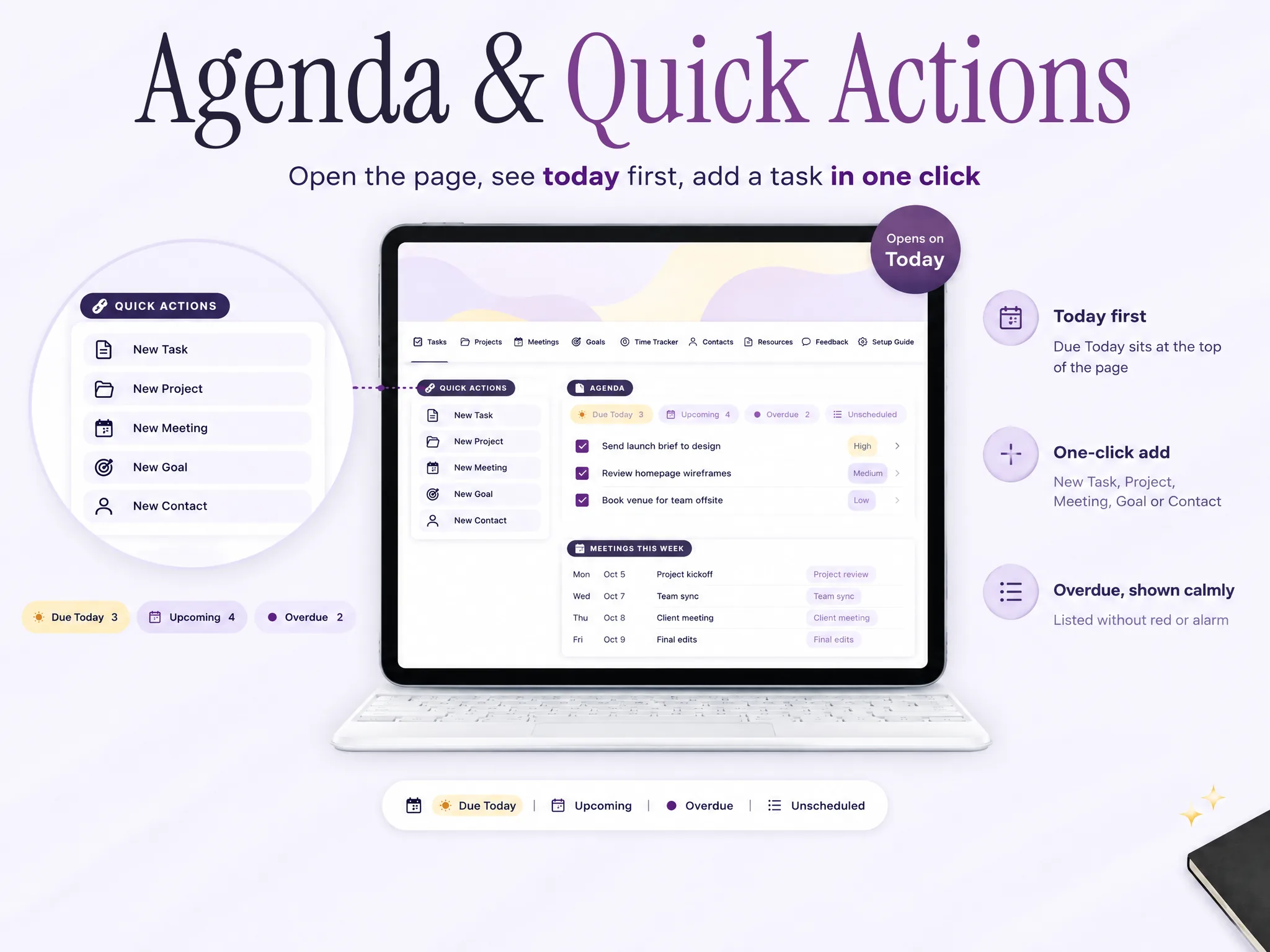
Product preview: the Home dashboard in Notion Task Manager. The example content is illustrative.
Four reasons a task template goes quiet
Most task-template problems become easier to see when you name the moment that feels hard. Use this table to identify what to check before you change the layout.
| What feels difficult | What to inspect | A small first change |
|---|---|---|
| Adding a task | How many clicks and fields appear before it is saved? | Keep the capture path short; skip fields you can fill later. |
| Keeping details current | Which properties are blank, stale, or repeated? | Hide one field that does not change the next action. |
| Choosing what to do | Does the first page show a short, useful slice of work? | Put one due or next-action view first. |
| Returning after a gap | Does the page greet you with a wall of old or overdue items? | Make a view that helps you sort what still matters before showing everything. |
These are checks, not a universal diagnosis. A person managing a team project may need owners and linked records. A short personal list may not. The right question is whether a field or view helps you act in your own work.
Run a four-part Notion template audit
Open the setup you already have and follow one ordinary task through four moments. Do not redesign anything during this pass. Write down where you pause.
Open. When you arrive, can you find the task view you need without scanning several dashboards? If not, move the useful view nearer to the page you open first, or hide the unused sections from that page.
Capture. Add one real task. Notice how many decisions the form asks you to make. If you have to choose a project, priority, status, category, and date before saving, ask which details can wait. Notion lets each database have its own properties, so fields that do not help your decisions can be removed or hidden. See Notion's database properties guide for the available property types.
Decide. Look at the page and answer: what should I work on next? If the answer is buried in a large table, make the first view show a smaller set. Notion database views can have their own filters and sorts, so one task database can support several focused views without creating a second copy of the tasks. The views and filters guide explains those controls.
Recover. Imagine you have not opened the page for a few days. Can you tell which items still matter? If overdue tasks dominate the screen, make a brief review step: check the task, change its date if needed, mark it done, or remove it. An overdue label does not tell you whether the work remains important.
Record the first point where you hesitate. Fix that point before adjusting colors, icons, or extra dashboards.
Remove fields and views that do not change a decision
Keep task details that help you identify the action, understand its status, decide when it matters, or connect it to a project. Remove or hide details that do not change what you do.
| Keep or add | Remove or hide for now |
|---|---|
| A clear task name | A duplicate title or notes field |
| Status, if work moves through states | A second status that means the same thing |
| Due date, when timing matters | A date that nobody reviews |
| Project relation, when you review work by project | Relations that never help you move between records |
| One view that answers “what next?” | Several views that show the same tasks in slightly different layouts |
Notion's project and task templates include different levels of structure for different jobs. A simple to-do list is intended for minimal task management, while separate Projects and Tasks databases link work to projects. Start with the smallest arrangement that answers your real question.
If a property supports a decision once a month, it may belong in a review view rather than the page you open every morning. Keep the data if it matters, but do not make every detail part of daily capture.
For a baseline of task fields and views, see our Notion task manager guide. If your work includes separate projects and linked tasks, the project and task setup guide covers that decision.
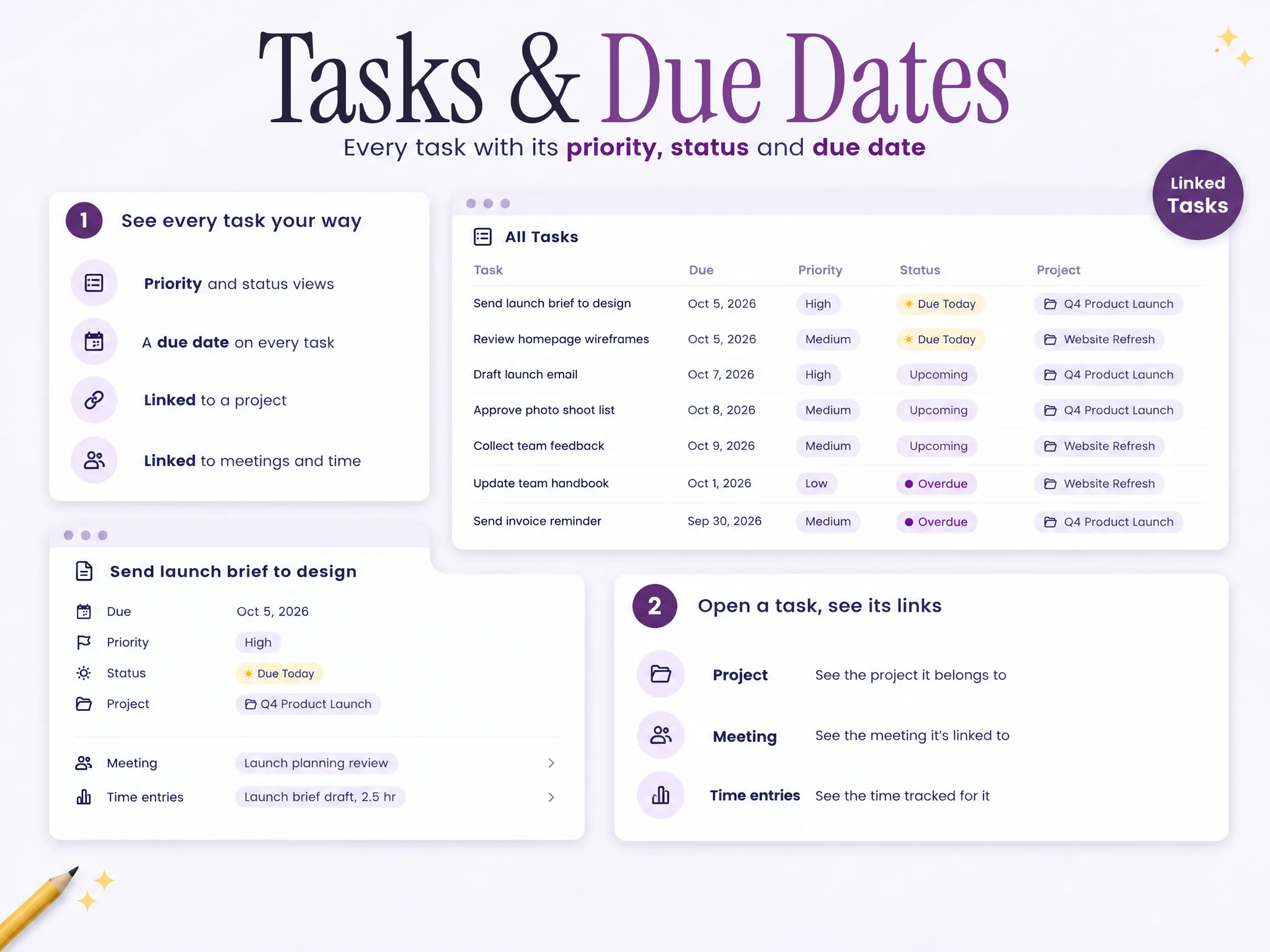
Product preview: a task list with example names and dates. The rows are sample content, not customer data.
Reset the setup for one normal work week
Once you know where the friction starts, simplify only that part. Keep your existing records, choose one page to open, and place the view that helps you decide what comes next near the top.
For the next week, use this reset:
- Add tasks through the shortest path you can make.
- Fill only the fields that affect the task's next step or timing.
- Review the focused view when you begin work.
- At the end of a work session, update or close only the tasks you touched.
- If you miss a day, review the list once and choose what still matters.
This is a test of fit, not a promise that one page will solve every planning problem. If you still avoid the task view, move it to the tool or place where you naturally capture work. A Notion template cannot change how the Notion app behaves on your phone, and a more complex dashboard may add friction instead of removing it.
When should you repair, simplify, or replace a template?
Repair a template when one specific part is broken or confusing, such as a filter that hides current tasks or a field with an unclear purpose. Simplify it when you can name useful parts but do not need every view or property. Replace it when its basic structure does not match how you record and review work.
Keep the original records until you know what depends on them. In Notion, a relation can connect records across databases; removing a database without checking its links can make the transition harder. If the problem is a task view, try changing the view first. If the problem is the whole workflow, test a smaller list alongside the old setup before you move everything.
Do not judge a template by how many pages it contains or how complete the dashboard looks. Judge it by whether you can capture work, find the next action, and return after a gap without a separate maintenance session.
Why trust this guide?
Cosmo Suite publishes Notion Task Manager and its task-management guides. This article draws on the product's published contents and the audience research summarized in October 2026, including public discussions about setup effort and task upkeep. The linked Notion help pages describe current database properties and views. Menu labels may change; check Notion's help pages if a control has moved. Read About us, contact the publisher through the Contact page, and see our editorial policy for how we handle research and product claims.
Where Notion Task Manager fits
Notion Task Manager includes a Home dashboard with Due Today, Upcoming, Overdue, and Quick Actions, plus a Kanban Board, Master Task List, Eisenhower Matrix, Deadlines, Time Tracker, Notification Board, and Setup Guide. The product page says it works on Notion's free plan and provides instant access. These contents give you prepared views to inspect; they cannot guarantee that a system will fit your work or that you will keep using it.
If a prepared starting point would help you avoid building every page from scratch, review Notion Task Manager's contents and compare them with the fields and views you decided to keep. Choose only if the included structure fits. You can also keep your simpler setup and add a view later when a real task requires it.
Frequently asked questions
Why do Notion templates stop working?
A template can stop working when it takes more effort to use than it saves. Too many fields, a slow capture path, or a dashboard that hides the next task can make it easier to avoid. Find the hesitation before you rebuild.
How can I simplify a Notion task template?
Keep the task name and only the fields you use to decide what to do, when it is due, or where it belongs. Hide unused views and test the simpler setup during ordinary work before adding anything back.
Should I delete an unused Notion database?
Not right away. First hide it from the page you open each day or move it out of the main path. Keep the records until you know whether another page or relation depends on them.
Can a template fix Notion mobile friction?
No template can change how the Notion app behaves on your phone. Try adding a task on the device you use most. If that step remains awkward, keep capture in a tool that works for you and decide later whether to move the task into Notion.
How long should I test a Notion template reset?
Use the smaller setup through a normal work week, including a busy day and a missed day if they occur. The goal is to see whether capture, finding the next task, and returning after a gap feel manageable, not to hit a perfect streak.
What if I still do not open the dashboard?
The template may not fit how you work, or the page may not be where you naturally start. Try one simpler entry point. If you still avoid it, keep your task list somewhere you will use it and do not treat a more elaborate Notion setup as the only answer.
Sources
Keep reading
Task Management
Notion Task Manager: What to Keep and What to Skip
notion task manager: Learn which task fields and views earn their place, what you can skip, and when a ready-made Notion setup makes sense.
· 8 min read

Task Management
Notion Team Task Manager: One Shared Task List for a Small Team
Notion team task manager setup for a small team: one shared database, an Assignee property, personal views and the Free plan limits to check first.
· 9 min read
Task Management
Free Notion Task Template: What You Actually Get
Notion task template free: what a free template includes, which Free plan limits break one, and a ten-minute test to run before you duplicate.
· 11 min read
