Notion Today View: Show the Right Tasks Each Day
notion today view: make a clear task list with a relative date filter, one status rule, and checks for missing or undated tasks before you rely on it.
By Notion Task Manager by Cosmo Suite · Editorial policy
Published · 8 min read
TL;DR: Make a view of the task database you already use, filter its date property to today, and decide whether completed items belong there. Keep tasks without dates visible in a separate view. Test the filter with a few sample records before trusting it for daily work.
A Notion Today view is a database view filtered to show tasks whose date matches the current day. Completed and undated work still need a clear place in your setup. If you would rather adapt a prepared workspace, review the published Notion Task Manager contents before choosing.
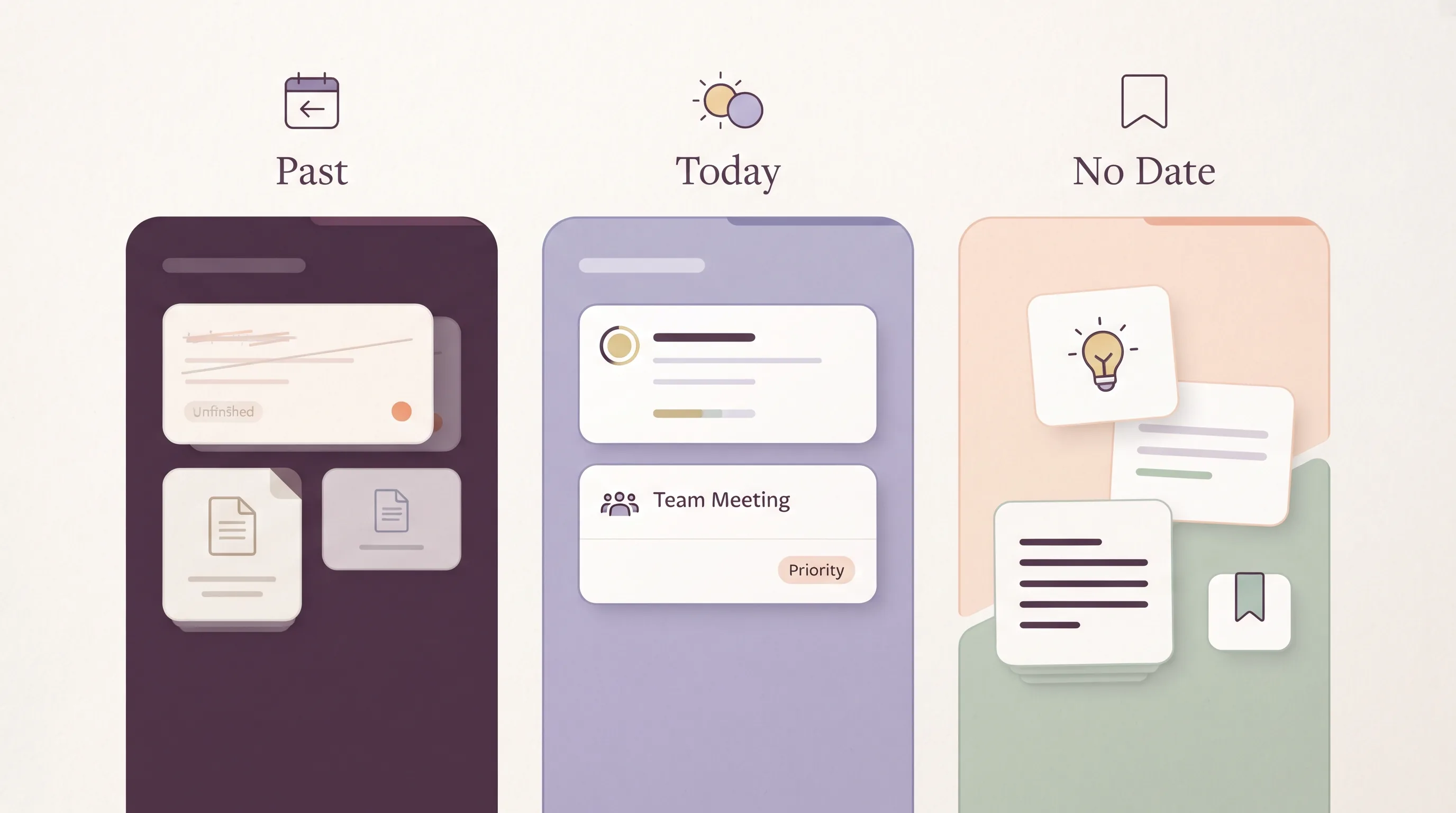
The key decision is what “today” means in your task list. A date-only task due today belongs in the view. A task with no date cannot match it. A completed task may belong in a separate record of finished work, while an unfinished task with a date range needs a rule that fits the way you use that date.
A relative date filter is a condition that compares the date property with the current day when you check the view. An undated task is a task with no value in that property, so a today filter cannot show it.
What Should a Notion Today View Show?
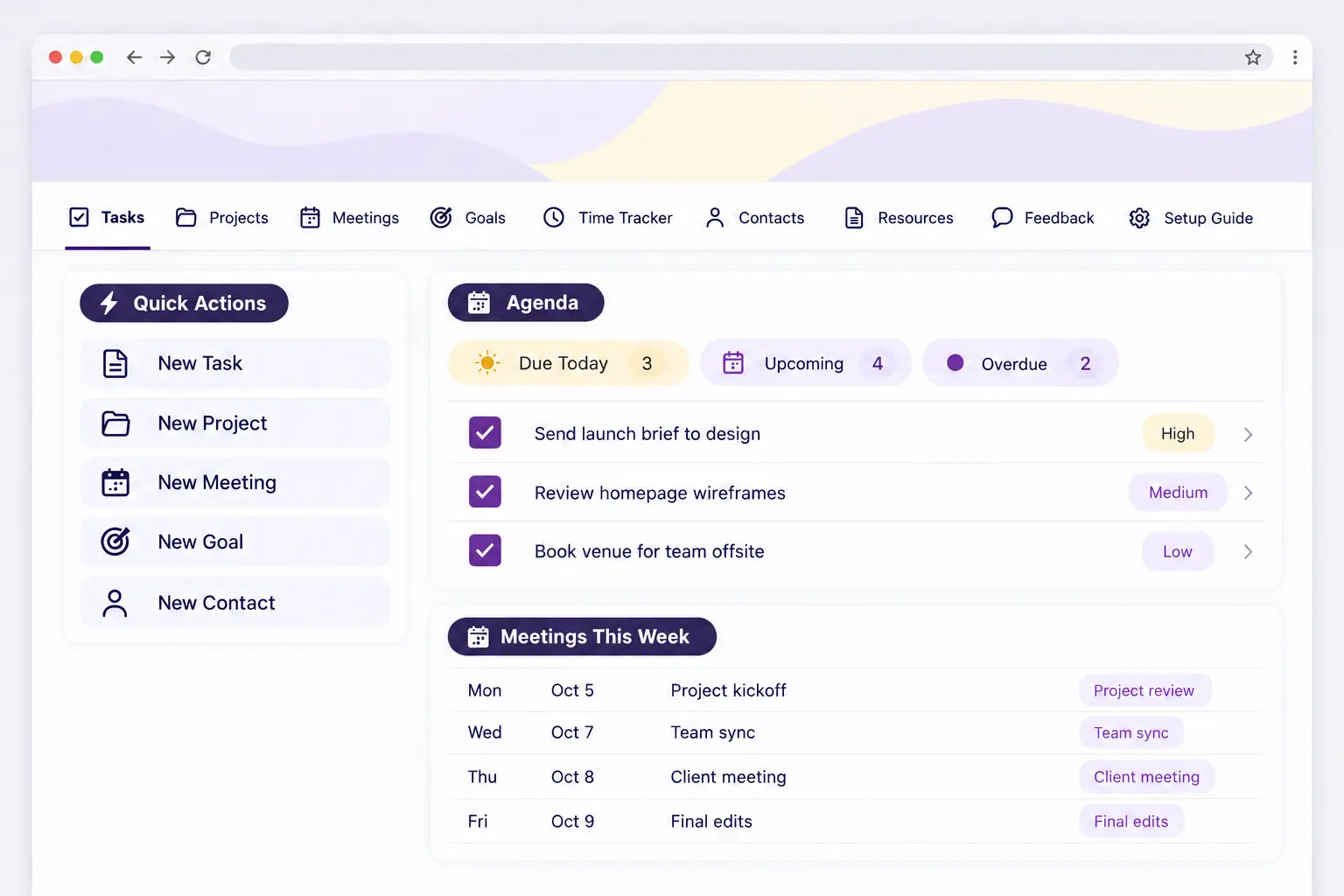
A Today view should answer one question: which tasks need attention today? Start with the date property, decide how completed tasks behave, and give tasks without dates another place to appear.
| Case | Starting rule | Check before you rely on it |
|---|---|---|
| Single due date | Date is today | Use the property that holds the task deadline |
| Completed work | Status is not complete | Match your database's completed status labels |
| No due date | Separate view for empty dates | These tasks cannot match a date-equals-today condition |
| Date range | Decide whether start or end date controls inclusion | Test a task that spans today |
The date rule looks simple, but the details decide which tasks appear. Another condition can hide a task even when its date matches. A Today view uses the same database records as your other views, so changing a task's date or status affects what appears in each one.
Notion lets you create more than one view of a database and configure filters and sorts for each view. Its views and filters guide describes how to add a view and set its criteria. If you are still deciding which fields to track, start with the basic fields in a Notion task manager.
How Do You Create a Notion Today View?
Add a view to your existing task database, choose a layout, and filter the date property to the current day. Then test the rule with tasks that should appear and tasks that should stay out.
- Open the database that contains your tasks. If you do not have one yet, create it and add a Date property for deadlines.
- Select the plus sign beside the current view name, or use the database menu to create a new view. Choose a table or list layout and name it Today.
- Open the view settings and choose Filter. Select the date property you use for task deadlines.
- Set the date condition to the current day. Use the current filter controls to make the condition relative to today, then confirm how your workspace treats a task dated today.
- Add a sort that helps you choose what to do next. Due date is less useful when every result is due today; a priority or status sort may help if you already maintain those fields.
- Add a sample task dated today, one dated tomorrow, and one with no date. Confirm that only the first appears before you move real work into the view.
Choose a table when you need to scan dates and statuses together. Choose a list when you want a shorter page with fewer visible properties. The same task can appear in another view without being copied into a second database.
Keep the view private while you check it. If other people rely on the database, review Notion's Save for everyone option before making the filter shared. The Notion views guide explains that view settings are separate and shows how filters can be saved for others.
Should Completed Tasks Appear in the Today View?
Hide completed tasks from the list you use to choose current work, unless you need to see finished items beside active ones.
If you use a Status property, add a condition such as “Status is not Done.” If your options include more than one completed state, use an advanced filter that excludes each one. Notion supports filter groups with AND and OR logic, but keep the group easy to explain to anyone who uses the database.
An active Today view answers what remains. A completed-today view records what you finished. If you need both, create two views of the same source and name them clearly. Your active list stays short, and finished work remains visible.
For a small personal list, you may prefer to leave completed items visible until the end of the day. If you do, sort or group them so they do not interrupt the open tasks. Try one approach for a workweek and keep the one that makes the next action easier to see.
How Should You Handle Date Ranges and Undated Tasks?
Decide what a date means before you build the filter. A deadline, an event that lasts several days, and a reminder to start work are different uses of a Date property, even if Notion stores them in the same field type.
For a single deadline, “is today” is a straightforward rule. For a range, decide whether the task should appear on its start date, its end date, or each day in between. Create one sample range that includes today and test how the filter treats it. Do not assume the answer from the task name alone.
Keep undated work visible in a separate No date or Unscheduled view. This gives you a place to decide whether a task needs a deadline without forcing a date onto every item. Notion's database properties documentation describes Date properties, including date ranges and optional times.
If you use dates with times, set a time only when the hour changes what you do. A date-only task is usually easier to maintain for work planned by day. A meeting or submission with a firm cutoff may need a time and timezone, so the displayed date matches the real deadline.
The Notion recurring-tasks guide covers the separate question of scheduled task creation and date-based review. A Today view filters existing tasks; it does not create a new task each morning.
Why Is a Task Missing from the Today View?
Check the date property, status condition, and filter group before rebuilding the database. A row can disappear because it does not meet one of the view's conditions, even when its title looks like it belongs today.
Use this short check:
- Wrong date field: Confirm that the view filters the property you actually fill in. A task can have a project date and a due date, but only one may drive the view.
- No date value: Open the task and check that its date is set. Move it to an Unscheduled view if it has no deadline yet.
- Status excluded: Confirm that the task is not marked Done, Canceled, or another state your filter hides.
- Advanced logic: Inspect any AND and OR groups. A second condition can hide a task whose date matches.
- Date range: Test whether the view uses the start or end of a range in the way you expect.
Then test the view with four sample records: yesterday and open, today and open, today and complete, and no date. Write down where each should appear before checking the result. This makes a mistaken filter easier to spot than repeatedly changing settings while looking at live tasks.
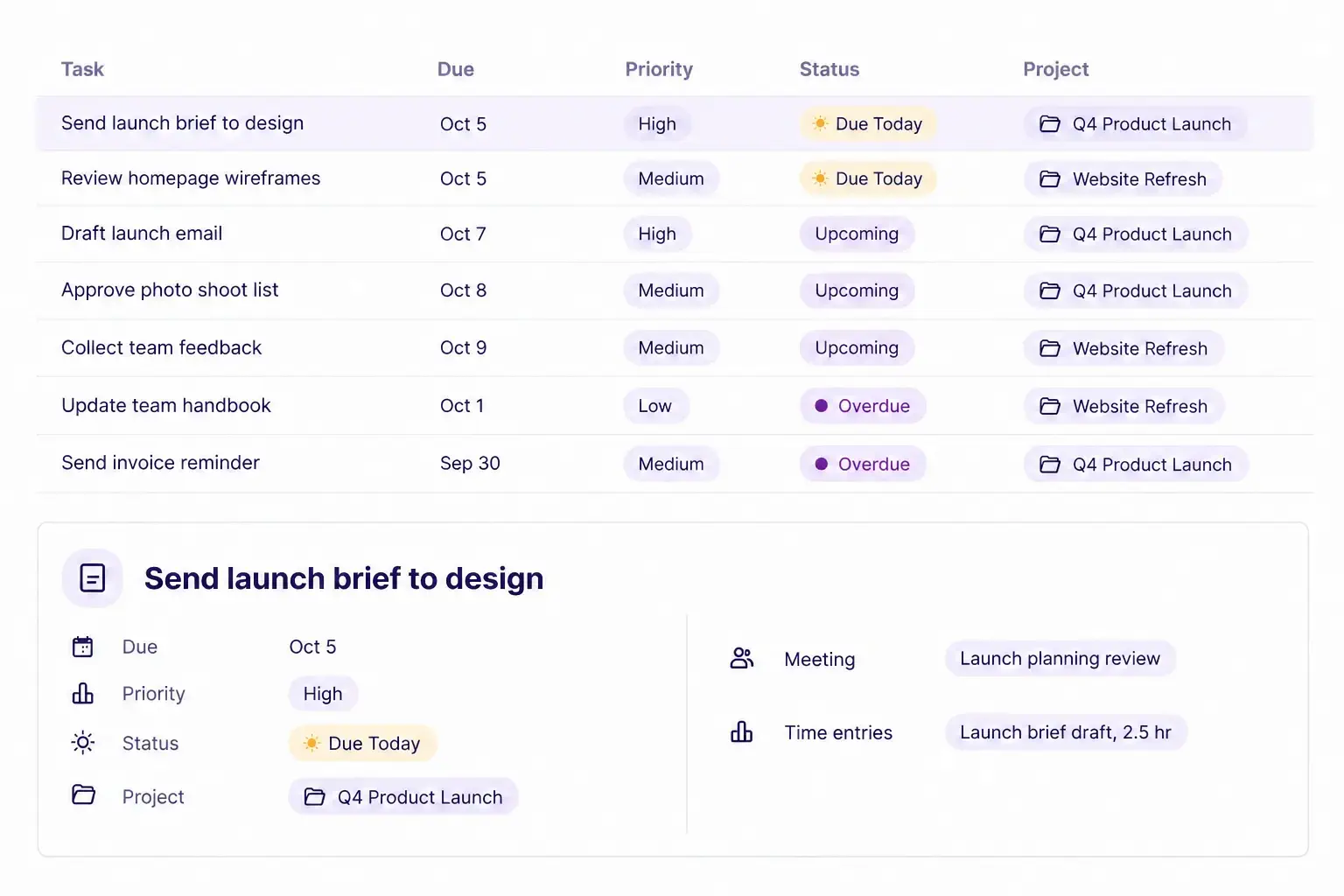
If one person sees a task and another does not, check the database and page permissions too. Filters control which records a view shows; permissions control whether someone can access the underlying content. They are different settings. Notion's database property guide covers date and status fields.
What Keeps a Notion Today View Useful?
Keep the filter narrow, the task records current, and the no-date work visible elsewhere. A Today view becomes hard to trust when it tries to solve every planning question with more properties and conditions. If you want to start from a prepared setup, compare your needs with Notion Task Manager's dashboard and task areas.
Here is a small illustrative test list:
| Task | Date | Status | Expected view |
|---|---|---|---|
| Send the draft for review | Today | In progress | Today |
| Confirm next week's meeting room | Tomorrow | Not started | Upcoming |
| File a receipt | Empty | Not started | Unscheduled |
| Update the launch checklist | Today | Done | Completed today |
| Review the event plan | Range includes today | Not started | Depends on your range rule |
| Archive old notes | Yesterday | Not started | Overdue |
These examples are not customer data. They show why a label like Today is not enough by itself. The date filter selects the day, and the status rule decides which matching records remain in the active list. A separate Notion overdue tasks view can keep late work distinct from tasks due today.
Review the view when it stops matching your work. Change one condition at a time, test it with sample records, and remove a property that no longer changes a decision. If you find yourself maintaining duplicate lists, review your fields and filters before adding another database.
Why Trust This Guide?
We checked Notion's current help pages for database views, filters, and Date properties on 6 November 2026. The setup steps follow those documented controls. The sample tasks are illustrative, not customer records. Notion can update its interface, so check its help pages if a control has moved. The About page identifies the publisher; our editorial policy explains how we handle sources and product claims.
Where Notion Task Manager Fits
Notion Task Manager may fit if you want a prepared workspace instead of creating each view from a blank page. Its Home dashboard includes Today, This Week, and This Month views. The linked pages are Master Task List, Kanban Board, Eisenhower Matrix, Deadlines, and Time Tracker.
The template provides those areas. You choose which work matters and keep task dates current. Review the Notion Task Manager contents and compare them with the fields and views you plan to maintain. If a basic task database is enough, you can build the Today view yourself with the steps above.
Use the smallest structure that answers the questions you check each day, then add another view only when it makes a real decision easier.
Frequently asked questions
How do I make a Today view in Notion?
Add a view to your task database. Choose a table or list, filter its date property to today, and add a status rule if you want to hide completed tasks.
Does a Notion Today view update automatically?
A relative date filter uses the current date when the view is checked. It changes which database records appear; it does not change task dates or complete tasks for you.
Why is a task due today missing from my Notion view?
Check that the filter uses the date property you filled in, then inspect any status and advanced filter conditions. A different date field or an excluded status can hide a matching task.
Should completed tasks stay in a Today view?
It depends on how you review work. Hide completed items from an active list, or keep them visible in a separate completed-today view when you need a record of what was finished.
How do I show tasks without a due date?
Create a separate view for tasks where the date property is empty. A task with no date cannot match a filter that asks for a date equal to today.
Can a Notion Today view include date ranges?
Yes, but decide whether the task belongs in the view when its start date or end date is today. Test a date range in your database because the right rule depends on what the date represents.
Can I put a Today view on a dashboard?
Yes. Add a linked view of the same task database to a page, then set or select the Today view. The view shows the existing records rather than making copies.
Sources
Keep reading
Task Management
Notion Task Manager: What to Keep and What to Skip
notion task manager: Learn which task fields and views earn their place, what you can skip, and when a ready-made Notion setup makes sense.
· 8 min read

Task Management
Notion Overdue Tasks View: Set One Up Without the Guilt
Notion overdue tasks view: separate late work from today's tasks, keep undated items visible, and choose a next step without turning the list into a warning.
· 7 min read

Task Management
Notion Team Task Manager: One Shared Task List for a Small Team
Notion team task manager setup for a small team: one shared database, an Assignee property, personal views and the Free plan limits to check first.
· 9 min read
