How to Create Notion Recurring Tasks Without Stale Dates
Notion recurring tasks: set a repeat schedule, choose the task fields, and test a new page so you know its due date before you rely on it.
By Notion Task Manager by Cosmo Suite · Editorial policy
Published · 8 min read
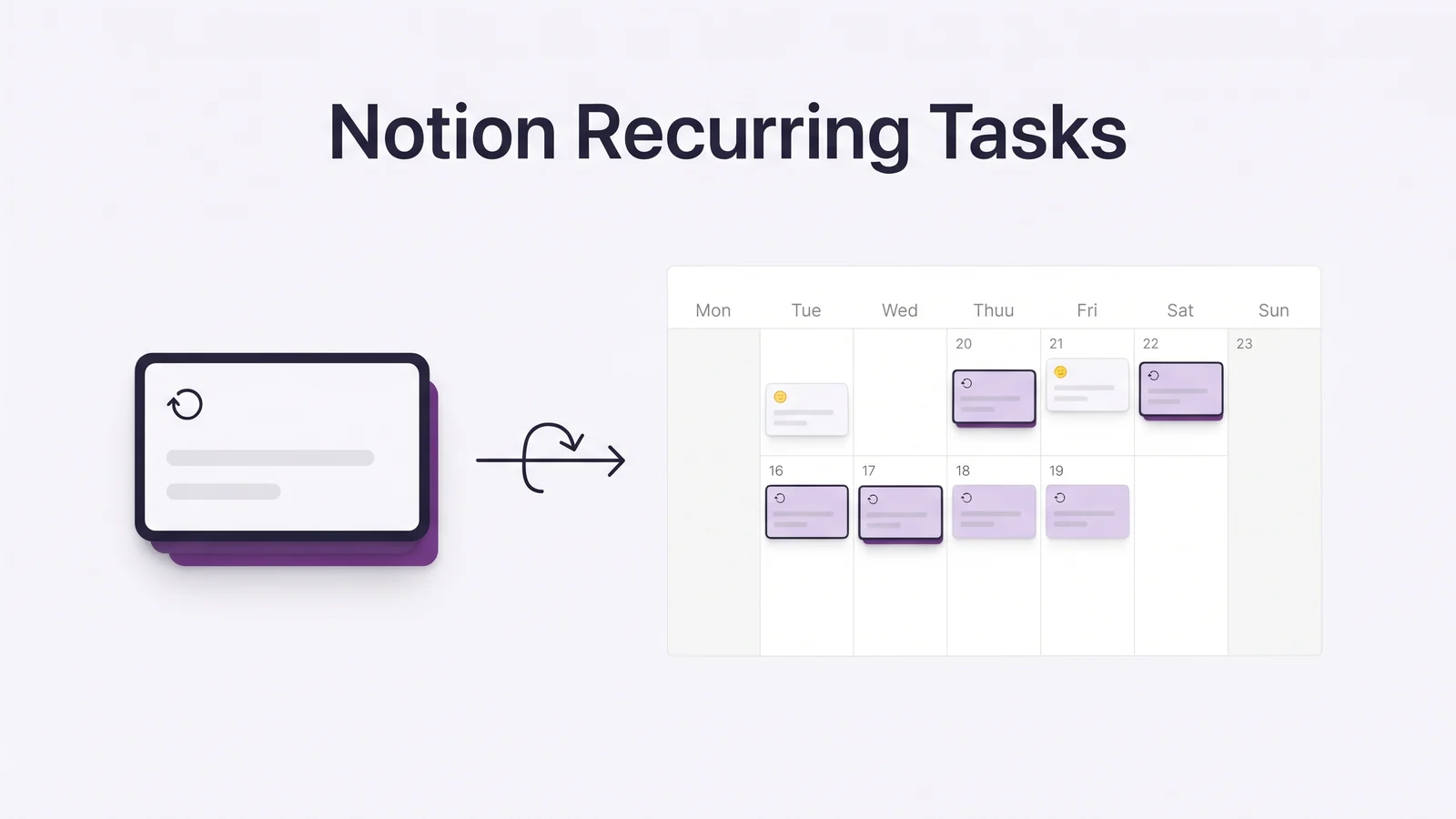
If you add the same task to Notion every Monday, a repeating database template can add a fresh page for you. Set up the task once, choose how often it repeats, and Notion will add each copy to your database.
A Notion recurring task is a database page created from a repeating template on a schedule.
Keep three settings separate: when a page is created, what due date it shows, and whether Notion sends a reminder. The repeat schedule handles page creation. Check the date and reminder on their own.
Key Takeaways
- A repeating database template creates another page from a saved template.
- The Repeat schedule and a task's Date property are separate. Test a generated task before assuming its date advances.
- A repeating task is not the same as a recurring reminder. Notion's Help page says recurring reminders are not currently supported.
- Keep the generated tasks in one database, then use a date view to find what is due.
If you are still deciding what belongs in a Notion task database, start with this guide to a simple Notion task manager. If your main need is a prepared workspace with task views already organized, Notion Task Manager is one option to review.
What should repeat in Notion?
Use a repeating database template when you want Notion to create a new task page on a regular schedule. The previous page stays in the database, so you can keep a record of each occurrence instead of reopening one task and changing its date.
That distinction matters when you review completed work. A monthly report task can create a new page for each month. A one-off task with a deadline should stay a single page. A reminder is different again: it notifies you about a date, while a repeating template creates a new database item.
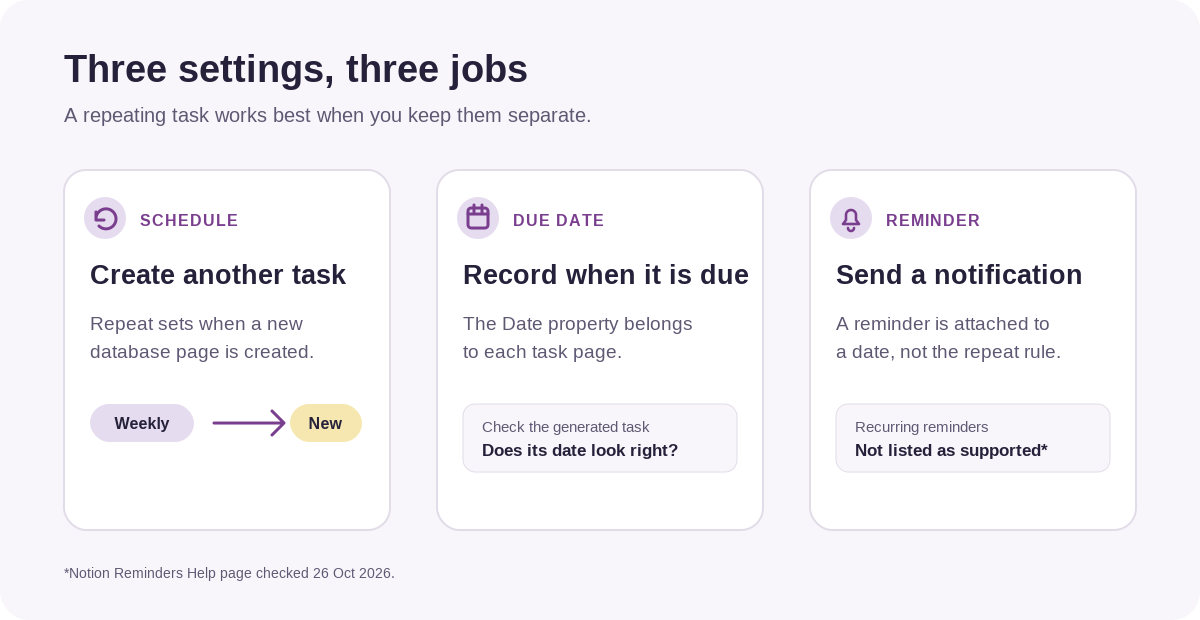
Notion recurring tasks at a glance
Choose the tool by the result you need. A repeat template is for creating another page. A date is for recording when the task is due. A reminder is for a notification.
| If you need… | Use… | Check this before relying on it |
|---|---|---|
| A new copy of a task on a schedule | Repeating database template | Open one generated task and review its properties |
| One task with a deadline | A Date property on that task | Confirm the correct date is visible in your date view |
| A notification at a chosen time | A reminder on a Date property | Notion's help page does not list recurring reminders as supported |
Each row solves a different problem. Notion's help describes a repeating template as a copy, while the repeat schedule has its own menu. The guide does not say that a fixed date value shifts each time.
Set up the task database and template
Create a database for tasks or open the one you already use. Give every task a clear title. Add a Status property if you need to track whether it is to do, in progress, or complete. Add a Date property when you need to record a deadline or scheduled day.
Open the dropdown beside New and choose + New template. Name the template after the repeated work, such as “Send weekly report” or “Review open requests.” Add only the defaults that belong on every copy. You might include a short checklist or a note about where to find the source material. Notion's task database guide explains the status, assignee, and due-date properties used by its task database.
Keep the template neutral when each task needs its own project, owner, or context. Notion warns that a relation placed inside a template will attach every generated page to the same related page if you prefill it. Leave the relation empty when the next task could belong to a different project.
You can use a database template without making it repeat. Create one task from it first. Check that the title, status, date, and page content are right before you attach a schedule.
Choose a repeating schedule
Open the dropdown beside New in the database. Find the template, select its ••• menu, open Repeat, and choose how often a new page should be created. Notion's database templates help page lists daily, weekly, monthly, and yearly schedules, along with an interval, start date, and time.
Choose the schedule that matches the task rather than the date you last completed it. A weekly check can repeat every Monday. A monthly report can repeat once a month. Notion's repeating-template guide also describes custom patterns such as every three days or Tuesday and Thursday each week. The controls can change, so use the options visible in your database.
Pick the first creation time carefully. If a task needs to appear before a meeting or reporting deadline, set the schedule early enough for someone to do the work. The repeat time controls when Notion creates the page, not when the work is due.
For most task lists, keep the template in the task database where you want the new page to appear. If you put a database inside a repeating template, check Notion's nesting limits first: daily templates cannot contain nested templates, and a database template allows up to three levels of nesting.
Test the due date before you rely on it
Treat the repeat schedule and the task's Date property as separate controls. Notion documents repeating templates as copies of a saved template and describes the date and time for the repeat schedule. Its help page does not promise that a fixed Date value inside the template moves to the next occurrence.
That is a reading of the documented behavior, not a claim that every workspace will show the same date result. Before you rely on a repeating task for a real deadline, make a test template with a harmless name. Let one copy appear, then open it and inspect the Date property. Check that the task appears on the date you expect in your calendar or filtered view.
If the date is wrong, edit it on the new task before starting work. If you want a date calculated from the task's creation time, set up that logic separately and test it in your workspace. The schedule menu does not promise to update the due date.
The test can also catch a timing mistake. You might schedule a task to appear after its due date. A page can arrive on schedule and still need a different work date.
Keep the new tasks visible
Use a view that answers one clear question, such as “What is due this week?” or “Which recurring tasks are still open?” A table is useful when you need to review properties. A calendar can show tasks by their Date property. A board can group pages by status. Notion's database views guide covers the available layouts, filters, and sorts. Keep one source database so separate views show the same task pages.
The Master Task List below is a genuine capture from the delivered Notion workspace. It shows the task database and its views. Its sample rows include October 2025 dates, so treat those values as example content, not current tasks or a current due-date test.
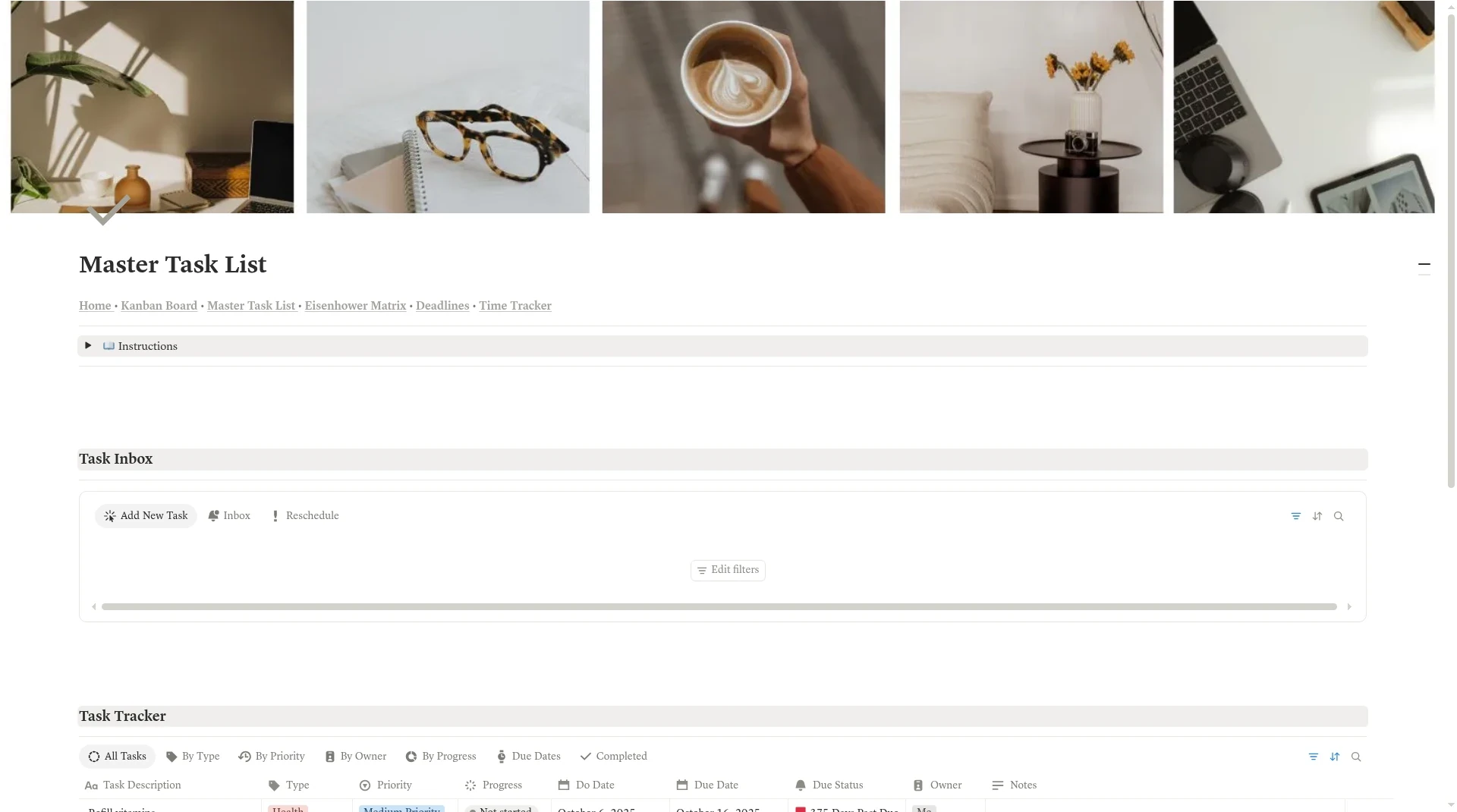
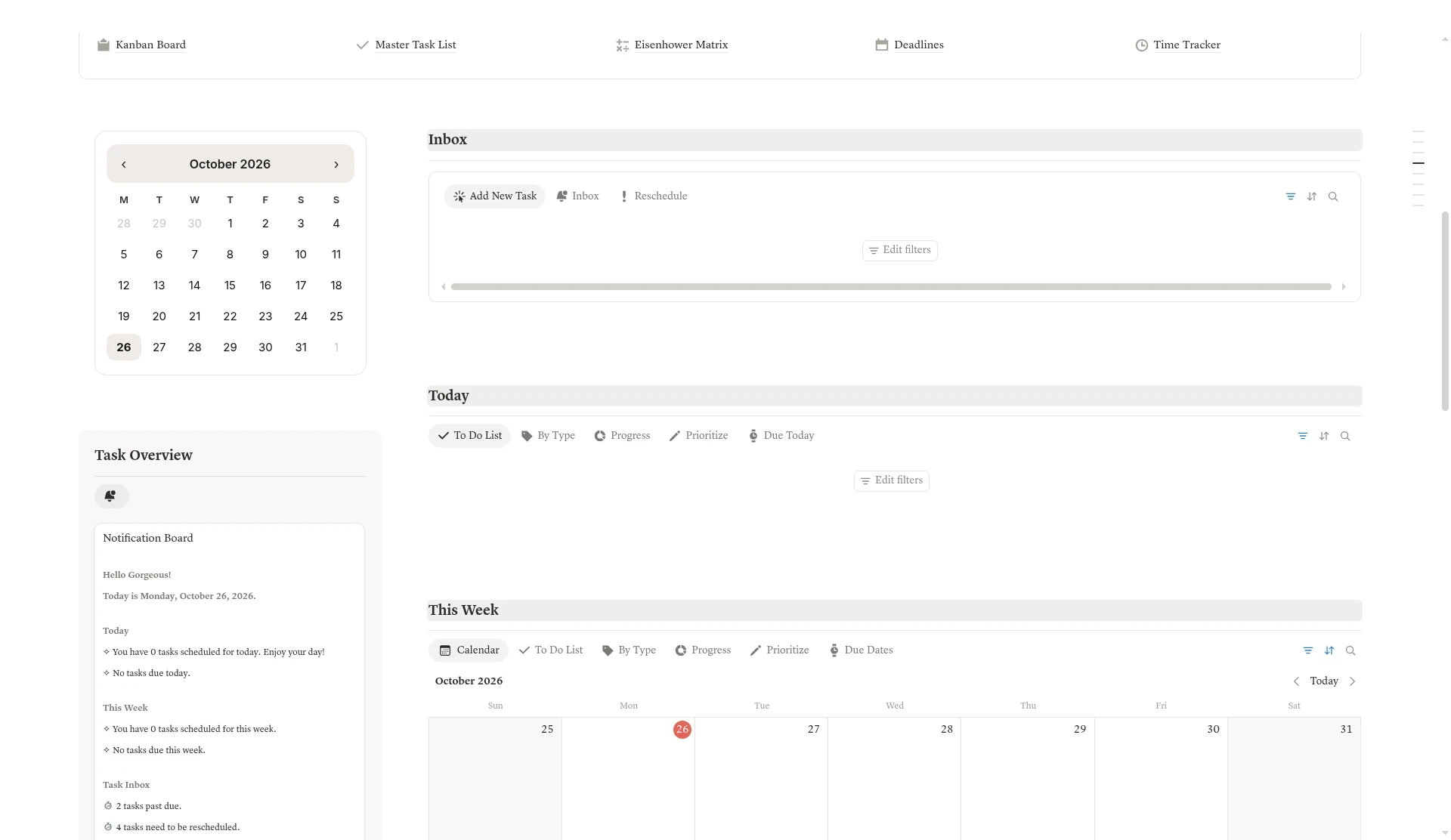
The Home view gives another example of how a task database can be surfaced alongside date views. The visible task counts and task dates are sample content from the delivered duplicate, not your own workspace data.
If repeated pages are hard to spot, add a Type or Cadence property and filter a view to the tasks you want to review. You do not need a field for every schedule. Start with a title and status; keep a date or category only if it helps you choose what to do next.
Change or stop a repeating task
Edit the template's Repeat settings when the routine changes. Notion says you can change or turn off Repeat from the template options, or delete the template. Turning off the schedule stops future copies; it does not remove the tasks already created.
When you skip one occurrence, decide whether the next page should still appear. A weekly checklist may still help after a missed week. A task tied to a one-time event may need a different rule. Keep the schedule simple and note exceptions on the individual task.
Do not rely on a repeat schedule to send a notification. Notion's Reminders help page explains reminders on a Date property and says recurring reminders are not currently supported. You can still set a reminder on an individual task date, but check the current product controls if the task needs a repeated alert.
Why trust this article
The setup steps and limitations here come from Notion's public Help pages on database templates, repeating templates, task databases, and reminders, checked on 26 October 2026. The statement about a fixed date is an inference from Notion's description of repeating a template as a copy; the page does not promise that a date value advances, so test a generated page in your workspace.
Notion Task Manager is built by Cosmo Suite, and this article names it where a prepared task workspace may help. The About page identifies the company and contact route; the editorial policy explains how articles are checked. This product does not add a recurrence schedule or recurring reminder.
Where Notion Task Manager fits
Notion Task Manager is a prepared workspace for organizing tasks and work views. Its Home dashboard has Today, This Week, and This Month views. Linked pages include the Master Task List, Kanban Board, Eisenhower Matrix, Deadlines, and Time Tracker.
You can use Notion Task Manager as a starting point for organizing task views, then add a repeating database template in the database where you want recurring pages to appear. The template and its recurrence schedule are Notion database features you configure. Review how tasks can connect to project pages if each repeated task belongs to a different project.
If you want a prepared starting point, see the Notion Task Manager contents. If you want to build your own, use the steps above and test the first generated task before trusting its date.
Frequently asked questions
How do I make a task repeat in Notion?
Create a database template for the task, open the menu beside it, choose Repeat, and set the frequency and start time. Notion creates a new database page from that template on your schedule. Open the page that appears and check its properties before you rely on the schedule.
Does a repeating template reset the same task?
No. A repeating template makes a separate copy in the database. The earlier page stays in place, so each occurrence gets its own entry.
Can I repeat a task on certain days?
Yes. Notion's repeating-template guide gives custom patterns such as every three days or on Tuesdays and Thursdays. Check the Repeat menu in your workspace, since the available controls can change.
Can Notion send a reminder every Monday?
Not according to Notion's Reminders help page checked on 26 October 2026. You can set a reminder on a database Date property, but the page says recurring reminders are not currently supported. A repeating template creates tasks; it does not set a recurring alert.
Does the due date move forward when a task repeats?
Notion's help explains the repeat schedule and template copy, but does not promise that a fixed Date property moves to the next due date. Create a test repeat, open the new page, and check the date before you depend on it.
How do I stop a repeating task?
Open the database template's options and turn Repeat off, or delete the template if you no longer need it. Turning off the schedule stops future copies; it does not remove the task pages that already exist in your database.