Notion Task Status Property Setup: A Clear Workflow
Notion task status property setup: add clear stages, organize sub-statuses, and create a view that shows active work without labels you do not use.
By Notion Task Manager by Cosmo Suite · Editorial policy
Published · 7 min read
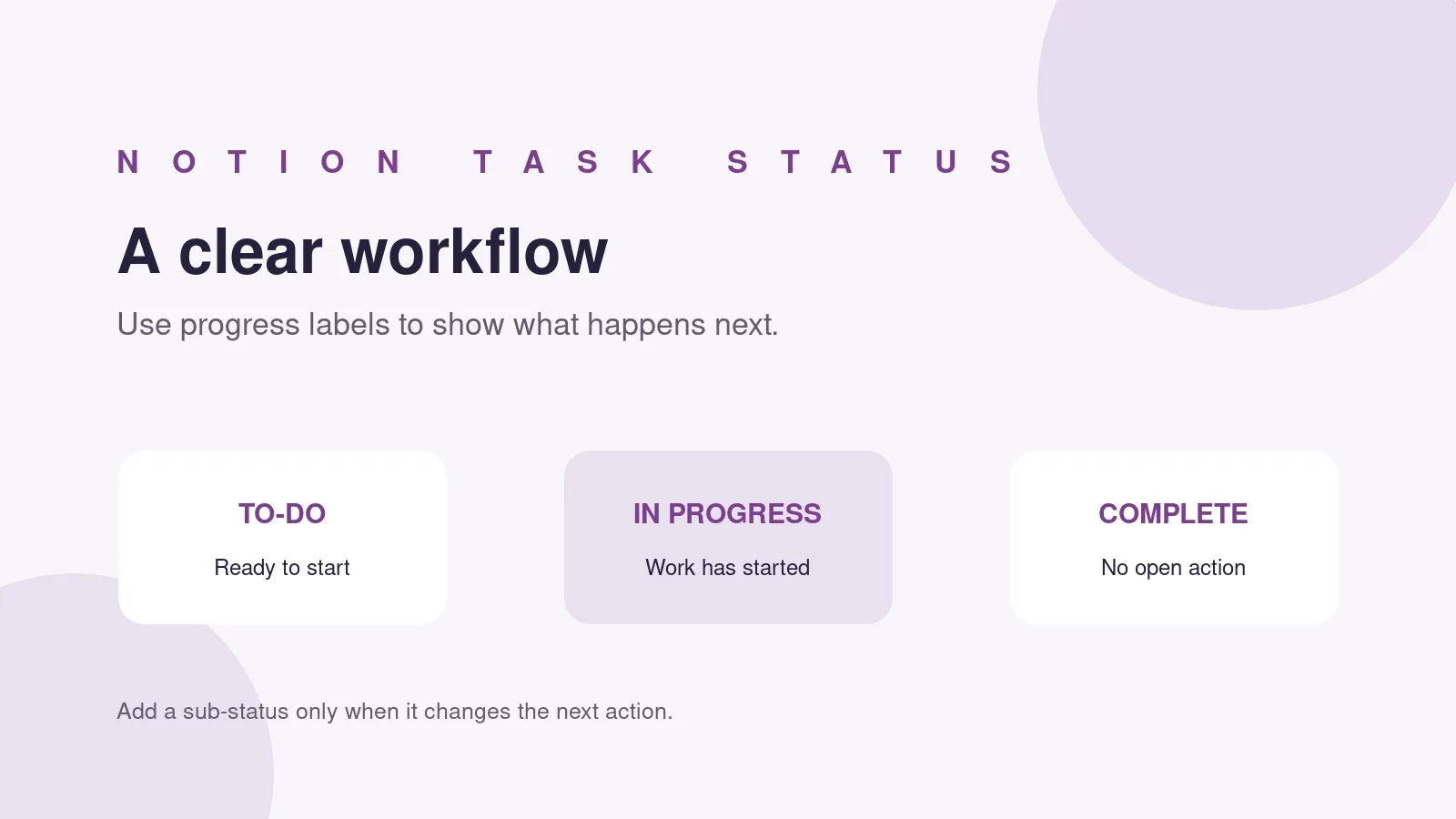
A Notion Status property is a database field that tracks an item's progress through To-do, In Progress, and Complete. Start with its three main groups and add a sub-status when it points to a different next action. That keeps updates simple to make and easy to read.
Keep urgency, ownership, and task type in separate properties. This guide covers the status options, the setup steps, and a view for checking active work. To compare your database with a prepared workspace, see the Notion Task Manager template contents.
Key Takeaways
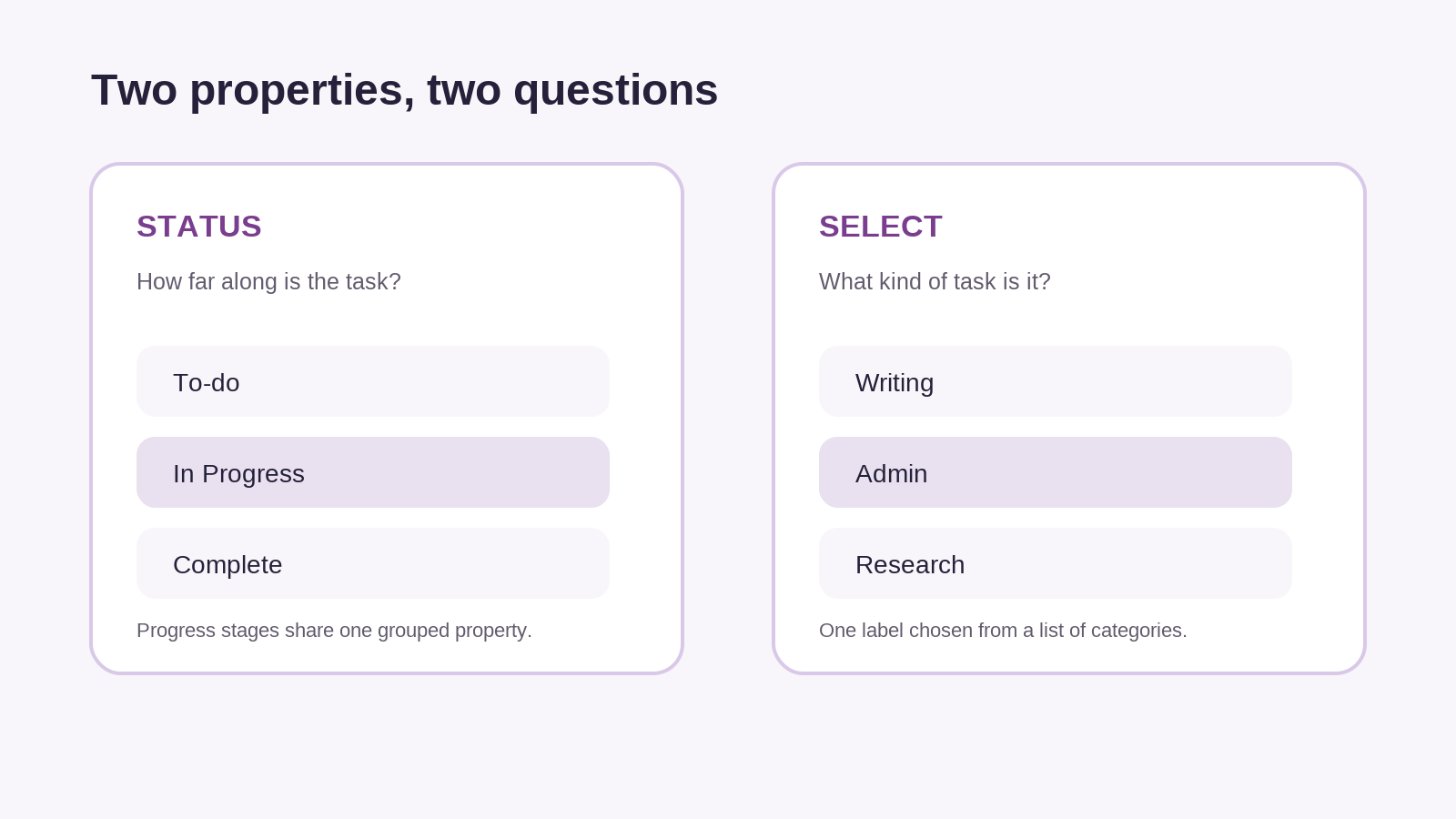
- Use Status for progress and Select for a category such as task type.
- Begin with To-do, In Progress, and Complete; add sub-statuses only when they change the next action.
- Convert any old Select labels before removing the original property.
- Filter a view by status when you need a shorter list for one kind of review.
What Is a Notion Status Property?
A Status property tracks an item's progress through the groups To-do, In Progress, and Complete. Notion provides those categories as part of its Status property, and allows sub-status options within them.
Select holds one tag from a list. Status groups progress options so you can see whether a task is waiting, underway, or complete. Notion's database property guide describes Status as progress tags and Select as a single choice. Put task types such as “Admin” or “Writing” in their own Select property.
For example, a task can have Status “In Progress” and Type “Writing.” One value says how far the task has moved; the other says what kind of work it is. Keeping those answers in separate fields makes filters easier to read.
Which Status Options Should You Start With?
Begin with To-do, In Progress, and Complete. Add a sub-status when someone needs it to choose a next action.
| Main group | Start with | Add a sub-status when… | Example |
|---|---|---|---|
| To-do | Ready to start | You distinguish work you can start from work waiting on something | Next up; Waiting |
| In Progress | Active work | A handoff or review changes who acts next | Drafting; In review |
| Complete | Finished | You need to distinguish delivery from a later administrative step | Done; Archived |
These examples are optional labels, not required Notion defaults. A short personal list might need no sub-statuses. A team may find a review state helpful because it marks a handoff. Choose words your users will apply the same way when they update the task.
Keep urgency separate from progress. “Urgent” says nothing about whether work has started, so use a priority field when you need to sort urgent tasks. Set a clear meaning for each priority label before adding several. Keep dates in a Date property because a late task can still be in progress.
How Do You Add a Status Property in Notion?
Add a property with the Status type from the database's property menu, then edit its options to match the way your tasks move. Notion documents the Status property as a database property, alongside options such as Select and Date.
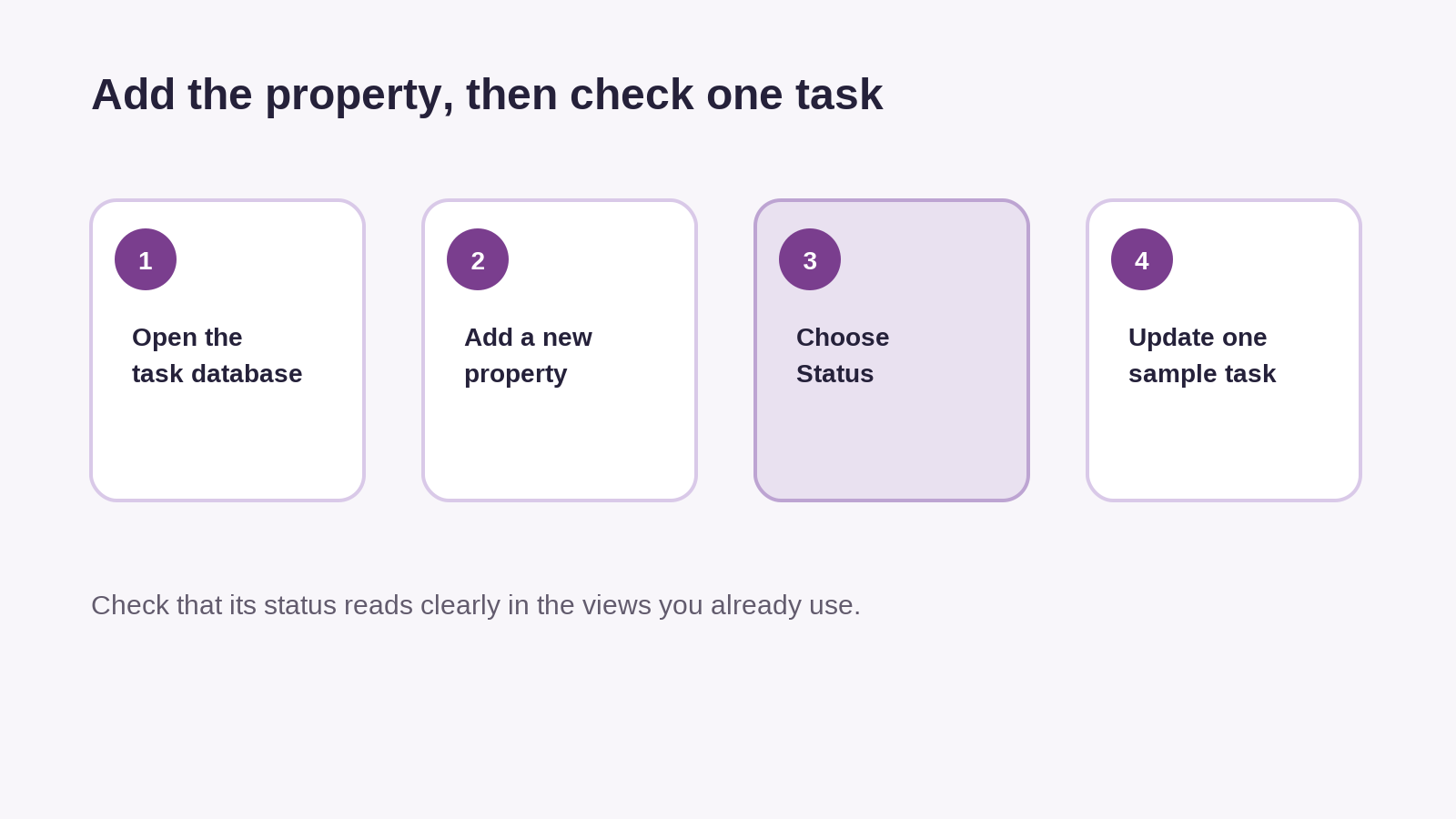
- Open your task database and open its database options.
- Choose the property controls, then add a new property.
- Select Status as its type.
- Review the options within each group. Rename or remove sub-statuses that no longer fit; keep the three main groups.
- Add a sub-status under the appropriate main group when a handoff or next step needs a label.
- Update a sample task and check whether its new status makes sense in your task views.
Notion's Status property guide says the main groups are To-do, In Progress, and Complete. You can add and rename options within them to express your workflow. Keep the field quick to update; let a project database carry wider approval stages and dependencies.
If you already have a Select property called Status, check the values before replacing it. Map each existing label to the new groups first. For example, “Not started” could map to To-do, “Doing” to In Progress, and “Finished” to Complete. Keep the old values visible while you confirm the mapping, then remove the duplicate property only after the tasks use the new Status property correctly. Notion's database creation instructions show how to add properties to a database.
When Should You Use Status Instead of Select?
Use Status when each option represents a stage in the item's progress. Use Select for a single category that does not imply progress, such as work area, task type, or source.
Notion's database property guide describes Status as progress tags categorized by To-do, In Progress, or Complete. It describes Select as a choice from a list of tags. That difference is the simplest decision rule.
For example, a status could be “In review,” while a type could be “Writing.” A project area might be “Website,” while the status stays “To-do.” If you need multiple independent facts, keep them in separate properties so each one can filter and group tasks clearly.
Avoid creating both a Status and a checkbox called “Done” unless they serve different jobs. If one field already shows completion, the second can disagree with it. Use a checkbox when the only question is whether an item is complete; use Status when work passes through stages before completion.
How Do You Make a Useful Status View?
Create a database view that filters on the Status property and answers one review question. Keep status definitions in the property; use the view to show the relevant tasks. Notion's guide to views, filters, sorts, and groups explains that each database view has its own settings.
To create an “In Progress” view, add a view to the database and set a filter where Status is In Progress. A table can show task details in columns. A board can group cards by status so you can see work across stages. Notion's board view guide explains how board groups can use status options.
You might also create an open-work view that includes To-do and In Progress, while excluding Complete. Keep an all-tasks view when you need to find finished work. Completed tasks can stay in the same database while the open-work view keeps the daily list short.
When a task does not appear, check the view filter and the task's status value. A filter for In Progress will hide tasks marked To-do, even when the database itself contains them. Each view has its own settings, so confirm that you are editing the view you intend to use.
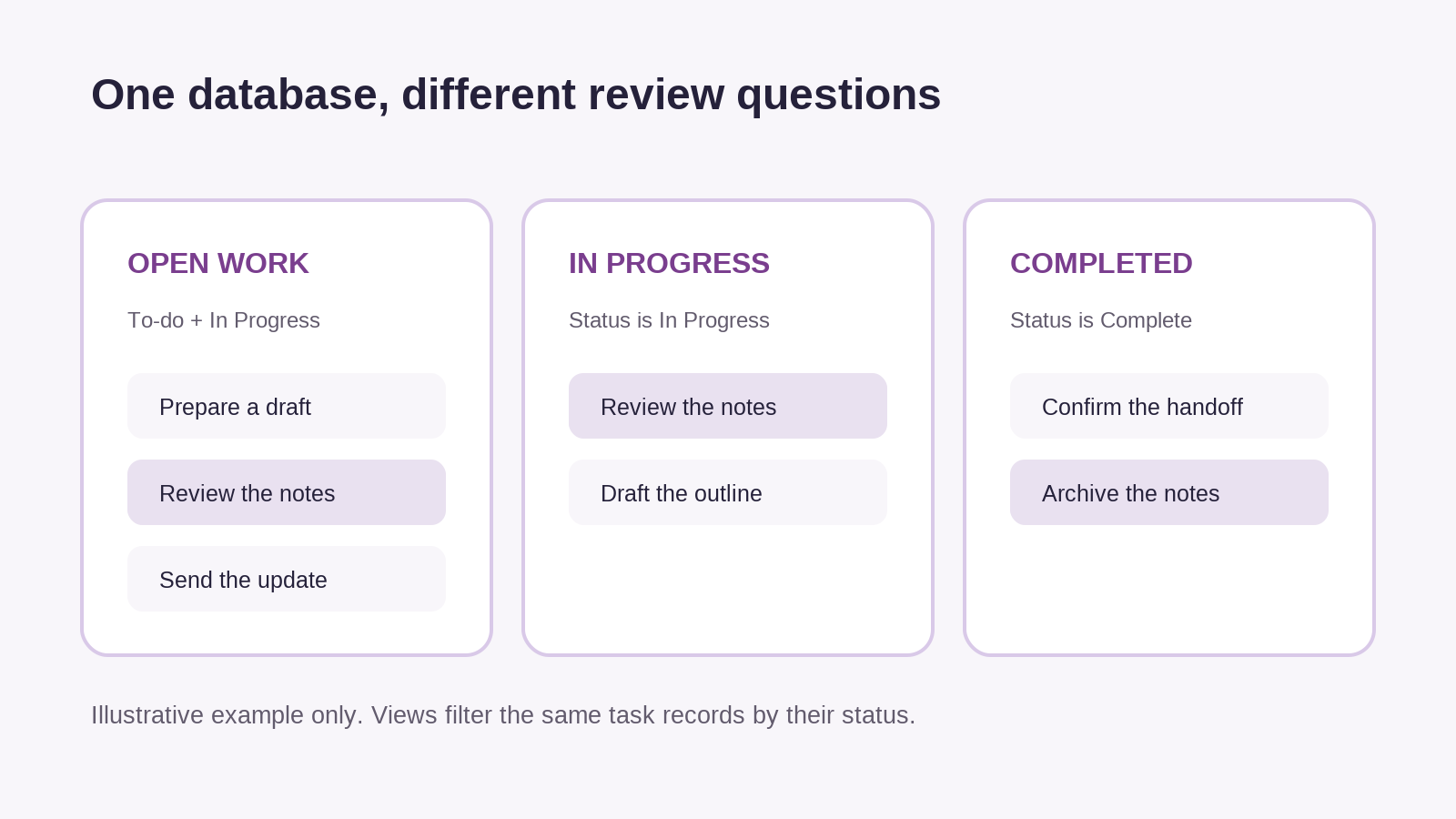
For a deeper walkthrough of a task database's fields, see the minimum properties for a Notion task database. If you are planning a smaller setup first, this Notion task manager guide explains which fields to keep. If the next thing you need is a board, the Notion Kanban board setup guide covers the board layout.
What Should You Do When Status Labels Stop Helping?
Simplify the list when labels overlap, are used inconsistently, or do not change what someone does next. The point of a status is to make progress easier to understand.
Review a few open tasks and ask what action each label signals. If “Queued,” “Ready,” and “Next” all mean that work can start, keep one term. If “Waiting for a reply” and “Blocked” are being used interchangeably, decide whether the difference matters to your next review. Keep the distinction only if it changes who follows up or when. A useful status design check is to read each option alongside the next action:
| Label | Who acts next? | Keep it when… |
|---|---|---|
| In review | The reviewer | The task has moved to another person |
| Waiting | The task owner, after a reply | The task cannot move until a response arrives |
| Ready | The task owner | It can start without another handoff |
If two labels lead to the same next action, one may be enough. For a prepared list of views to compare against your own, review the Notion Task Manager template.
The most useful test is whether two people would select the same option for the same task. If they would not, write a short definition beside the status or remove it. A long list of ambiguous labels can make a simple update slower than a single broad stage.
Give approvals, dependencies, and several deliverables their own project workflow. The task status can stay focused on the task's progress. To compare it with a prepared task setup, review the template's included task views.
Where Notion Task Manager Fits
Notion Task Manager is a prepared workspace for people who want task views ready to adapt. It includes a Master Task List and Kanban Board alongside the Home dashboard and other linked areas. See the Notion Task Manager contents and decide whether that starting point suits the way you want to track progress.
The template is a one-time purchase and its product description says it works on Notion's free plan. That is separate from Notion's own plan terms. You still choose which status options make sense for your tasks, and you can compare the template's included views with the small workflow described here.
If you are already building your own database, start with a Status property and one open-work view. If you want a prepared structure to adapt, review the product contents before deciding. The best status list is the one that makes the next step clear when you return to the task.
Why Trust This Article
This guide uses Notion's public help documentation for status properties, database properties, and board views, checked on November 14, 2026. It explains a setup method and examples; it does not report a user study or a test of customer workspaces. The About page explains who publishes Notion Task Manager, and the editorial policy describes how the blog handles sources and corrections. To report an error, use the site's contact page. Notion's interface and property controls can change, so check its current help pages if a menu label differs.
Frequently asked questions
What status options should I use for Notion tasks?
Start with To-do, In Progress, and Complete. Add a sub-status when it changes the next action, such as marking work that is waiting for review.
Should I use Status or Select for tasks in Notion?
Use Status for progress through To-do, In Progress, and Complete. Use Select for labels such as task type or area, which do not describe progress.
Can I rename Notion's main status groups?
Notion keeps the main To-do, In Progress, and Complete groups. Add or rename sub-statuses within them when a name makes the next step clearer.
How do I make a Notion view for tasks in progress?
Create a database view and filter its Status property to In Progress. Choose a table to scan task details or a board to move cards between stages.
Should completed tasks stay in the same task database?
Yes. Keep them in the same database, filter an open-work view to hide completed tasks, and use another view when you need the full record.
How many task statuses are too many?
There is no fixed limit. A status list needs simplifying when two labels mean the same thing, people choose them inconsistently, or the labels do not change the next action.