Notion Kanban Board: Set Up a Clear Task Flow
Set up a Notion Kanban board: add a Board view, group it by Status, pick card details and filters you will keep current. Steps and a sample flow.
By Notion Task Manager by Cosmo Suite · Editorial policy
Published · 8 min read
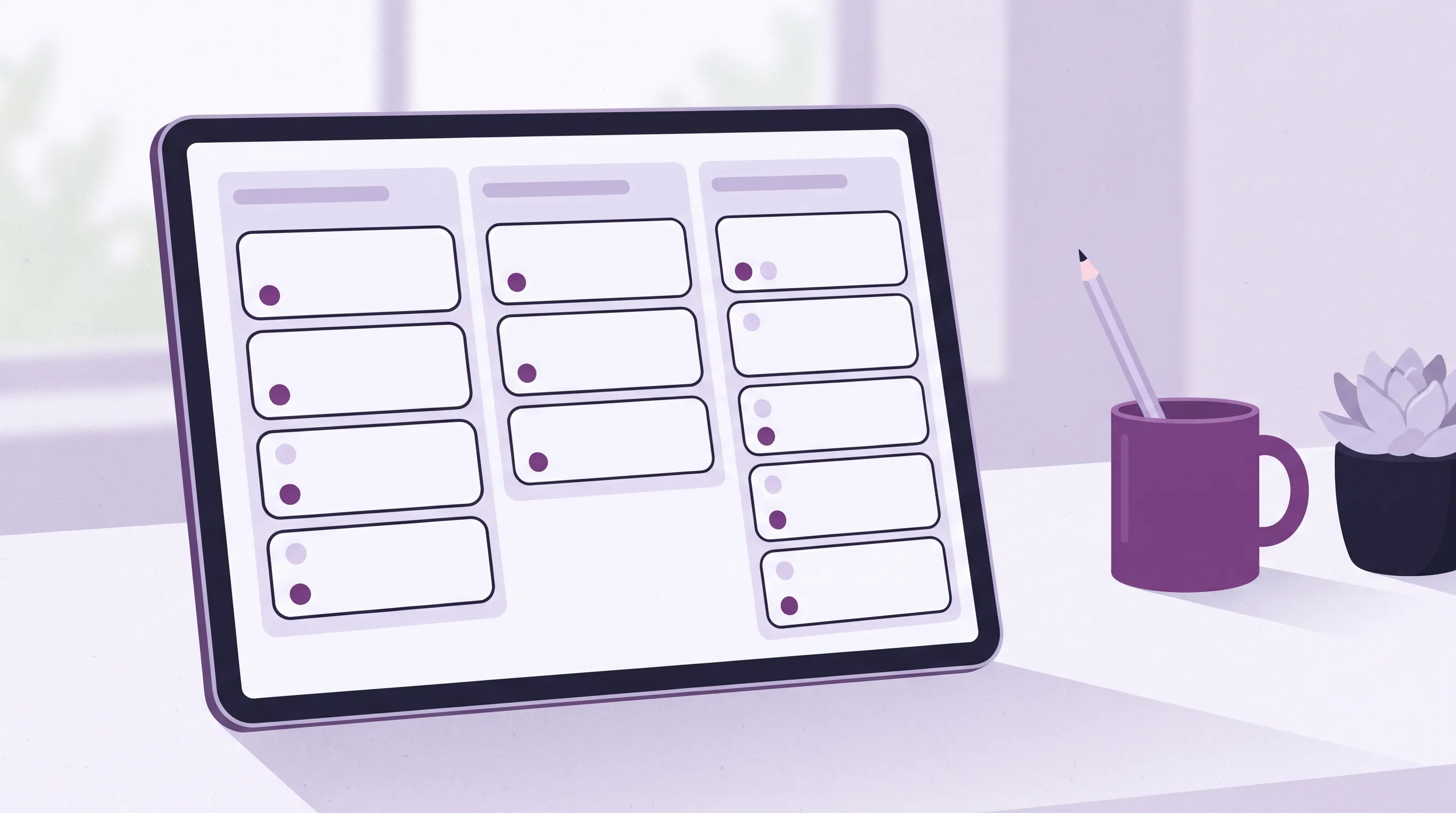
A Notion Kanban board is a Board view of a Notion database, grouped by a property such as Status, where each task is a card and each status is a column. You can add this view to an existing task database and keep it connected to the same records you already use.
At a glance
- Add a Board view to the task database you already use.
- Group it by a short Status property such as To do, In progress, and Done.
- Show only the properties that help you choose or update a task.
Last checked: 8 November 2026
Each column should describe a useful work state. Start with a short list, then show only the card details that help you decide what to do next. If your tasks need dates, priorities, or project context, keep those as properties on the database and display them only where they help.
What a Notion Kanban Board Shows
A Board view is a database view that groups task pages by a property, often Status. Each group appears as a column, and each task appears as a card. Moving a card to another status group changes the task's property because both views use the same database.
| Board part | Simple starting choice | Add more when |
|---|---|---|
| Database | One task database | Your projects need separate records and details |
| Grouping | Status | Another property gives a clearer workflow |
| Columns | To do, In progress, Done | A recurring handoff needs a Waiting or Review state |
| Card details | Task name and status | Due date, owner, or project changes the next action |
Notion's Board view guide describes board views as groups of database pages organized by a property. It also explains how to add a Board view to an existing database. For a broader foundation, see this guide to setting up a Notion task manager.
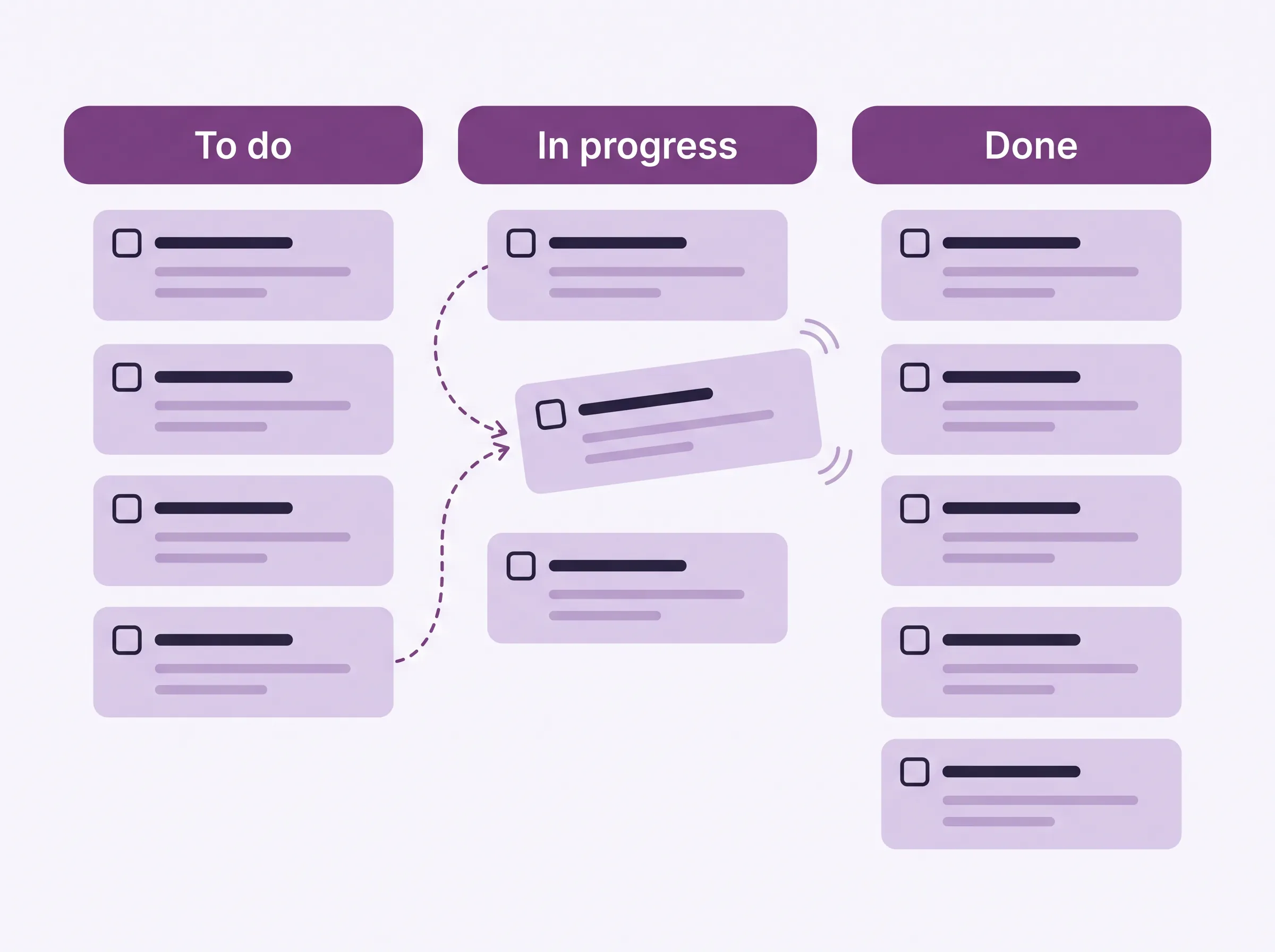
Use a board when work follows a visible sequence. A personal errand list with no stages may be quicker to manage in a table. A project with tasks that move from drafting to review to approval can benefit from columns because the current state is visible without opening each record.
How do you create a board view in Notion?
To create a board view in Notion, open the database that holds your tasks, add a view, choose Board, and group it by Status. The new view uses the same records as your table, so moving a card updates the task's status instead of making a duplicate. Check the grouping with a few tasks before using the board for regular reviews.
Add a Board view to the database that already holds your tasks, then group it by Status. This gives you a Kanban-style view without creating a second copy of every task.
- Open the task database you want to use.
- Select the plus sign beside the database name or current view.
- Choose Board and give the view a clear name, such as “Task flow.”
- Open the view settings and choose Group.
- Select the Status property. If you do not have one, add a Status property with a few plain options.
- Add a few existing tasks or sample records, then check that each appears under the expected column.
Notion's database view documentation says a database can have multiple views and that each view has its own settings for layout, filters, sorts, and grouping. The database properties guide lists property types you can use for details such as dates, statuses, and relations. A new Board view can therefore sit beside your table view. You can return to the table when you need to edit several task fields at once.
If the board starts with groups that do not fit your process, edit the options in the property used for grouping. Keep the names short enough to read at a glance. Before adding a new status, ask what changes when a task enters it. “Waiting” can be useful if someone needs to follow up. “Almost ready” may not help unless the next step is clear.
Which status columns should a Notion task board have?
A Notion task board should use a few status columns that match the real stages of your work. To do, In progress, and Done are a simple start; add Waiting when tasks often depend on a reply or decision. Clear, distinct labels make it easier to choose a status and keep the board current.
Use a status label to name the task's current state. Put urgency in a separate priority property only if you use it to choose between tasks. For a solo workflow, To do, In progress, and Done may be enough. A small team might add Waiting when a task cannot move until a person or decision arrives.
| Status | Use it when | Review question |
|---|---|---|
| To do | Work is recorded but has not started | Is this still a task you intend to do? |
| In progress | Someone is actively working on it | What is the next action? |
| Waiting | Progress depends on a reply or input | Who or what are you waiting for? |
| Done | The task is complete | Should completed items stay visible here? |
Use the smallest set that reflects how work moves. Too many columns make it harder to choose a status, especially when two labels mean nearly the same thing. If tasks regularly get stuck between two states, add a label only when you can explain the difference and how to move out of it.
A Status property is a database property that names the state of each task. Notion's database properties guide describes the available property types.
A status board also depends on regular updates. If work changes but nobody moves the card, the board gives an outdated picture. Review it during a work moment you already have, such as opening the task list at the start of a session. During that check, look for a card that has stayed In progress after the work paused, or a Waiting task that now has the reply it needed. Move only the cards whose state changed.
Show the Task Details That Help You Act
Keep each card focused on the information you use during a board review. Task name and status are the basics. A due date can help with timing, while an owner can help a team see who has the next action. Add project only when grouping tasks by project changes how you review them.
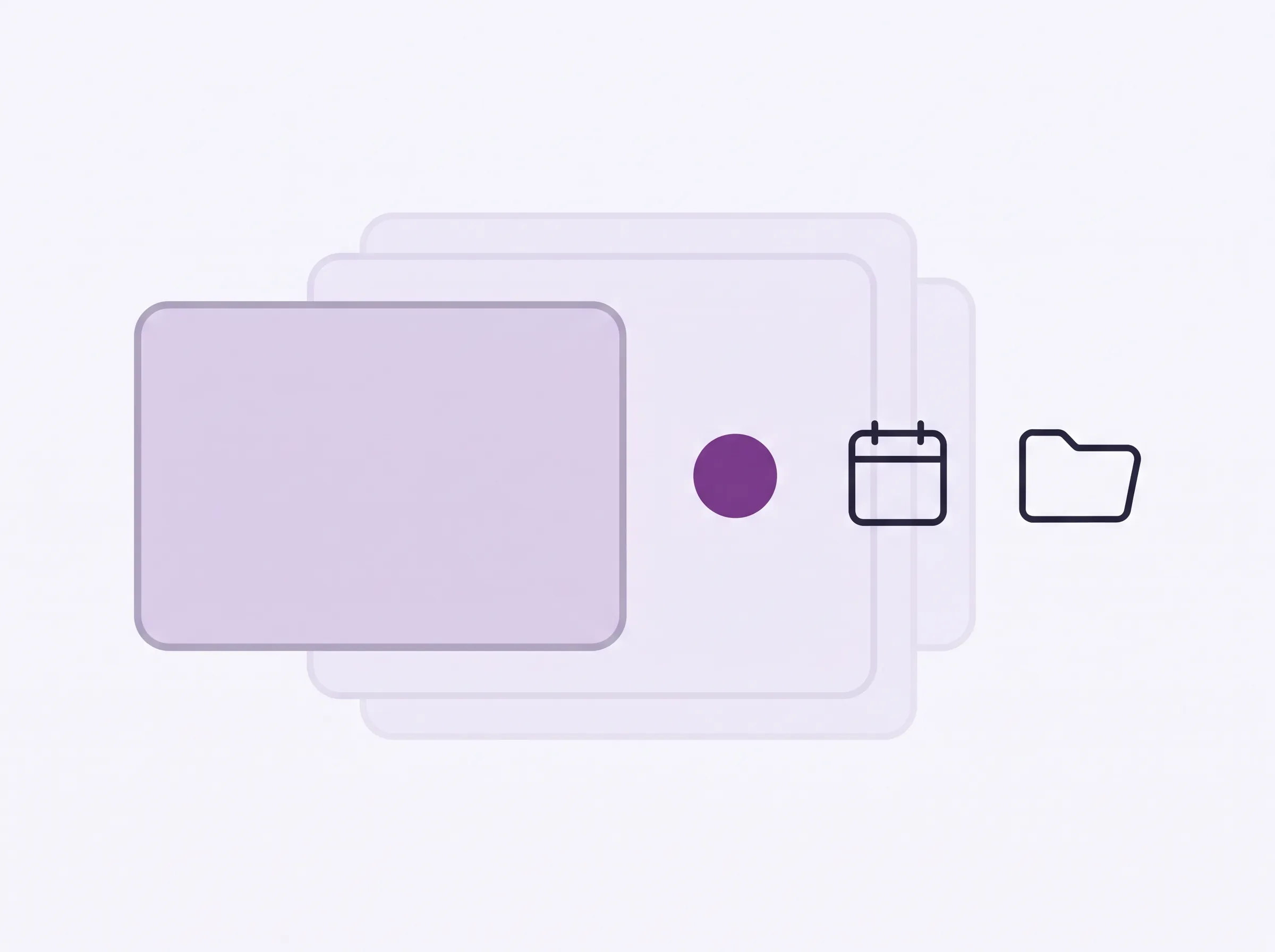
In the board view settings, choose which database properties appear on cards. Notion lets you change property visibility for a view, so you can hide fields that crowd the board while retaining them in the database. Choose the few properties that support a board decision.
Try a short field test. For each visible detail, finish this sentence: “I use this to decide…” If you cannot name the decision, hide that property from the board. The property stays in the database while the board remains focused on scanning and moving work.
A useful sample might have a task called “Review the launch checklist,” with Status set to In progress and a due date only if the review has a real deadline. The example is illustrative. It shows how a name, state, and date can be enough to make the next step legible without assigning every task a priority score.
Filter and Sort the Board for a Regular Review
Use filters to keep the board relevant to the person or kind of work being reviewed. For example, a personal board can show tasks assigned to you, or a project view can show only tasks related to one project. Sort within a group when card order helps you decide what to pick up next.
Open the view settings, select Filter, and choose the property and condition. A filter such as “Status is not Done” can remove completed work from an active board. If you want to keep finished tasks in sight, leave the group visible or hide it from the board instead. Notion's documentation notes that groups can be hidden and shown from the view settings.
Keep filters simple enough to explain. If a task disappears, check its status and the board's filters before adding a second database. Filters and sorts belong to the view, so changing a board filter does not require changing the table view that uses the same records.
For a project workflow, try a board grouped by Status and filtered to one project. For a personal day-to-day review, a date-based view may answer the more useful question. The Notion Task Manager overview describes a prepared dashboard and linked areas for people who prefer to adapt an existing task setup.
When is a board the wrong Notion view?
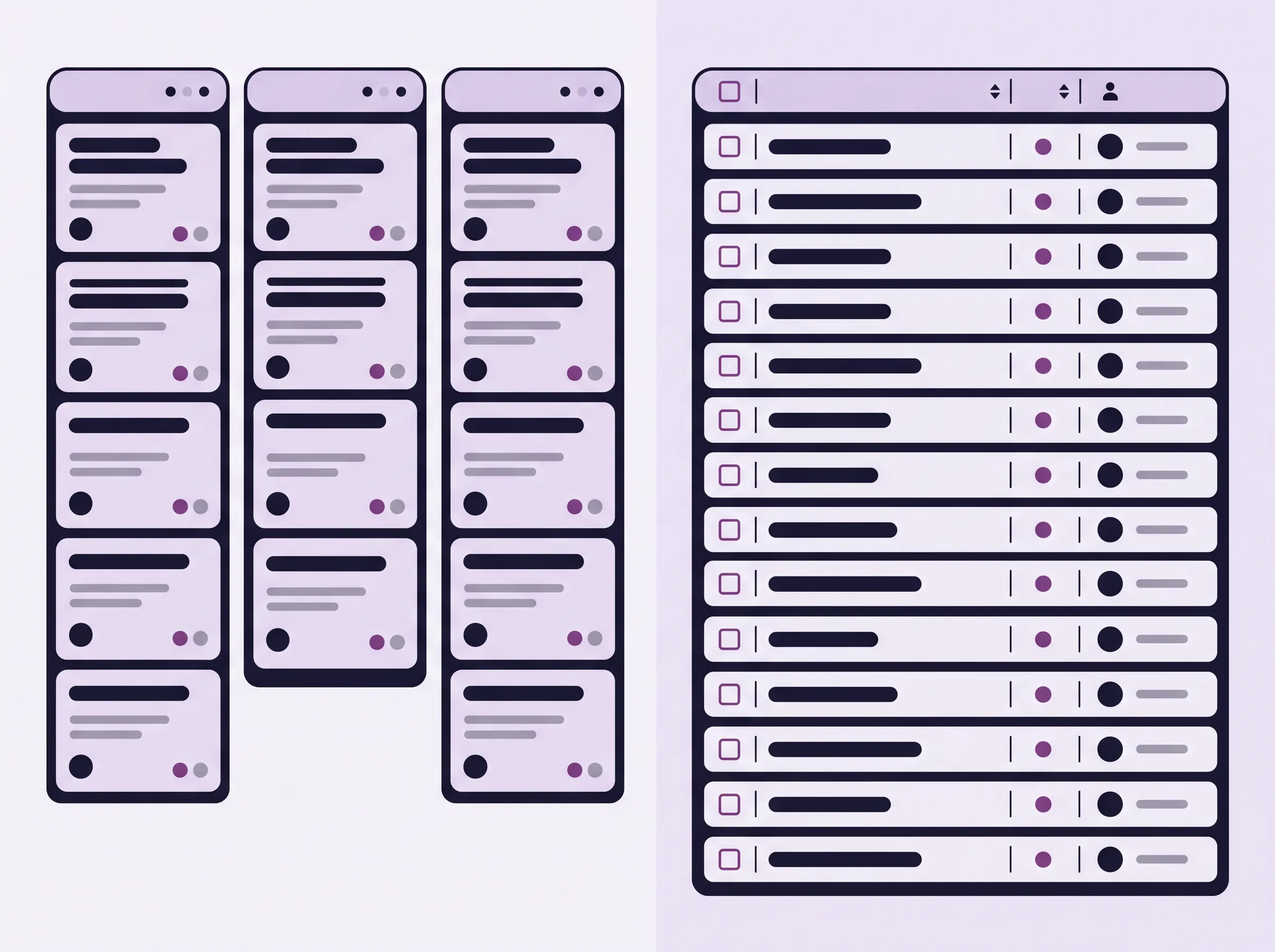
A board is the wrong Notion view when you need to find a specific task, compare many dates, or update several properties in one pass. A table makes those details easier to scan in rows, while a board helps review work by state. Both views can use the same database, so you can switch based on the task.
A board is useful when work moves through stages and you benefit from seeing that movement. It is less useful when you mainly need to find a specific task, compare many dates, or update several properties in one pass.
| View | Best for | Review question | Edit speed |
|---|---|---|---|
| Board | Reviewing work by state | What is waiting or moving? | Move a task between stages |
| Table | Scanning names, dates, owners, and projects | Which task or detail needs attention? | Update several properties in rows |
Because the same database can have multiple views, you can keep both and switch according to the task in front of you. A board can also be hard to scan when one column collects most of the work. In that case, review whether the status labels reflect real next steps, or whether the tasks need a more useful filter.
Avoid creating a separate task database for every board column. A single database keeps the task record in one place while views present it in different ways. If your workflow needs distinct project records, a relation between projects and tasks may help; this Notion project management template guide explains when that structure is useful.
Where Notion Task Manager Fits
Notion Task Manager includes a Home dashboard and nine linked areas, including Tasks and Projects. The published contents also include a Kanban Board. You can review the Notion Task Manager details to see whether that prepared structure fits the way you want to track work.
A prepared board saves you from setting up its database view and connected areas from scratch. You still decide which status labels and properties match your work, and you need to keep task records current. If you only need a short list, a simple database view may be enough. If you want a broader Notion workspace to adapt, inspect its included areas before choosing.
Why Trust This Guide?
This guide uses Notion's Board view help page, database views guide, and database properties page, checked on 8 November 2026. The steps for creating a view, grouping it, choosing card properties, applying filters, and hiding a group were checked against these pages. This guide covers the Notion web and desktop menus as the help pages described them on 8 November 2026. The task names used in the sample workflow are illustrative, not customer examples. Our editorial policy explains how we source and check product claims. Learn about us or contact us with a correction.
Frequently asked questions
How do I make a Kanban board in Notion?
Create a database or open an existing task database, add a new view, and choose Board. Group it by a Status property so each status becomes a column. Add a few test tasks and move one card to confirm the workflow behaves as expected.
Can I make a Kanban board from an existing Notion task database?
Yes. Add a view beside the database name or current view, choose Board, and group it by the property you use for task progress. The board is another view of the same records, so updates stay connected.
What status columns should I use for a Notion task board?
Start with a small set that matches your work, such as To do, In progress, and Done. Add a Waiting column when tasks often depend on another person. Use labels your team can apply consistently.
Does moving a card change the task?
Yes. Moving a card to another status group updates the task's Status property because the board and other views use the same database. See Notion's Board view help page.
How do I hide completed tasks on a Notion Kanban board?
Add a filter to the board view that excludes tasks with a completed status, or hide the Done group if you still want to keep it available. Each database view has its own settings.
Should I use a Notion board or table for tasks?
Use a board when moving work through stages is part of your review. Use a table when you need to scan and edit several properties quickly. Both can show the same database, so you can keep both views.
Sources
Keep reading
Task Management
Notion Task Manager: What to Keep and What to Skip
notion task manager: Learn which task fields and views earn their place, what you can skip, and when a ready-made Notion setup makes sense.
· 8 min read
Task Management
Notion Task Database Setup: The Minimum Fields to Start
notion task database setup: pick fields that guide your next action, start with a usable task list, and add views when you need another way to review it.
· 10 min read

Task Management
Notion Team Task Manager: One Shared Task List for a Small Team
Notion team task manager setup for a small team: one shared database, an Assignee property, personal views and the Free plan limits to check first.
· 9 min read
