Notion Overdue Tasks View: Set One Up Without the Guilt
Notion overdue tasks view: separate late work from today's tasks, keep undated items visible, and choose a next step without turning the list into a warning.
By Notion Task Manager by Cosmo Suite · Editorial policy
Published · 7 min read

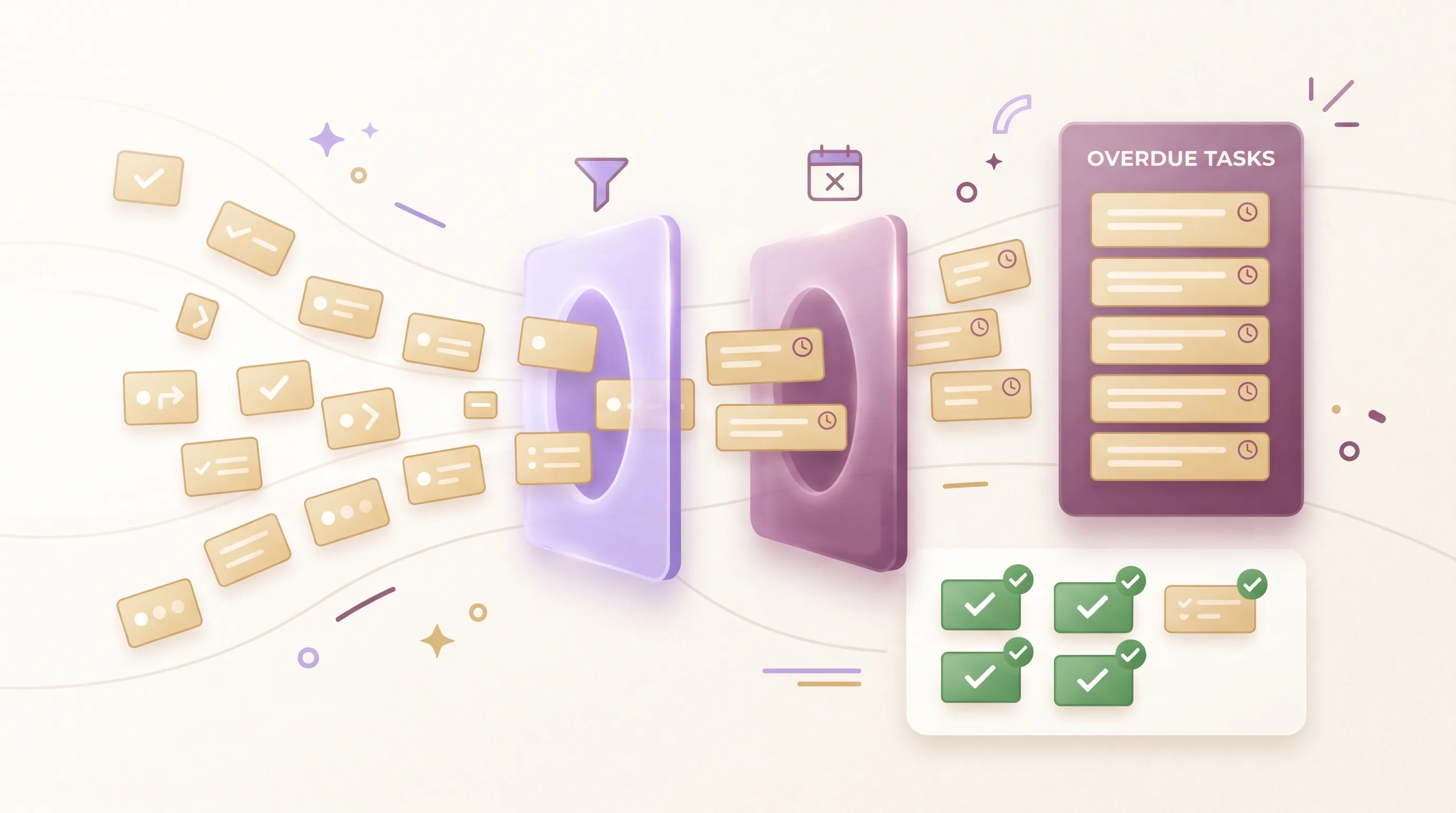
An overdue list should answer one question: which unfinished tasks have a date that has passed? It should not turn every old task into an emergency. In Notion, make the view from the same task database, filter by a past due date, and exclude completed work. Then decide how to review the results without letting the list drown out what you can do today.
The distinction matters when a dashboard opens on a long wall of red items. Some still need action. Others have no useful deadline, are waiting on someone, or no longer matter. A careful Notion task manager setup separates Due Today, Upcoming, and Overdue so you can choose what to handle next. If you would rather adapt a prepared Notion task manager workspace, compare its views with the way you review work.
Notion overdue tasks view at a glance
Set a past-date rule and exclude completed tasks. These defaults keep today's work and undated items in their own places.
| Filter | Starting rule | What it does |
|---|---|---|
| Due date | Is before today | Finds dated tasks from earlier days; leaves today’s tasks for a separate view |
| Status | Is not Done | Removes completed work from the review list |
| Sort | Due date, ascending | Puts the oldest date first; use priority first if that better matches your review |
| No due date | Separate view | Keeps undated tasks visible because they cannot match a past-date filter |
This is a practical default, not a verdict on each task. An old date says when you planned to act. It does not tell you whether the task still matters or what its next step should be.
How do you create the overdue view?
Create another view of your task database, then add a date filter and a completion filter. Notion views can show the same database with different layouts, filters, and sorts, so the overdue list can stay connected to your main task records.
- Open the task database and select the plus sign beside the current view name. Choose a table or list layout, then name it Overdue.
- Open the view settings and choose Filter. Select your due-date property and set it to is before today.
- Add another filter for Status and set it to is not Done. Use the label your database uses for completed work.
- Add a sort on the due date, oldest first. If you review urgent work before old work, sort by your priority property first and due date second.
- Open the view and check three records: one with a past date, one due today, and one marked complete. The first should remain; the other two should not.
Notion lets each view have its own filters and sort rules. Its views, filters, sorts, and groups guide shows how to add a view and change its settings. Menu names can shift, so check the current guide if your controls look different.
If “Done” is not your only completed status, use an advanced filter. For example, a database may have both Done and Canceled. Set the date and active-state conditions with AND, then exclude both completed states. Notion’s advanced database filter guide covers filter groups and AND/OR logic.
What should count as overdue?
For most date-only task lists, overdue means a due date before today and a status that is not complete. That keeps tasks due today in their own view, where they can compete fairly with other work planned for today.
Date ranges need a choice. If a task runs from Monday through Wednesday, decide whether you mean the start date, end date, or the full range when filtering. Use the date property that represents the actual deadline. Notion date properties can include an end date, time, and timezone, so an event with a precise cutoff may need more than a calendar day.
The time of review also changes how useful the list feels. If you check it in the morning, a task due today is not late. If your work has a clear deadline hour, a date-only filter may not express that distinction. Set time only when someone will use it consistently; otherwise, it adds precision without improving the decision.
Avoid changing old due dates automatically just to clear the list. Moving every missed task to today hides how the task arrived here and can crowd out work that was already planned. Give a task a new date only after deciding that it still matters and when you can realistically act.
Why do overdue tasks disappear?
Most missing items have no due date, use a different date property, or match a status filter that excludes them. A date-based view can only show tasks whose date meets the filter. Add an Unscheduled view for tasks without dates, and review it beside the dated views.
Check these points when a task is missing:
- The date field: Confirm the filter uses the property you fill in, such as Due date rather than Created time.
- The date value: Open the task and check that its date is earlier than today. A date set for today belongs in Due Today.
- The status rule: Make sure the status does not match a completed or canceled state that your filter excludes.
- The view filter group: Review the AND and OR conditions. A nested rule can hide a task even when its date looks right.
- The task hierarchy: If you use sub-items, check whether the view is set to show parents, children, or both.
For fields and date settings, Notion’s database properties guide explains Date properties, end dates, times, and timezones. A short review of the minimum fields for a task database can also help if dates or statuses are inconsistent.
How can you review overdue work without guilt?
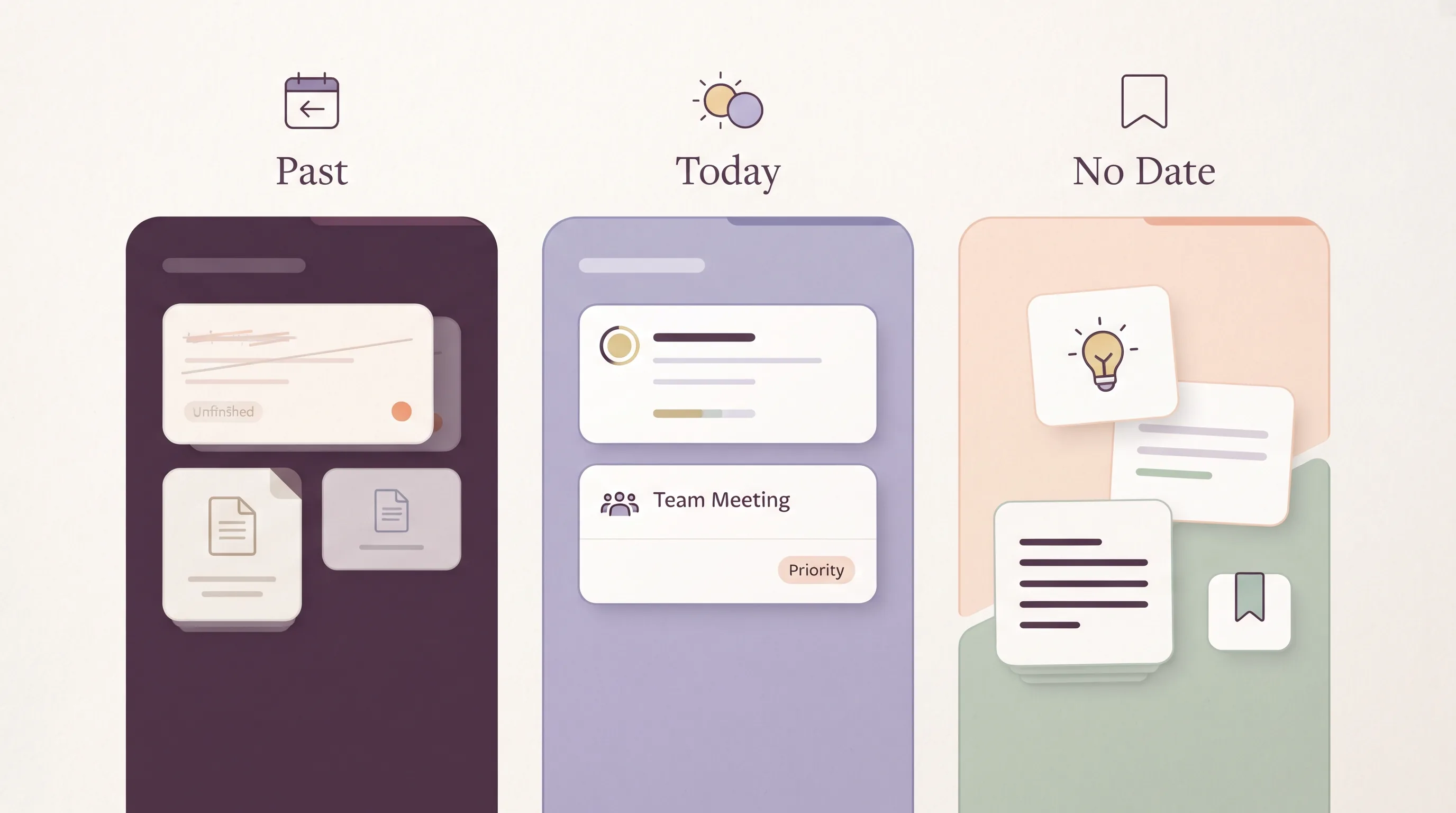
Treat the view as an inbox for decisions, not a scorecard. A due date is a planning signal. It is not a measure of effort, character, or importance.
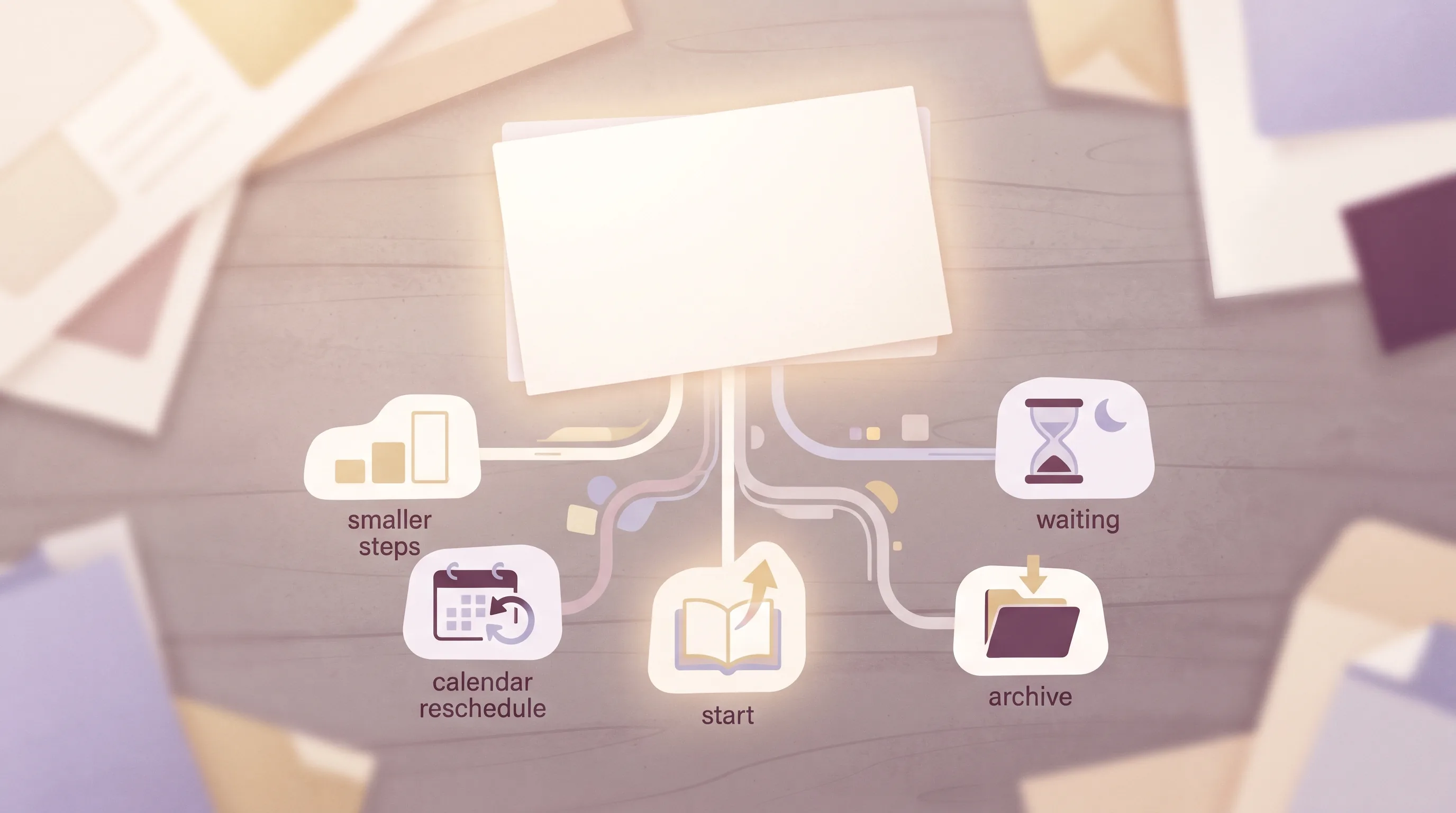
When you open the list, choose one action for each task:
- Do it: The task still matters and fits the time you have.
- Reschedule it: It matters, but the original date is no longer realistic.
- Break it down: The label is too broad to start. Write one next action, then set a date only if it needs one.
- Mark it waiting: Someone or something else must move first. Record what you are waiting for if that helps you follow up.
- Remove it: The outcome no longer matters. Archive or delete it according to how you keep records.
Use a short review cap if the list is long. Pick one task you can act on, make the decision, and return to your normal work view. You do not need to repair every old date before starting today's task. If the same items keep returning, see why Notion templates get abandoned for a small system check focused on reducing upkeep.
Clear out finished and irrelevant work first. Then choose from what's left. Sorting only by oldest date can put a stale, low-value task ahead of a current commitment. Sort for the decision you need to make, and keep the filter simple enough to explain to someone else.
What actually keeps the overdue view useful?
Keep one date field, one clear completion rule, and one place for tasks without dates. Review the filters when the view stops matching the way you work instead of adding another property to compensate.
Try a small check when the view feels wrong: create a temporary task dated yesterday, another dated today, one without a date, and one marked complete. See where each appears. Then delete the temporary records. This makes filter errors visible without changing real tasks.
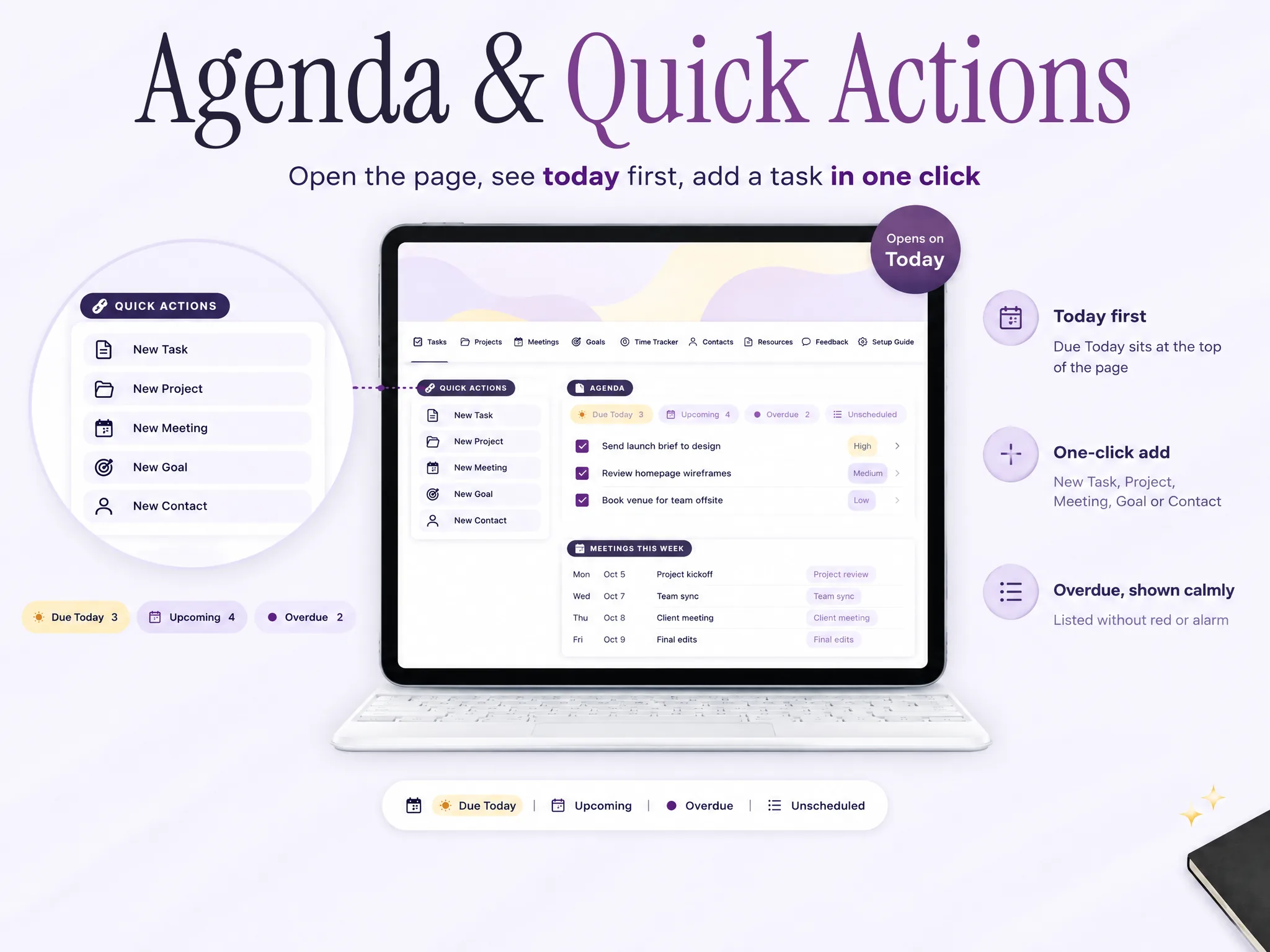
If tasks still feel buried, the problem may be the route back to current work rather than the filter itself. Put Due Today where you open the dashboard, keep Overdue as a separate review, and leave unscheduled work visible. A prepared Notion task workspace with Due Today, Upcoming, and Overdue views can be one option if you would rather start from a ready-made structure than build each view yourself.
Why trust this guide?
We checked Notion’s view, filter, advanced-filter, and database-property documentation on 2 November 2026. The setup is a practical starting point based on those documented controls. Notion can change its interface, so follow its current help pages if a menu has moved. The examples here are illustrative, not customer results. Our About page and editorial policy explain who publishes this guide and how we review it.
Where Notion Task Manager fits
Notion Task Manager is a prepared workspace for people who want task views and related work areas in one place. Its Home dashboard includes Due Today, Upcoming, and Overdue, with Unscheduled tasks kept separate. The linked areas include a Master Task List, Kanban Board, Eisenhower Matrix, Deadlines, and Time Tracker. The product works on Notion’s free plan and provides instant access.
The template is a starting point, not a rule for how to handle late work. You still decide whether to do, reschedule, break down, wait on, or remove a task. Review the Notion Task Manager contents if you want the dashboard and linked areas ready to adapt. Check the product page for current availability and terms.
Frequently asked questions
How do I make an overdue tasks view in Notion?
Make a view of your task database. Filter for a Due date before today and a Status that is not Done. Use an advanced filter when you have more than one completed status to exclude.
Should tasks due today count as overdue?
Usually not. A date-only filter set to before today keeps tasks due today in a Due Today view. For an exact deadline, include the time and timezone that tell you when it has passed.
Why are my overdue tasks not showing in Notion?
Check that it has a due date, that the filter uses the right property, and that its status is allowed. A task without a date cannot match a past-date filter, so give undated work its own view.
How do I hide completed tasks from an overdue view?
Add a Status filter such as Status is not Done. If your database has several ways to mark work complete, use an advanced filter to exclude them or group the active states together.
Can a Notion overdue view update by itself?
Yes. The filter compares the due date with today when the database view loads. It only changes which rows appear. It will not move a date, complete a task, or decide whether the work still matters.
What should I do with old overdue tasks?
Keep it if there is still a useful next action. Finish it, set a realistic new date, mark it as waiting, split it into a smaller step, or archive it if the work no longer matters.
Sources
Keep reading

Task Management
Notion Task Manager: What to Keep and What to Skip
notion task manager: Learn which task fields and views earn their place, what you can skip, and when a ready-made Notion setup makes sense.
· 8 min read

Task Management
Notion Task Database Setup: The Minimum Fields to Start
notion task database setup: pick fields that guide your next action, start with a usable task list, and add views when you need another way to review it.
· 10 min read
Task Management
Why Notion Templates Get Abandoned (and How to Fix Yours)
why notion templates get abandoned: find friction in setup, task capture, and upkeep, then reset your Notion task page without rebuilding it.
· 7 min read
