Notion Due Date Reminders: Set Alerts That Help
Notion due date reminders are set on individual date values. Learn how to choose an alert, check notification settings, and keep a useful task review.
By Notion Task Manager by Cosmo Suite · Editorial policy
Published · 8 min read
To receive an alert for a Notion task, set a reminder separately on its due date. A Notion due date reminder is an alert attached to a Date property. The property records the date; Remind sets when Notion should notify you. Check that Notion can reach you through the inbox, app, or email settings you use.
That difference matters when you scan a table or calendar. The date can be visible without an alert. Decide which deadlines need an interruption and which can wait for your next review.
Why a due date does not always alert you
A due date tells your task system when something is expected; a reminder tells Notion when to draw your attention to it. In a database, the Date property stores a date or range, and its date picker includes a Remind option. Adding or editing the date alone does not select an alert.
That matters when you import tasks, duplicate a row, or add dates in a hurry. The date may be correct while the reminder is still unset. If an important deadline has no alert, the task can remain in the database and never appear as a timely notification.
It also helps to keep reminders selective. A date is useful for sorting and reviewing work even when you do not need a notification. Reserve alerts for tasks where the timing itself should interrupt what you are doing, such as a meeting preparation step or a handoff due at a specific hour.
Notion due date reminders at a glance
Choose the date behavior based on what you want the task list to do.
| Need | Set up | What it gives you |
|---|---|---|
| Find work by date | Add a Date property | A value you can view, sort, or filter |
| Get a prompt | Choose Remind on that date | An alert at the time you select |
| See dated work together | Add a calendar view | A visual schedule of database items |
| Review without an alert | Filter a task view by date | A list to check when you choose |
The first column answers what you need from the system. A date field organizes work. A reminder adds a notification. A view helps you review a set of tasks. They can work together, but none replaces the others.
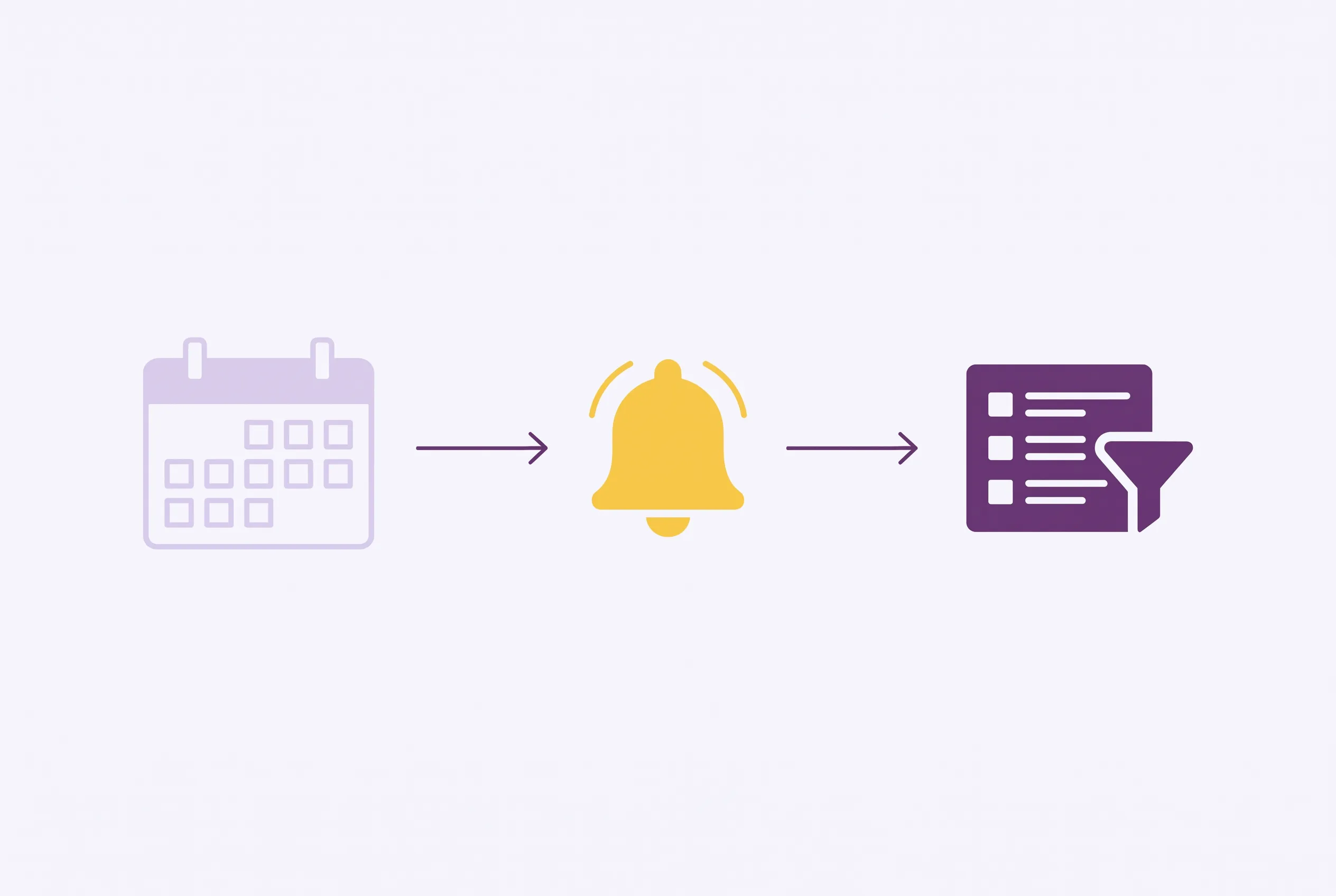
How to set a reminder on a Notion task
Open the task's Date property, choose the date and time if needed, then set the reminder from the date picker.
- Open the database row for the task.
- Select its Date property and choose the due date.
- If the deadline has a specific hour, turn on the time option and set the time zone shown in the date picker.
- Choose Remind and select when Notion should notify you, such as at the time of the event or before it.
- Save the date, then reopen it once to confirm the reminder is displayed.
The date and reminder are edited from the same date control. After changing a task's date, open the picker again and confirm the reminder timing you want. Notion's reminders guide describes the available date and time controls.
For example, imagine a task called “Send the review copy” due on a particular afternoon. If you need time to prepare, set an alert before that deadline. If you only need to remember the task during your next planning session, keep the date and leave the alert off. This is an illustrative setup, not a promise that a notification will replace checking your work queue.
If you are deciding which dates belong in the database in the first place, see how to build a lean Notion task manager. A due date helps when timing affects the next action; it adds upkeep when no one uses it to plan or review.
If you would rather adapt a prepared workspace than build the views yourself, review Notion Task Manager's task areas and dashboard before choosing a setup.
Choose reminder timing by the action
Set the alert around the action you need to take, not just the date printed on the task. A deadline at the end of a day may need an earlier prompt if the task requires preparation. A scheduled event may need a short reminder close to its start. A flexible task may need no notification at all.
| Date situation | Useful question | Possible choice |
|---|---|---|
| Fixed meeting or handoff | When must I begin preparing? | An alert before the event |
| Work due by end of day | Do I need a prompt during work hours? | A time-based alert, if useful |
| Flexible task | Will an alert change what I do? | Keep the date and review it in a view |
| Date range | Which point needs attention? | Confirm how the range and reminder are represented |
Treat these as starting points and adjust them to the work and your schedule. If an alert arrives too early, too late, or outside your working hours, change it or use a review view you check at a predictable time.
Check whether notifications can reach you
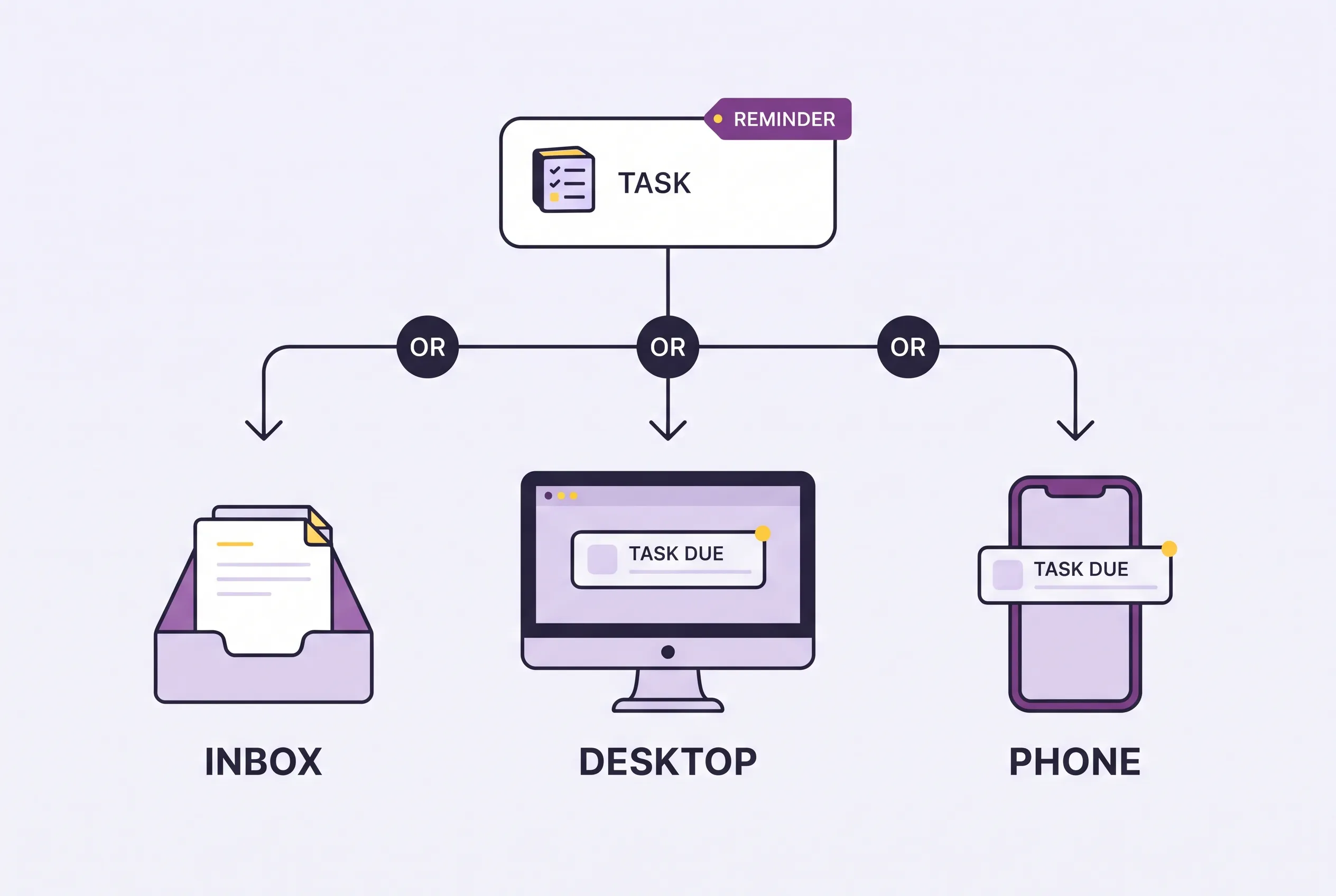
A reminder can be set correctly and still be easy to miss if you do not check the place where it appears. Notion shows reminders in Inbox. Its notification guide says delivery can also include push notifications and email, depending on whether Notion is open and on your settings. If the app is open on a computer or phone, Notion's help page says you may see the Inbox badge without a push or email alert. When the app is closed, push or email may arrive.
Before relying on an alert for an important task, check the notification settings on the devices you use. Confirm that Notion has permission to send notifications on your phone or computer, and review Notion's own notification options. If you use Inbox filters, make sure Updates are included so reminders are visible there.
Test one low-stakes reminder at a time you can observe. Confirm where it appears on the devices you use. For current behavior, see Notion's notification settings guide and Inbox and notifications guide.
Keep routine tasks in a view
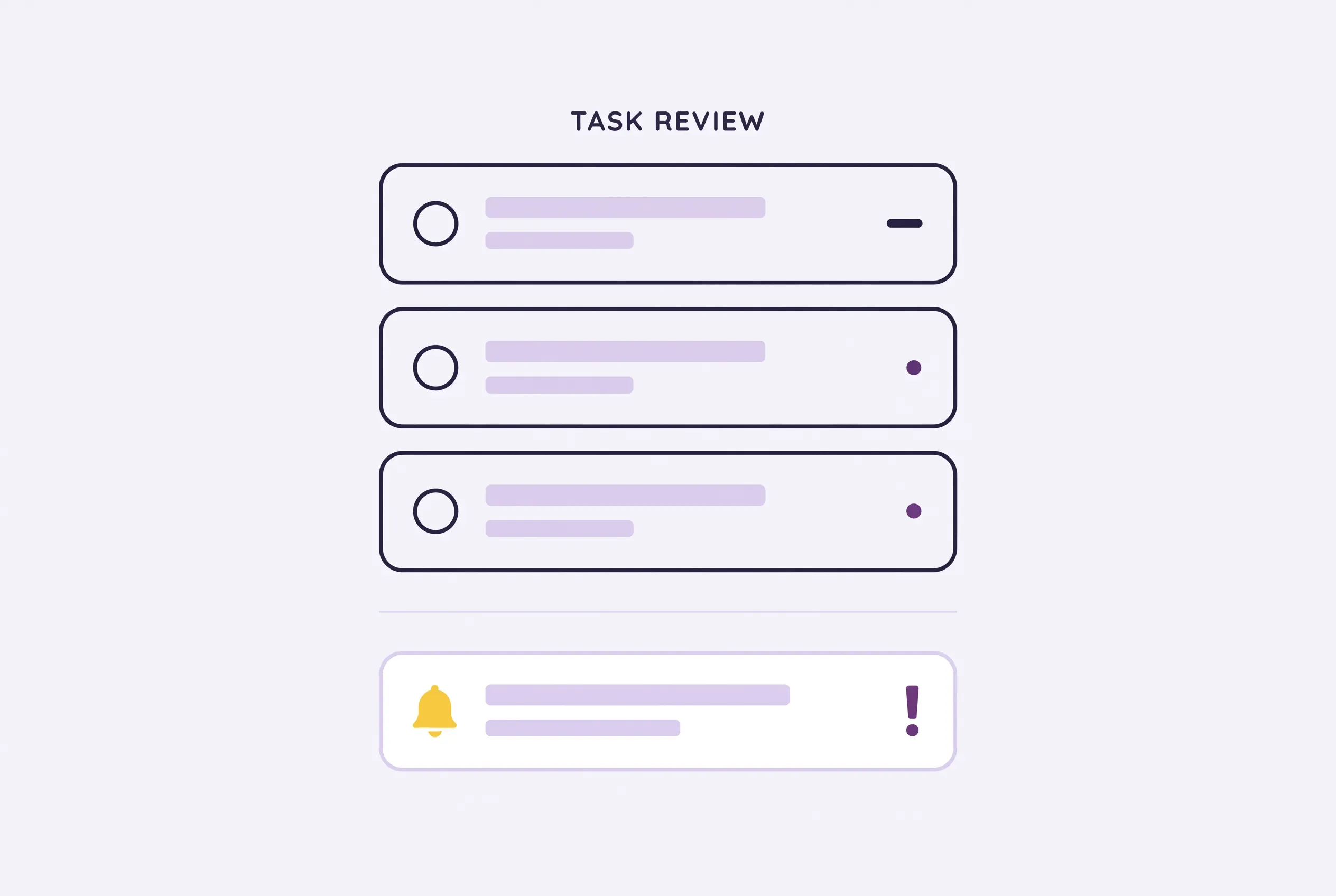
Use a filtered view when you want to see dated work without receiving a separate alert for each task. A Today view can show tasks due on the current date, while a deadline view can help you scan upcoming work during a planned review. The list stays available without interrupting you whenever an individual date arrives.
Suppose a small team has tasks to prepare meeting notes, send a draft for review, and renew an access certificate. The meeting note and draft can sit in the daily review. The certificate renewal may need an alert because missing its date changes what the team must do. These task names are examples; decide whether each item needs a notification or simply needs to appear in a date-based list.
You can start by making a Notion Today view and checking whether its date filter matches your working day. If a task belongs in the view but does not need to interrupt you, leave its reminder unset. If a notification should pull you back at a particular time, set it on that task's date.
What Notion reminders do not handle for you
Notion reminders are attached to dates you set. They do not decide which work is urgent, and a date property by itself does not guarantee that a notification is configured. You still need to choose the reminder for each task that needs an alert and keep the task's date current.
Notion's help page currently says recurring reminders are not available. A recurring task and a recurring reminder are different jobs: one creates or represents repeated work, while the other sends an alert on a repeating schedule. If you need an alert every week, check current Notion options before relying on a workaround. A repeating task template alone should not be assumed to create a repeating notification.
Reminders also do not confirm that the work is complete. Mark the task's status when its state changes, then use a date or status view to see what remains. A notification can bring a task back to your attention; it cannot tell whether the task is still relevant or what to do next.
What makes a reminder routine dependable
Use one short check when you add or change a time-sensitive task: confirm the date, confirm the alert, and confirm where you will see it. This catches the common gap between recording a deadline and arranging a prompt.
Keep the task title action-based so the alert makes sense when it appears. “Send the review copy” gives more context than “Review.” Add a time only when the work has a meaningful hour. If the date is tentative, note that in the task and avoid treating the reminder as a confirmed appointment.
Then review the task list on a schedule that suits the work. A filtered view can support a regular check; a reminder can cover the dates that should reach you outside that check. Notion Task Manager's prepared workspace includes a linked Deadlines page for readers who want a ready-made place to review dated work.
Why Trust This Article
We checked Notion's public help pages for date properties, reminders, and notification settings on 7 November 2026. The setup steps describe the controls in those guides. Menu labels can change, so check Notion's current help page if your workspace shows a different control. Read about Notion Task Manager for publisher information, use the contact page to report a correction, and see the editorial policy for how we check sources and product details.
Where Notion Task Manager fits
Notion Task Manager includes a Home dashboard with Today, This Week, and This Month views, plus linked pages for the Master Task List, Kanban Board, Eisenhower Matrix, Deadlines, and Time Tracker. The Deadlines page can provide a place to review dated tasks. It does not remove the need to set a reminder on a specific date when you want an alert.
If you want a prepared Notion task workspace with a separate Deadlines area, review Notion Task Manager's included pages and decide whether that layout suits your review habits. The template describes its included structure; you choose what to use and keep its dates current.
Frequently asked questions
Does adding a due date automatically remind me in Notion?
No. A date value and a reminder are separate choices. Open the date value, choose Remind, and select when to be notified.
How do I set a reminder on a Notion task?
Open the task's Date property, set the date and any time, then choose Remind and select the alert timing. Check the date and time zone before saving.
Can a Notion reminder notify another person?
A database date reminder is for the person who sets it. To remind another person in a page, Notion's help guide says to mention them in the same block as the reminder.
Can Notion send recurring task reminders?
Notion's reminders guide says recurring reminders are not currently available. A recurring task setup and a repeating notification are separate needs, so verify current options before building a workaround.
Where do Notion reminders appear?
They appear in Notion Inbox. Push and email delivery depends on whether Notion is open and on your notification settings. If it is open, Notion says you may see only the Inbox badge.
Should I set reminders for every task?
Usually, set alerts for deadlines that need an interruption at a particular time. Use a Today or deadline review for ordinary tasks, so you can see the list without receiving an alert for every date.
Sources
Keep reading
Task Management
Notion Task Manager: What to Keep and What to Skip
notion task manager: Learn which task fields and views earn their place, what you can skip, and when a ready-made Notion setup makes sense.
· 8 min read
Task Management
Notion Today View: Show the Right Tasks Each Day
notion today view: make a clear task list with a relative date filter, one status rule, and checks for missing or undated tasks before you rely on it.
· 8 min read

Task Management
Notion Team Task Manager: One Shared Task List for a Small Team
Notion team task manager setup for a small team: one shared database, an Assignee property, personal views and the Free plan limits to check first.
· 9 min read
