Notion New Task Button: Add Tasks With One Click
Set up a Notion new task button to add a database task with useful defaults, then check permissions and plan limits before relying on it.
By Notion Task Manager by Cosmo Suite · Editorial policy
Published · 8 min read
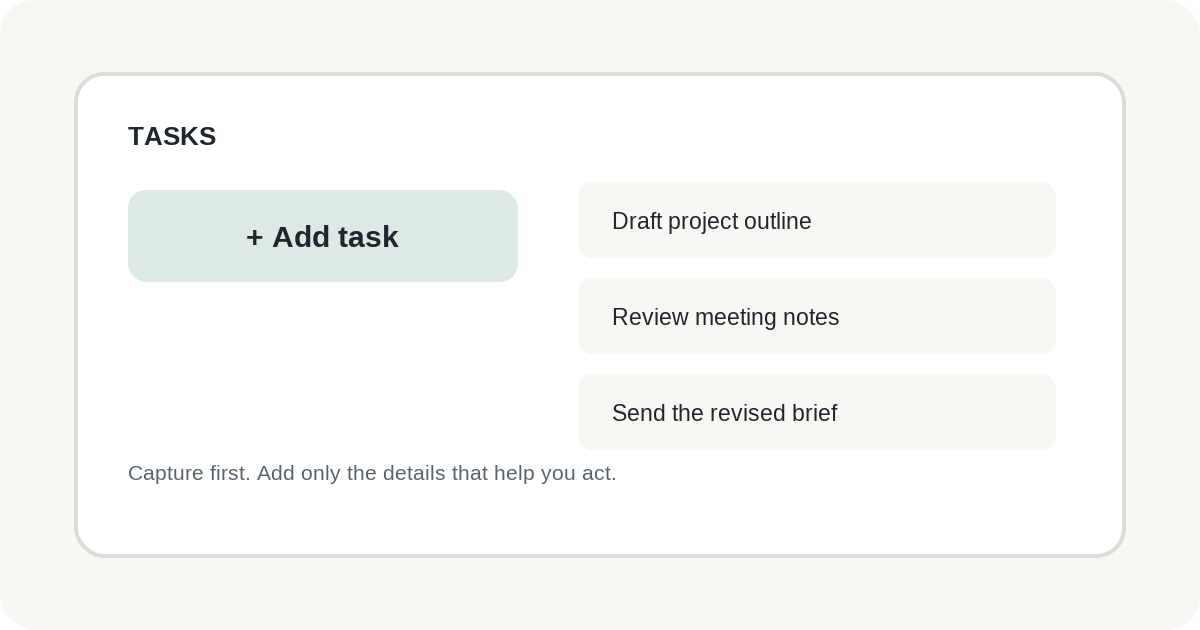
A Notion new task button is a Notion button configured to create a page in a task database, often with selected property defaults. Use it to reduce repeated setup, then keep its defaults limited to details that are true for most new tasks.
Key takeaways: Choose a database button for an action tied to a row, or a page button for a shared capture point. Use Add page to to create the task, set only dependable defaults, and test the result with a sample. Notion says buttons are available on all plans, though some actions require a paid plan.
There are two common placements: a Button property inside a database, or a page button on a dashboard. Both can use an Add page to action. The difference is where the button lives and what information is already in context when you click it.
What Does a Notion New Task Button Do?
A Notion button runs one or more actions after a click. For task capture, the useful action is Add page to: it creates a new page in a database you select and can set properties on that page. A database button is a property on each database row; a page button is a button block you can place on a page.
A button isn't a database template. A template gives a new page a prepared layout or starter content. A button runs an action, such as adding a page to a chosen database. You can combine them: let the button create the task and the template shape its page.
Notion's current instructions describe database buttons as available on all plans, with some actions limited to paid plans. Review the plan note in Notion's database button guide before you build around an action. The guide also notes that permissions on the destination database affect whether an action can add or edit a page.
How Do You Add a Button Property to a Task Database?
Add a Button property when you want each row in a database to expose an action. For example, a project row could have a button that creates a related task. For a simple “add task” control, a page button on a dashboard may be easier to find.
To add a database button:
- Open the database and its property controls.
- Choose New property, then choose Button.
- Give the button a short label, such as “Add task.”
- Open Edit automation, then choose New action.
- Choose Add page to and select the task database.
- Set only the properties that should be true for every page created by this button.
- Save the automation and click the button once to check its result.
The labels can change as Notion updates its interface. Its database buttons help page has the current steps and lists other actions, including editing a property on the current page.
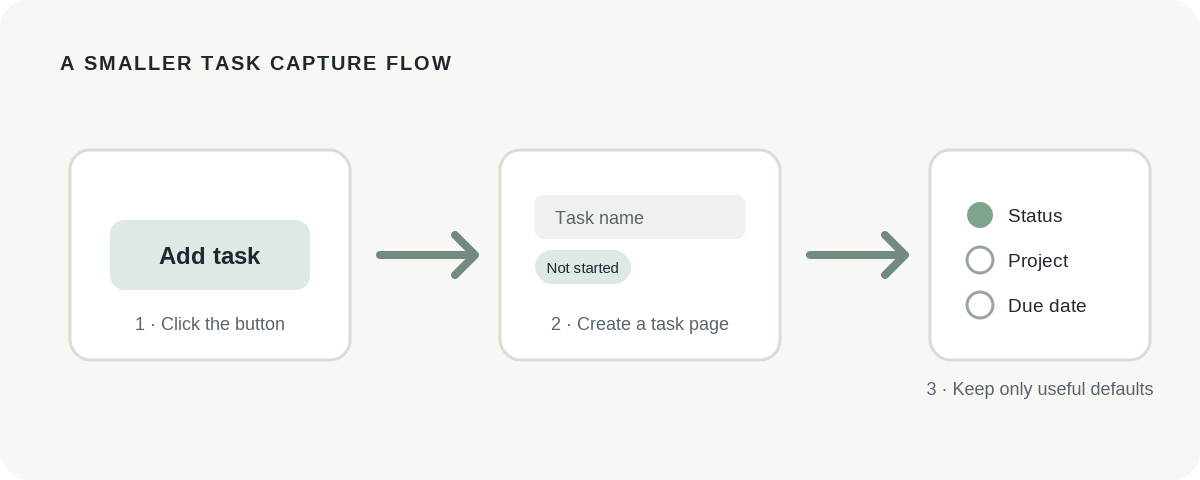
A task button should create the record in the task database, then apply only defaults you intend to keep.
If the button belongs on a project record, choose the task database as the destination and consider setting the new task's project relation to the current project. That makes sense only when the task should inherit that project. For a general capture button on a home page, leave the project blank unless every task truly belongs to the same project. If you are deciding which fields belong in your task list, start with the basics of a Notion task manager.
For example, a “Create project task” button on a project page can add a row to the central Tasks database and set its Project relation to the current project. A general “Add task” control on your Home page should usually leave that relation empty. This keeps the button useful in both places without assigning unrelated work to the wrong project.
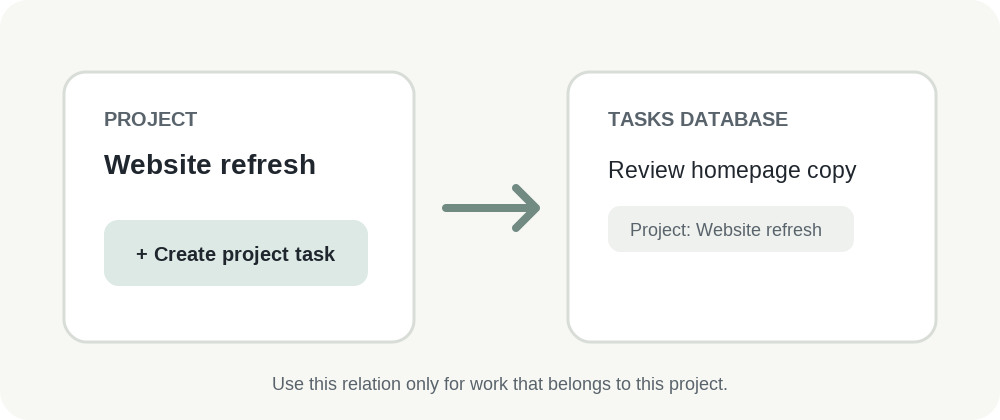
A project-specific button can pass the current project's relation to the new task.
How Do You Put a Task Button on a Dashboard?
Use a page button when you want one capture point outside a database. Add a button block from Notion's slash menu, name it “Add task,” and configure its actions to add a page to your task database. The Notion buttons guide explains page buttons and their actions.
Keep the button near the place where you notice and record work. If you use a Home page, place it beside the task views you review. Make its label describe the outcome. “Add task” is clearer than “Run” or “Create,” because it says what will happen before the click.
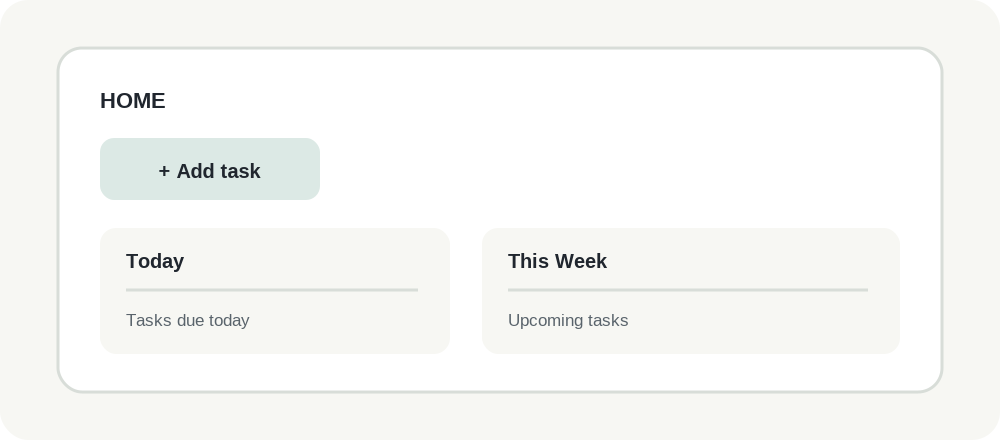
Keep a page button beside the views where you review newly captured work.
You can add more than one action, but start with one. For example, add the task page first. Add a second action only if it reliably improves capture, such as opening the new page for immediate editing. Check the result after each change so a second action does not make the flow harder to understand.
Which Defaults Should the Button Set?
Set a default only when it is valid for most tasks created from that button. A short title prompt or a “Not started” status can help you get an item into the system. A fixed due date usually needs more care because many tasks have no deadline.
| Property | Useful default | Leave it blank when |
|---|---|---|
| Status | A neutral starting state such as Not started | Your workflow needs a different state at capture |
| Project relation | The current project, when the button is on that project page | The button captures tasks across unrelated work |
| Due date | A date only when it follows a clear rule you intend to use | The task needs its own deadline or has no deadline |
| Priority | A neutral value, if your process requires one | You decide priority during review |
| Task name | A clear prompt or editable starter name | You need to write the task in your own words |
Aim for a quick first capture and add context when you review the task. Don't assign arbitrary values just to make every property look complete.
If tasks also need project context, the Notion project management template guide explains when a project relation is useful and how a linked task view can keep that work visible.
For a status workflow, keep the button's starting status aligned with the labels your database already uses. The guide to setting up a Notion task status property covers the difference between a status field and a select field.
If you already have a task database, check its existing property types before configuring the button. Notion's database properties reference lists the available properties and their behavior. A button action must set values that match the destination property's type.
How Can You Test the Button Safely?
Test the automation with a clearly named sample task before using it for real capture. Confirm that the page appears in the intended database and that each default property has the value you expected.
Use this short check:
- Click the button once and open the created task.
- Confirm it was added to the correct database.
- Check the title, status, relation, and any other property the button sets.
- Change one property on the test page and see whether it appears in the views where you expect.
- Remove the sample when you finish checking it.
If no task appears, check that you chose the right destination database and have permission to edit it. Notion's database button guide says page and database permissions can block an add or edit action. Also check whether your plan includes the action you chose.
If a task appears with the wrong values, edit the automation rather than adding more properties to the database. A button is easiest to maintain when it has a small number of predictable actions.
When Is a Button Better Than a New-Page Shortcut?
Use a button when each new task should be created in a specific database with repeatable defaults, or when it should be related to the page where you clicked. Use the regular New control when you want Notion's standard page creation behavior or need to choose a template each time.
If you capture tasks from several places, a dashboard button can send them to one central database. A button on a project page can add tasks in that project context. When you create tasks from unrelated pages, make sure you still know where each one belongs.
Keep the database itself easy to review after capture. A button cannot decide which task is most important, supply missing context, or maintain a workflow for you. Use a clear task name and add only the fields that change how you act.
Where Notion Task Manager Fits
Notion Task Manager includes a Home dashboard with Today, This Week, and This Month views, plus a Master Task List, Kanban Board, Eisenhower Matrix, Deadlines, and Time Tracker. The published contents do not list a custom new-task button, so treat the button steps above as a Notion setup you configure yourself.
If you want to compare a prepared task workspace with your own setup, review the Notion Task Manager details. It works with Notion's free plan; check the product page for current terms and included contents before choosing it.
The prepared workspace gives you a Home dashboard, Master Task List, and separate views for time, deadlines, and task status. You can adapt those areas to the way you capture work, then add a button in your own Notion workspace if that would make the process easier. See the Notion Task Manager overview for the included contents.
Why Trust This Guide?
The setup steps and plan note come from Notion's database buttons documentation, its page buttons documentation, and the database properties reference, checked on 15 November 2026. Button labels and plan availability may change, so check Notion's current help pages if your workspace shows different controls. The sample uses generic task fields, not customer data. Read the site's editorial policy for its sourcing and review approach, visit About Notion Task Manager for product context, or use the contact page for questions.
Frequently asked questions
How do I make a button that creates a task in Notion?
In a database, add a Button property, open Edit automation, add the Add page to action, choose your tasks database, set any useful default properties, and save. You can also add a page button from the slash menu and configure an Add page to action.
Can a Notion button create a new database page?
Yes. The Add page to action creates a page in a database you choose, and you can set properties for that page as part of the action.
Can I add a task button outside a database?
Yes. Notion supports page buttons that you add from the slash menu. Configure the button action to add a page to your task database, then place the button where you capture work.
Are database buttons available on the Notion free plan?
Notion says database buttons are available on all plans, while certain actions are paid-plan features. Check Notion's current plan details for the specific action you want to use.
Why does my Notion task button fail to add a page?
Check that the button's destination is the intended database and that the button has permission to edit the destination. The destination page or database also needs to be available rather than private or shared in a way that blocks the action.
Should a task button set a due date automatically?
Only set a date when it reflects a real deadline or a deliberate review rule. A button that assigns every task the same arbitrary date can make date views less useful.
Sources
Keep reading
Task Management
Notion Task Manager: What to Keep and What to Skip
notion task manager: Learn which task fields and views earn their place, what you can skip, and when a ready-made Notion setup makes sense.
· 8 min read

Task Management
Notion Team Task Manager: One Shared Task List for a Small Team
Notion team task manager setup for a small team: one shared database, an Assignee property, personal views and the Free plan limits to check first.
· 9 min read
Task Management
Free Notion Task Template: What You Actually Get
Notion task template free: what a free template includes, which Free plan limits break one, and a ten-minute test to run before you duplicate.
· 11 min read
