How to Set Up a Notion Timeline View for Deadlines
Notion timeline view for deadlines: choose a date range, set the scale, and filter projects so upcoming work is easier to scan at a glance.
By Notion Task Manager by Cosmo Suite · Editorial policy
Published · 7 min read

A Notion timeline view for deadlines puts dated database items along a calendar axis, so you can see overlapping project work and where each span ends. It needs a date property with a range, or separate start and end properties. This guide covers the setup, the settings that help with deadlines, and what to check if the timeline looks empty. Notion's timelines help page lists the menu labels used here.
If you prefer a prepared workspace, Notion Task Manager's project timeline is one option to compare with a setup of your own.
Key Takeaways
- A timeline is a view of a database, so the dates must exist in the database first.
- Give each item a date range, or use separate start and end properties.
- Add the view with +, then Timeline, and choose the date property in Layout.
- Show the table on the left, sort by date, and filter out finished work.
- When the timeline is empty, check the date, the chosen property, the filters and the load limit.
What Does a Notion Timeline View Show?
A timeline view shows duration and milestones across a calendar axis. It is another view of the same database records. Notion's views, filters and sorts guide explains how views change the way you see a database. A table lists values in rows; a timeline places them on a date axis.
The table below compares the two for common deadline questions. Treat it as a recommendation for choosing a view, not as a tested result.
| Question | Table view answers it by | Timeline view answers it by |
|---|---|---|
| Which items overlap? | Comparing date values row by row | Showing bars that sit above each other on the axis |
| How long is each item? | Reading a start and end value | Drawing a bar from start to end |
| What is due next? | Sorting by the due-date property | Showing the date span, with the due-date property in the table beside it |
| What are the exact values? | Showing every property in a column | Showing the properties you choose beside the bars |
Keep the table for edits and exact values. Use the timeline when you need to see how project spans overlap.
What Does Your Database Need Before the Timeline Works?
Your database needs a date property with a range, or separate properties for the start and end. Without a date value, the timeline has nothing to place. This is the first thing to check when a new view looks empty.
Beyond the dates, a few properties make a deadline timeline easier to use. These are suggestions, not requirements:
- A status property, so finished work can be filtered out.
- An owner or assignee, so you can see who holds each bar.
- A project relation, so tasks can be grouped under the project they belong to.
If you have no database yet, the Notion task database setup guide lists the minimum properties to start with. If tasks and projects live in separate databases, the Notion project management template post explains how to link them. Notion's database guide also shows how a Date property fits into a task database.
Task Dates and Project Dates Are Different Spans
A task date and a project date answer different questions, so decide which one each timeline is for.
- A task date span is the window in which one piece of work happens. It usually starts when work begins and ends on that task's due date.
- A project date span covers the whole project. It starts around the earliest work and ends at the project deadline.
If the deadline marks the end of the work span, one range property is enough. If the deadline is fixed and the work window can change, keep them in separate properties. Use a range for the work and a separate Due date for the deadline. Then choose the date property the timeline should use under Show timeline by. Try the setup on a few records before moving the rest of your work.
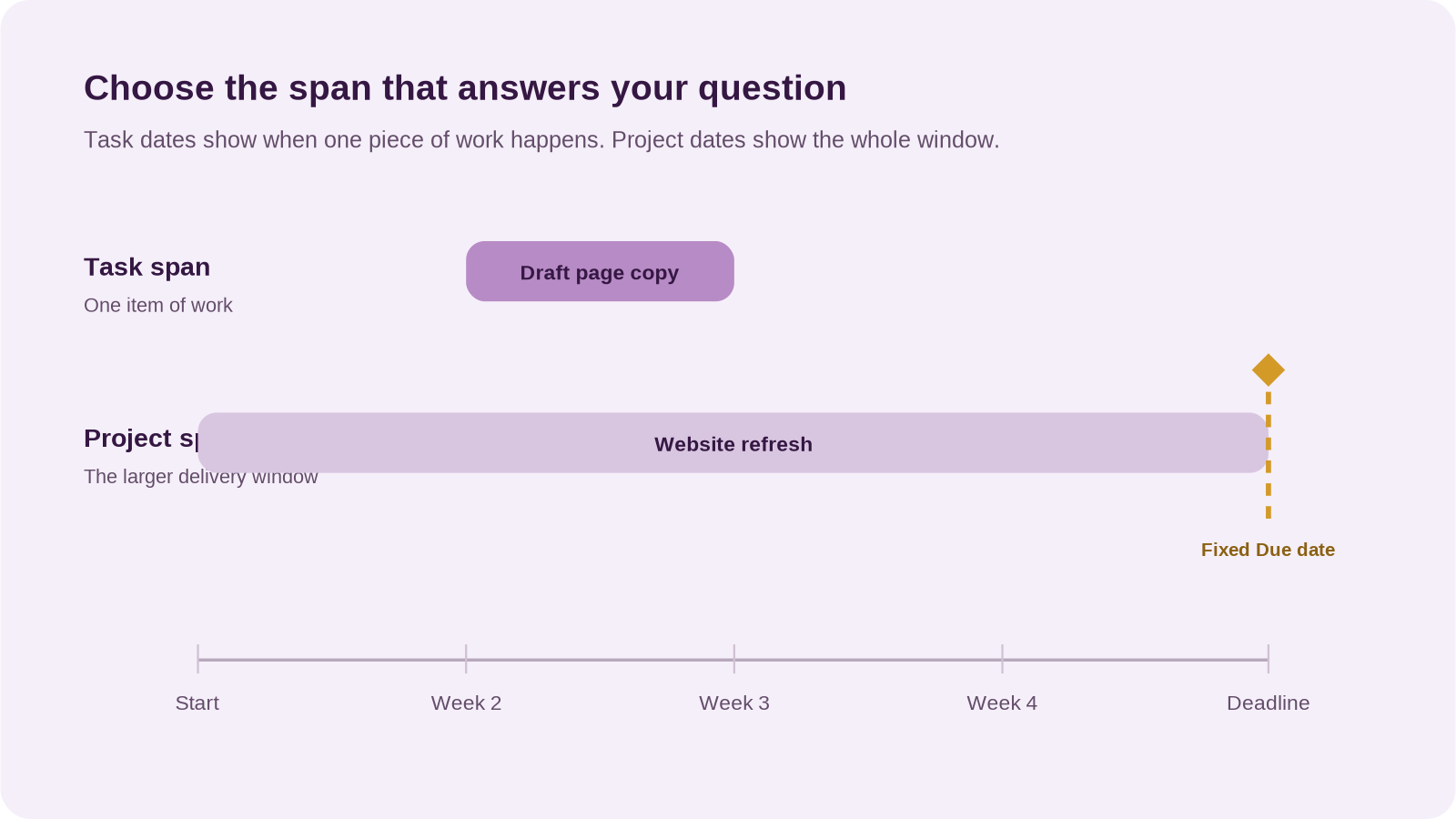
The graphic is an illustration of the two spans, not a screenshot.
How Do You Add a Timeline View and Pick Its Date Property?
Open the database, click + next to the existing view tabs, and choose Timeline. Then open Layout and confirm the date property under Show timeline by. Notion's interface may change, so check the timelines help page if a label looks different in your workspace.
- Open the database that holds your project items.
- Click + next to the existing view tabs.
- Choose Timeline.
- Open Layout and check Show timeline by. Pick the single range property, or choose separate start and end properties.
- Choose a time scale that fits the project. The help page describes scales from hours to years.
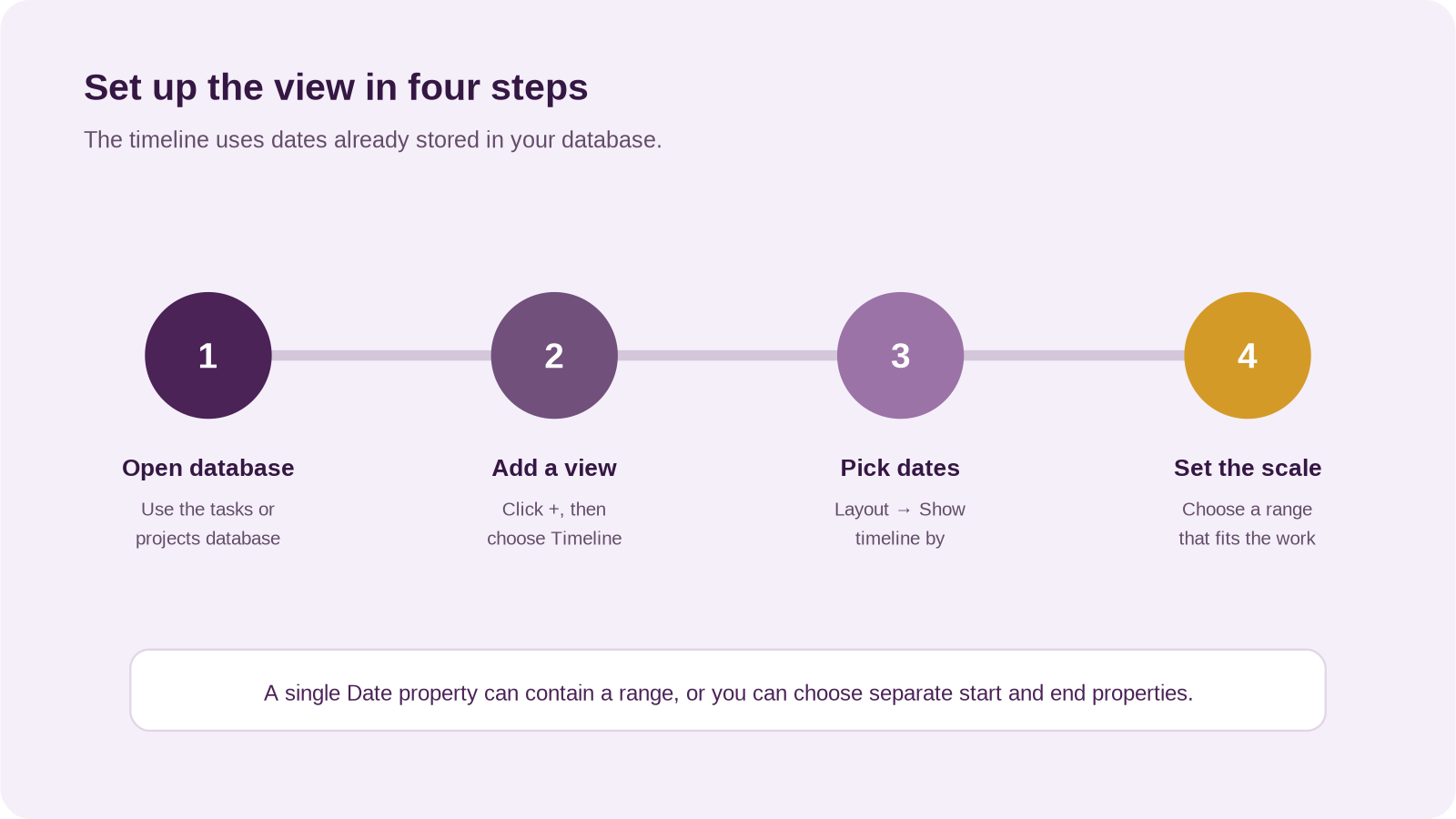
This setup illustration is not a screenshot.
Use a finer scale for a short project and a coarser one for a longer project. If the bars are hard to distinguish, adjust the scale until the span is easy to read.
| Setting | Where it lives | What it changes |
|---|---|---|
| Show timeline by | Layout | Which date property, or start and end pair, places each bar |
| Time scale | The timeline itself | How much time the axis covers, from hours to years |
| Property visibility | Layout | Which properties appear on the bars and in the table |
| Table on the left | The >> or << control on the left |
Whether the database table sits beside the bars |
| Load limit | Layout | How many items the view loads |
How Do You Make the Timeline Easy to Read for Deadlines?
Show the properties you need, put the table on the left, sort by date, and filter out finished work. This keeps the table beside the bars as a compact deadline list.
Show names and due dates beside the bars. Under Layout, use Property visibility to choose which properties appear. A name, an owner and a due date are often enough. Use the >> control at the left to show the table beside the bars.
Sort and filter for the nearest deadline. Sort by the date property so the nearest deadline is at the top. Then add a filter on status to hide completed items. Keep the status options simple enough that you can update them when work changes.
Set a load limit for large databases. If the database holds many items, adjust Load limit under Layout, or add a filter so fewer items load. A smaller set is also easier to read.
You can keep several timelines on one database. A This month view and an All project work view can use the same records with different filters and sorts. A third view for Not started items works the same way. Notion's views guide explains how those settings apply to each view.
What Does a Worked Example Look Like?
Here is an illustrative example. The project and dates are invented for demonstration and are not customer data or a test result.
Imagine a project called "Spring website refresh" with a launch deadline. Each task is a row in one database, with a name, status, owner, work date range, and a separate Due date for the fixed deadline.
| Item | Work span | Due | Status |
|---|---|---|---|
| Write page copy | Week 1 to week 2 | End of week 2 | In progress |
| Design the layout | Week 1 to week 3 | End of week 3 | In progress |
| Build the pages | Week 3 to week 5 | End of week 5 | Not started |
| Final review | Week 5 to week 6 | Launch day | Not started |
On the timeline, the copy and layout bars overlap in the early weeks. If the same owner holds both tasks, that overlap is easy to spot and review. The build bar starts as the layout bar ends. The final review bar ends on launch day, the Due date.
To use it, set Show timeline by to the work-span property. Show the Due property in the left table, sort by it, and filter out anything with a finished status. For a weekly check, make a second view filtered to the current month. The full-project timeline stays as the overview.
Why Does Your Timeline Look Empty or Wrong?
Start with the date, then check Show timeline by, the view filters, and the load limit. These settings explain most blank or incomplete timelines.
| Symptom | Likely cause | Fix |
|---|---|---|
| Nothing appears | No date property with a range, or the wrong property chosen in Show timeline by | Add a date range property and select it in Layout under Show timeline by |
| An item is missing | Its date is blank, or a view filter hides it | Fill in the date, or check the view's filters |
| Too many items | A large database | Adjust Load limit or add a filter |
| Bars too thin or too wide | The scale does not fit the project length | Change the time scale |
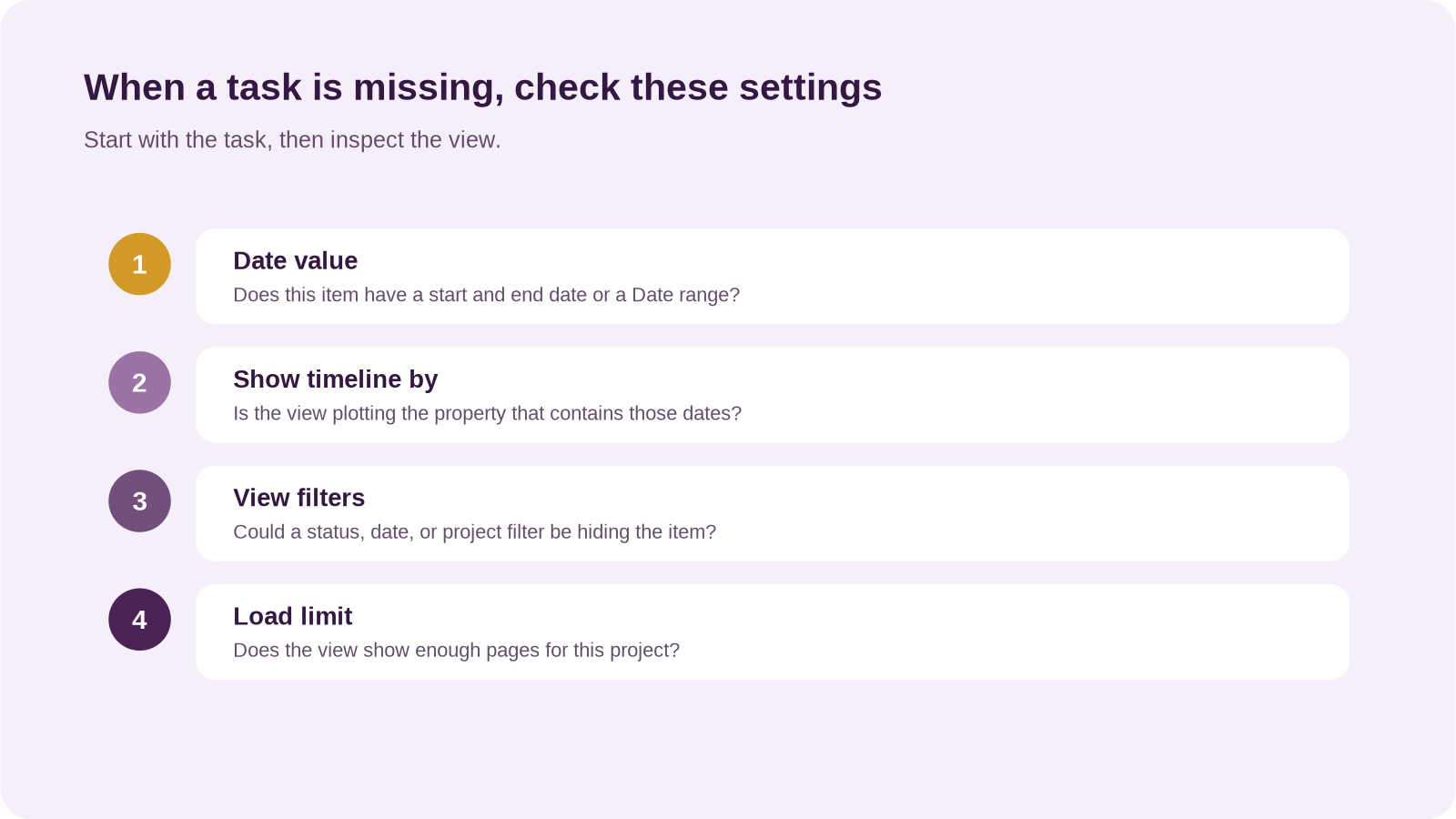
This checklist is an illustration, not a screenshot.
When Does a Ready-Made Project Timeline Save Setup Time?
If you do not want to connect the properties and view yourself, a prepared workspace can save that setup. Notion Task Manager includes a project timeline. You still choose which dates to enter and how to filter the view.
If you are comparing options, the Notion Task Manager overview explains what a task manager in Notion needs. You can also review what the template includes before you decide whether it fits.
Why Trust This Article
We checked Notion's help pages for timelines, database views and databases on 2026-11-16. The menu paths in this guide come from those sources. The example uses fictional project details, and the images are AI illustrations rather than screenshots. This guide does not cover plan limits, mobile behaviour or dependency arrows. Read About us for information about the publisher, use the contact page to report a correction, and see the editorial policy for how we prepare and check articles. Notion can change its interface, so check the help page if a label has moved.
Frequently asked questions
What does a Notion timeline view need before it can show anything?
A Notion timeline needs a Date property with a range, or separate start and end date properties. If the selected property is blank for a task, Notion has no span to place on the timeline.
Can I use separate start and end properties?
Yes. Open the database settings and choose Layout, then Show timeline by. Select the start and end properties that mark the span. If the due date differs from the end of the work, keep it visible in the table.
How do I change the time scale of a Notion timeline?
Use the time unit menu on the right side of the timeline, just left of Today. Notion's help page lists scales from hours to years. Choose one that shows the project clearly and keeps shorter work spans easy to see.
How do I stop a large database from overloading the timeline?
Open the database settings, choose Layout, and adjust Load limit to set how many pages appear. You can also filter the view to the projects you are reviewing. That changes what you see in this view; it does not remove database records.
Can the same database have a table view and a timeline view with different filters?
Yes. One database can have multiple views, each with its own filters and sorts. For example, keep one full project timeline and another filtered to work due this month. Both use the same records, so you can avoid maintaining duplicate task lists.
Why is a task missing from my Notion timeline?
Check that the task has a date in the property selected under Show timeline by. Then review the view's filters and Load limit. A blank date, a different property selection, or an excluding filter can hide the task.
Sources
Keep reading

Task Management
Notion Task Manager: What to Keep and What to Skip
notion task manager: Learn which task fields and views earn their place, what you can skip, and when a ready-made Notion setup makes sense.
· 8 min read

Task Management
Notion Task Database Setup: The Minimum Fields to Start
notion task database setup: pick fields that guide your next action, start with a usable task list, and add views when you need another way to review it.
· 10 min read

Task Management
Notion Team Task Manager: One Shared Task List for a Small Team
Notion team task manager setup for a small team: one shared database, an Assignee property, personal views and the Free plan limits to check first.
· 9 min read
